comScore, Inc. · NASDAQ:SCOR
comScore — Conference Presentation (May 2012)
28 slides from comScore's conference presentation, May 2012
Slide 1: Digital Analytix May Release
Digital Analytix May Release A New Approach to File Management
Slide 2: Contents
Contents Current Process New Process Walk Through © comScore, Inc. Proprietary. 2
Slide 3: File Management
File Management © comScore, Inc. Proprietary. 3
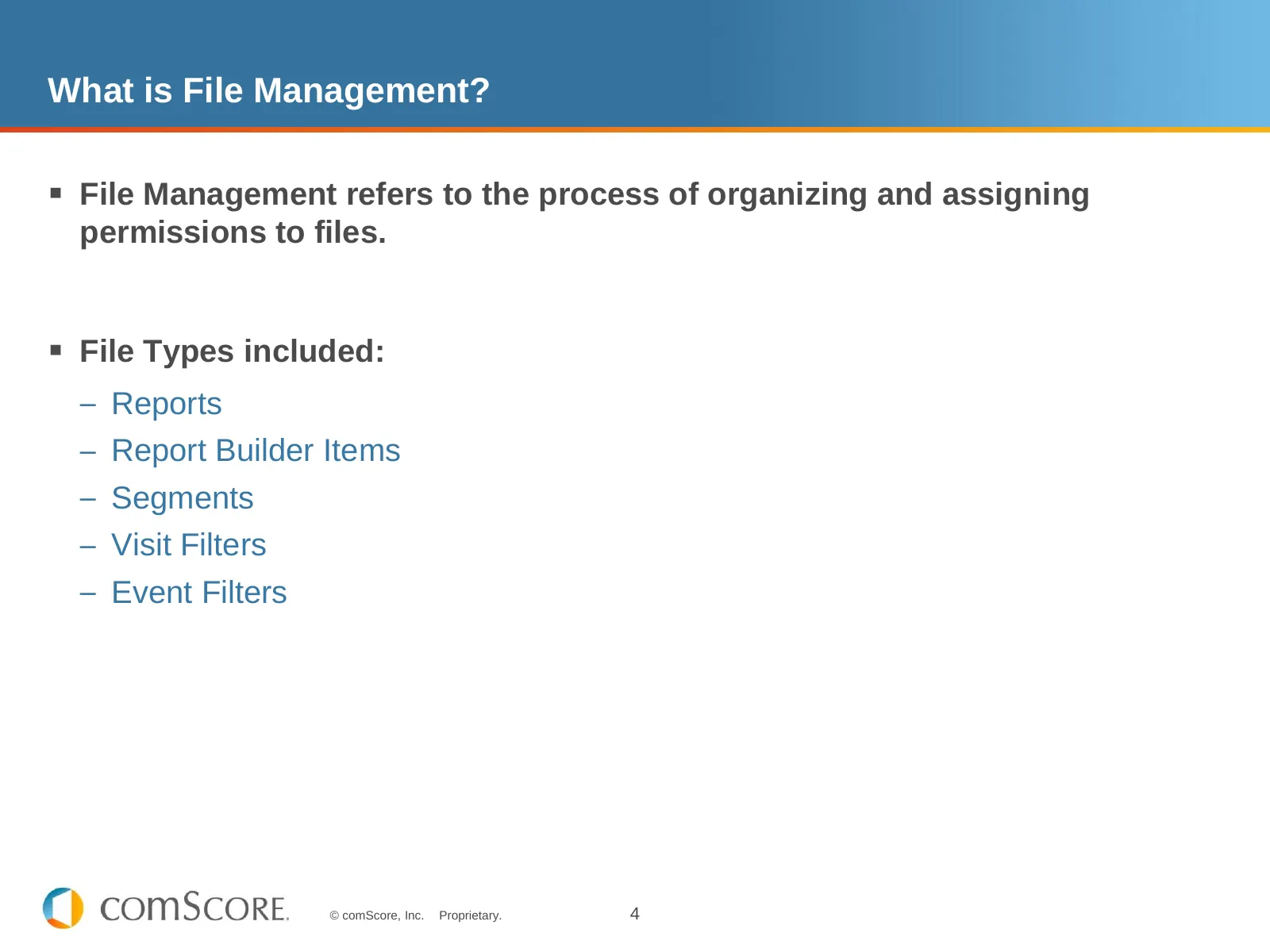
Slide 4: What is File Management?
What is File Management? File Management refers to the process of organizing and assigning permissions to files. File Types included: – Reports – Report Builder Items – Segments – Visit Filters – Event Filters © comScore, Inc. Proprietary. 4
Slide 5: Current File Management
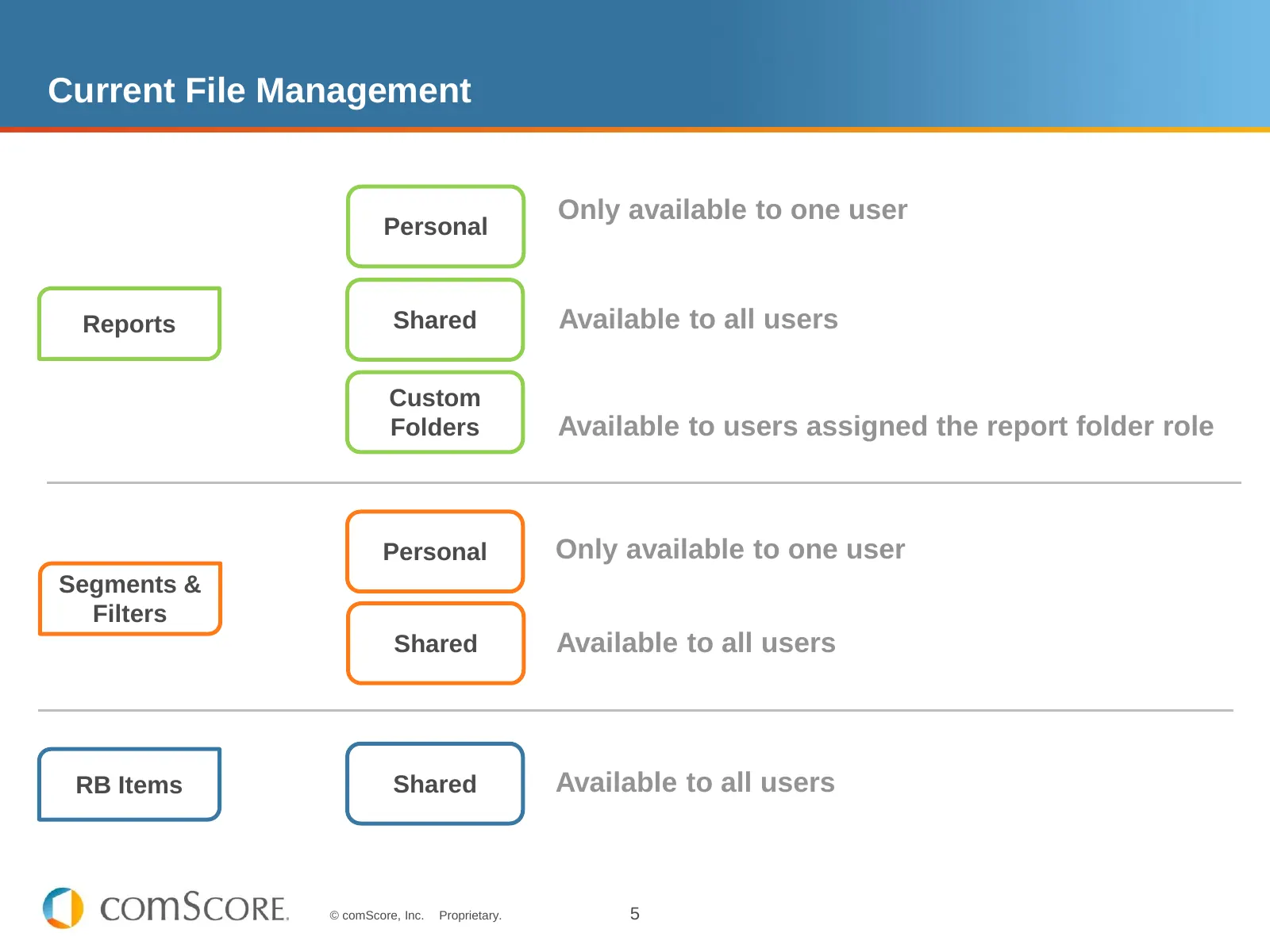
Current File Management Only available to one user Personal Reports Shared Available to all users Custom Folders Available to users assigned the report folder role Personal Only available to one user Segments & Filters Shared Available to all users RB Items Shared Available to all users © comScore,
Slide 6: Current File Management
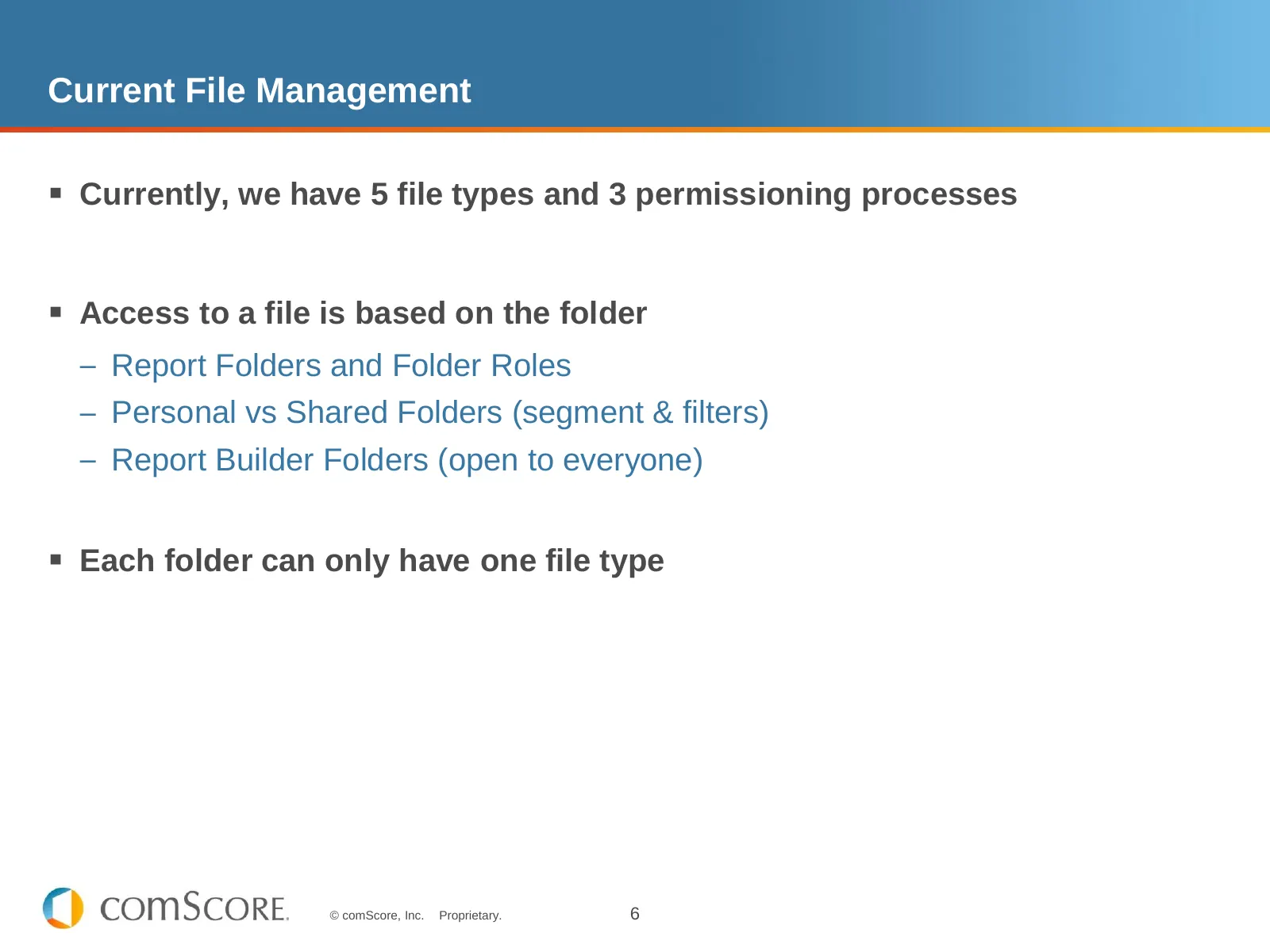
Current File Management Currently, we have 5 file types and 3 permissioning processes Access to a file is based on the folder – Report Folders and Folder Roles – Personal vs Shared Folders (segment & filters) – Report Builder Folders (open to everyone) Each folder can only have one file type ©
Slide 7: File Permissions – 1 System for All File Types
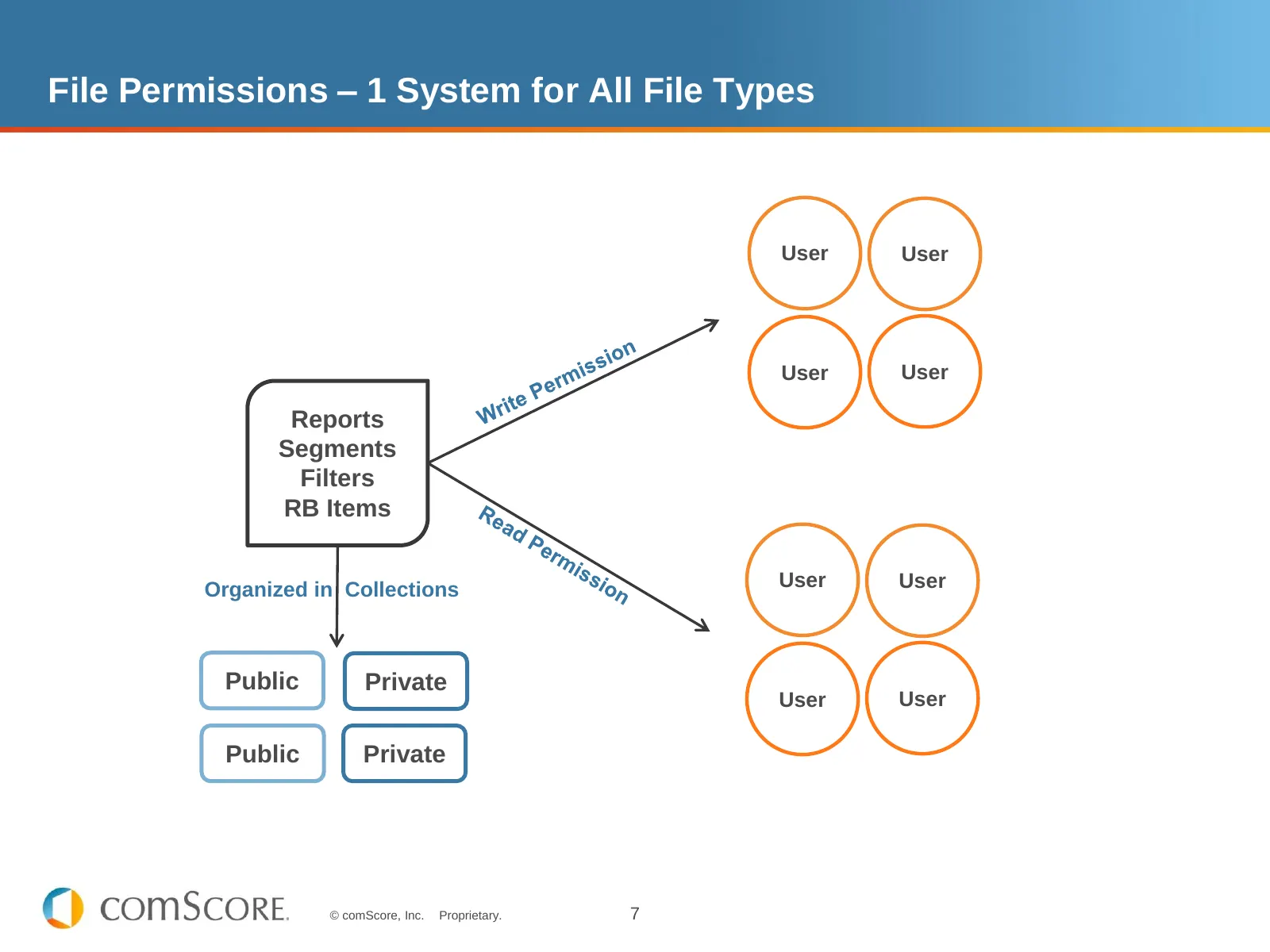
File Permissions – 1 System for All File Types User User User User Reports Segments Filters RB Items Organized in Collections User User Public Private User User Public Private © comScore, Inc. Proprietary. 7
Slide 8: New System
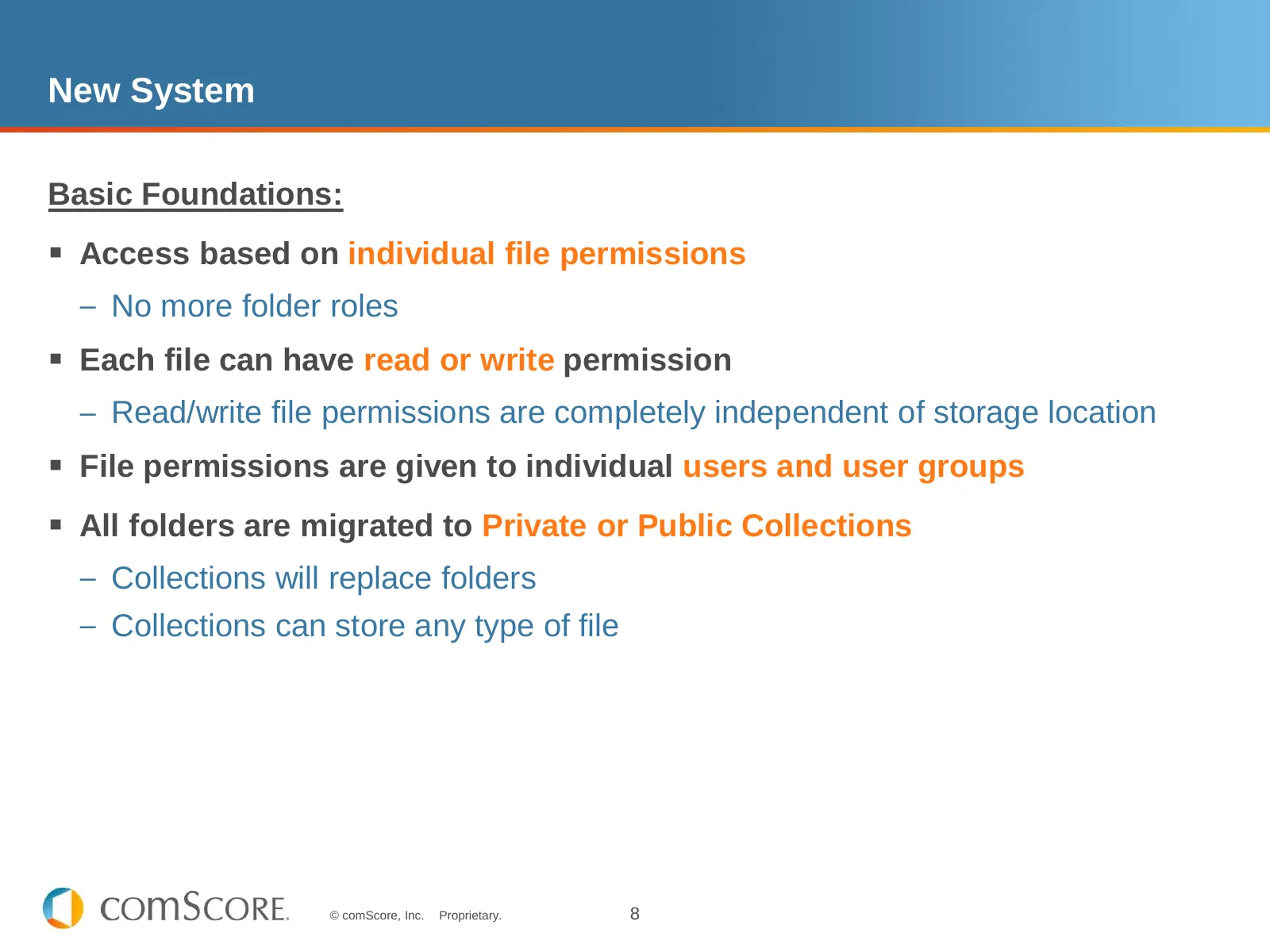
New System Basic Foundations: Access based on individual file permissions – No more folder roles Each file can have read or write permission – Read/write file permissions are completely independent of storage location File permissions are given to individual users and user groups All folders
Slide 9: So how does this actually work?
So how does this actually work? © comScore, Inc. Proprietary. 9
Slide 10: File Manager
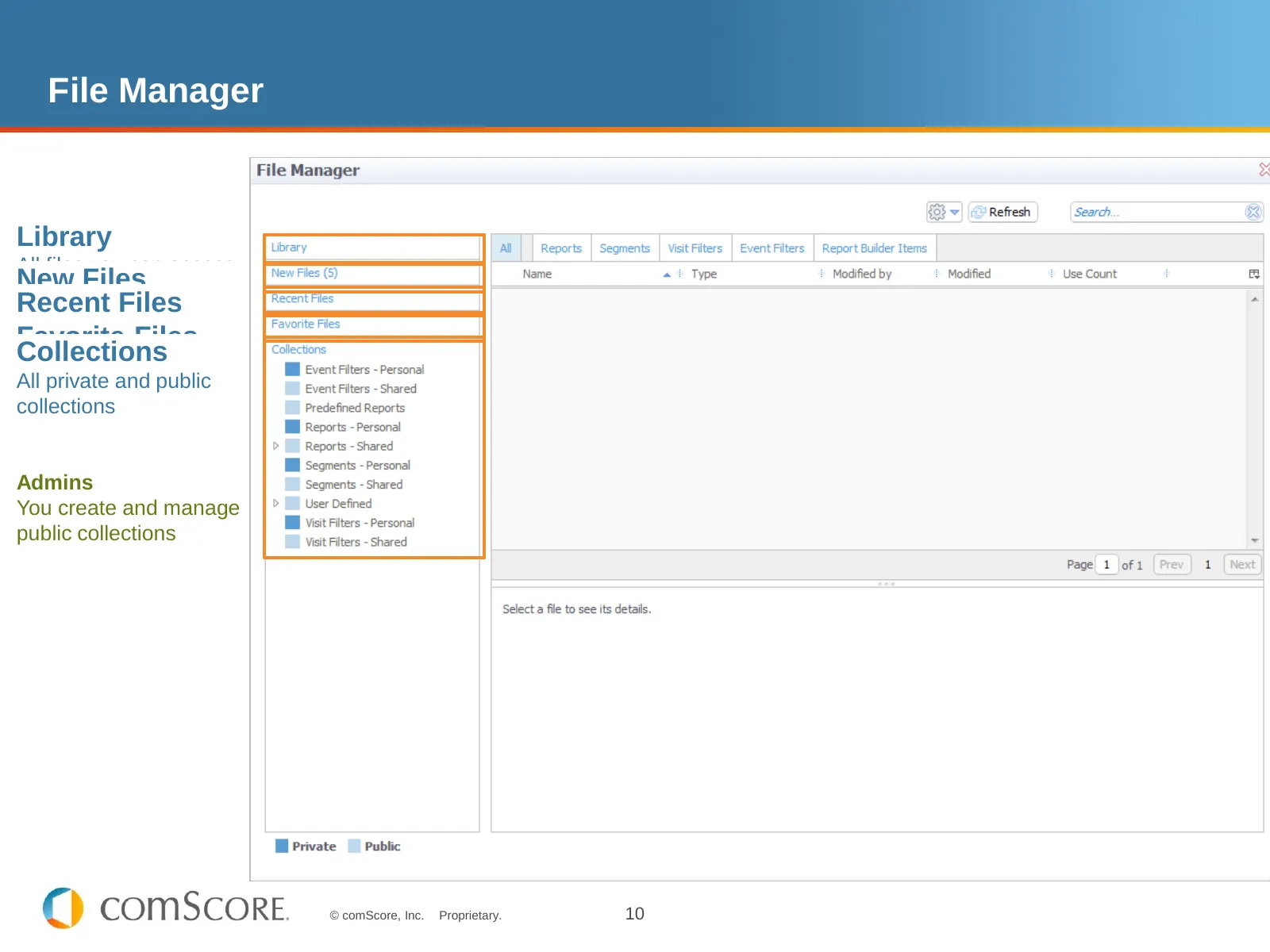
File Manager Library All files you can access New Files Recent When anotherFiles user The 10 amost shares Favorite Admins recently file Files with you Collections opened Mark files any file You have andfile every asfor All manyprivate files and as public you want! your entire corporate collections A
Slide 11: Private vs Public Collections
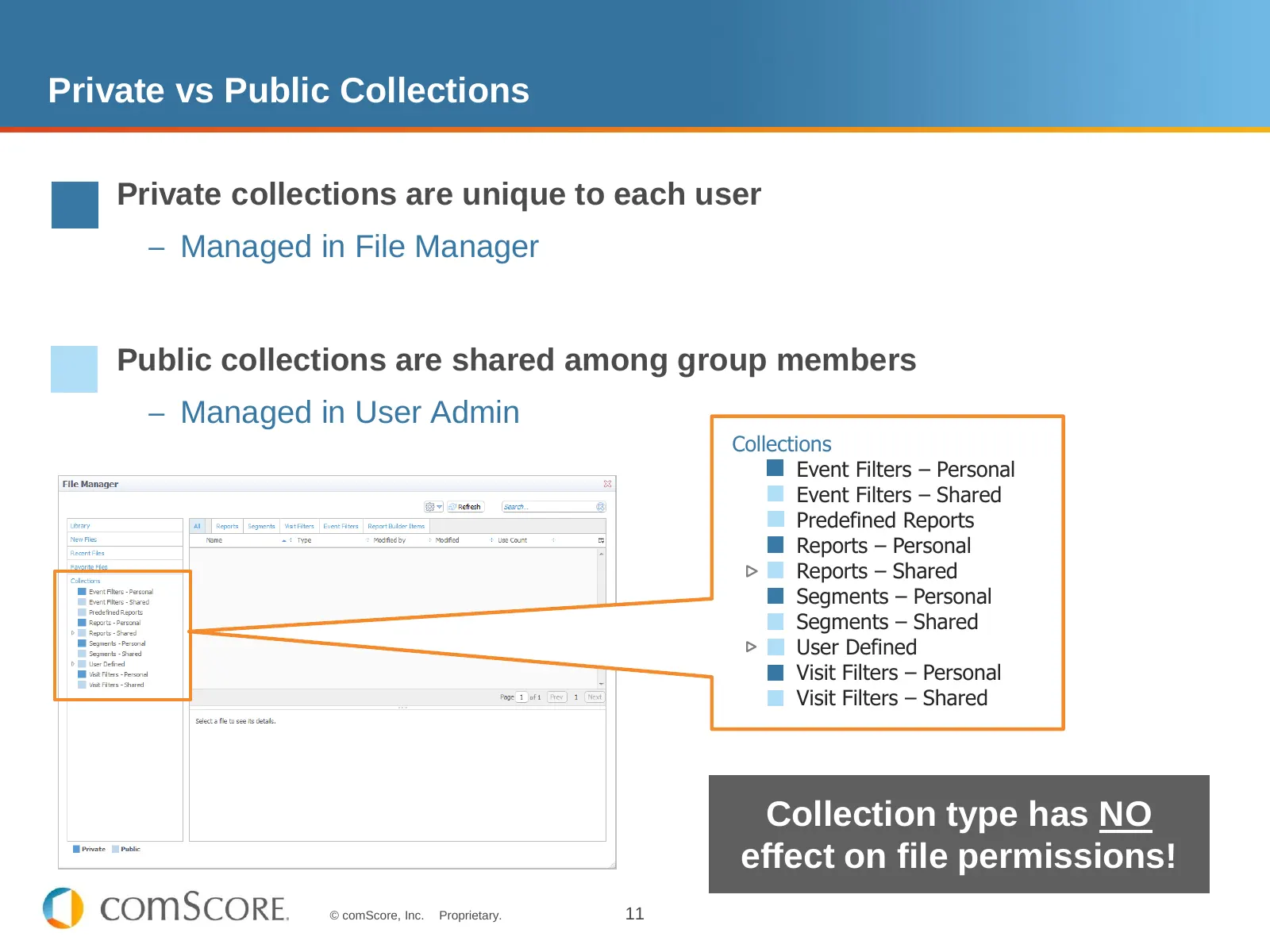
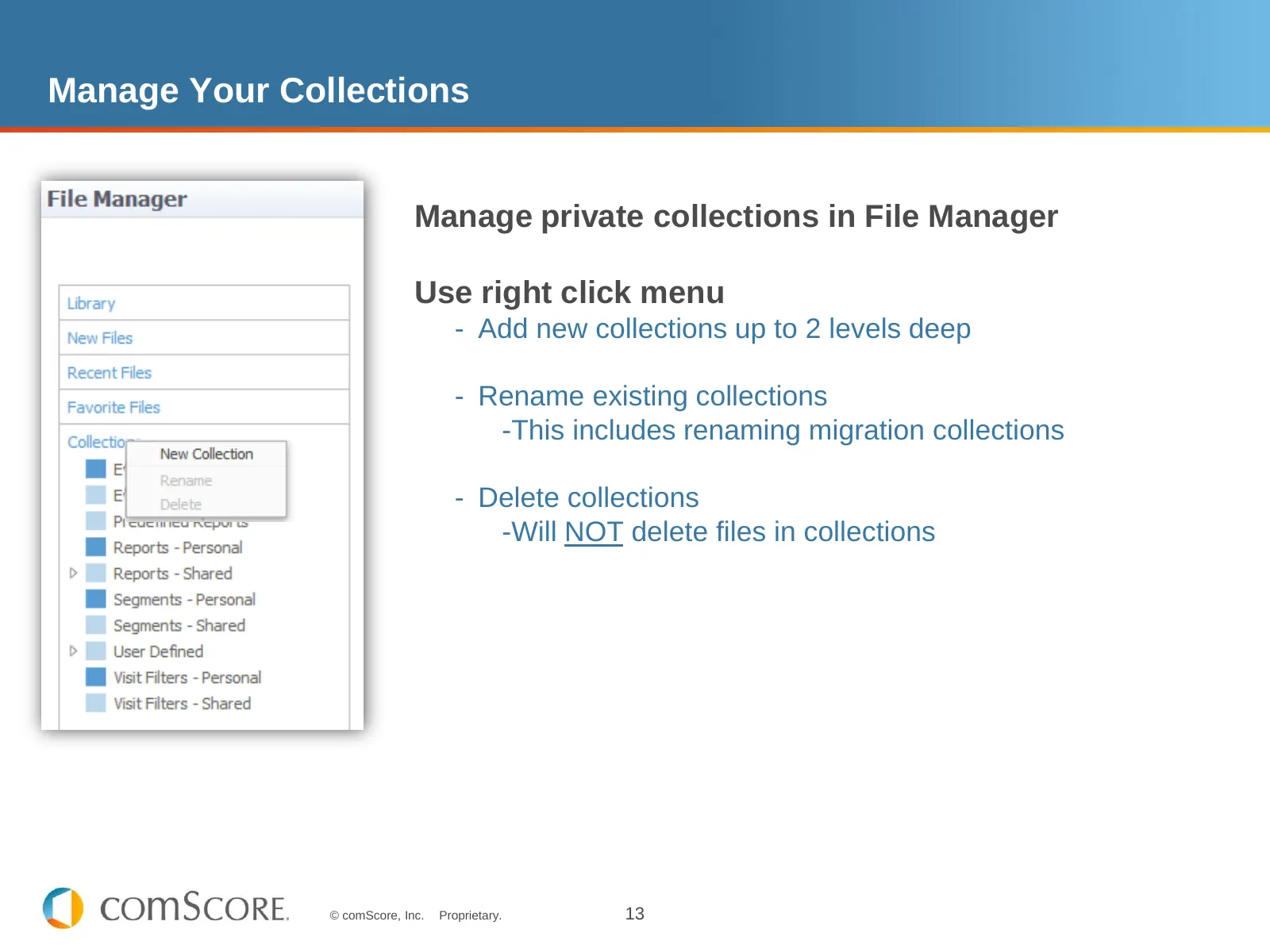
Private vs Public Collections Private collections are unique to each user – Managed in File Manager Public collections are shared among group members – Managed in User Admin Collections Event Filters – Personal Event Filters – Shared Predefined Reports Reports – Personal Reports – Shared Segments –
Slide 12: Migration from Library Folders to Collections
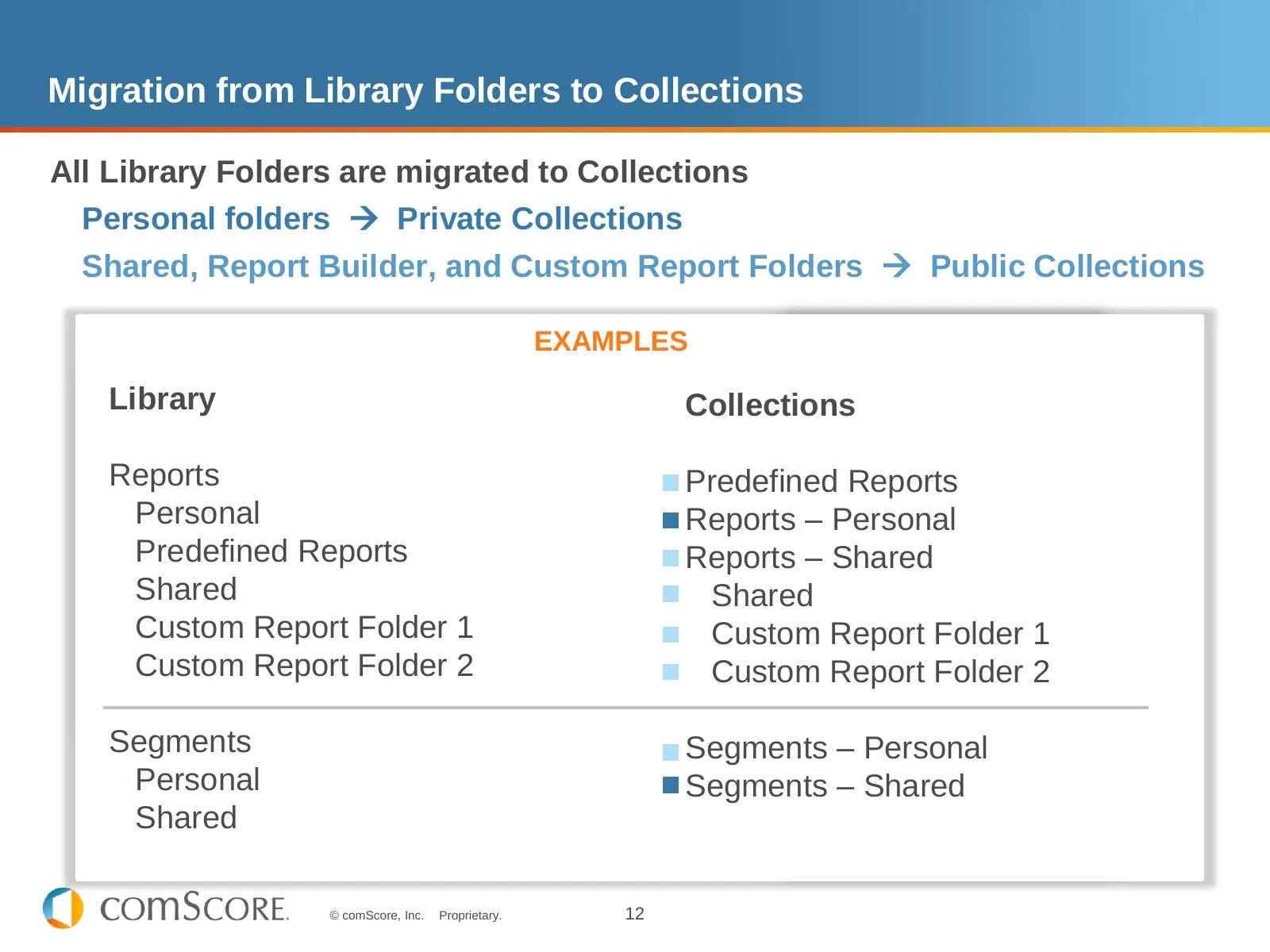
Migration from Library Folders to Collections All Library Folders are migrated to Collections Personal folders Private Collections Shared, Report Builder, and Custom Report Folders Public Collections EXAMPLES Library Collections Reports Predefined Reports Personal Reports – Personal Predefined R
Slide 13: Manage Your Collections
Manage Your Collections Manage private collections in File Manager Use right click menu - Add new collections up to 2 levels deep - Rename existing collections -This includes renaming migration collections - Delete collections -Will NOT delete files in collections © comScore, Inc. Proprietary. 13
Slide 14: How to Share Files
How to Share Files © comScore, Inc. Proprietary. 14
Slide 15: File Sharing
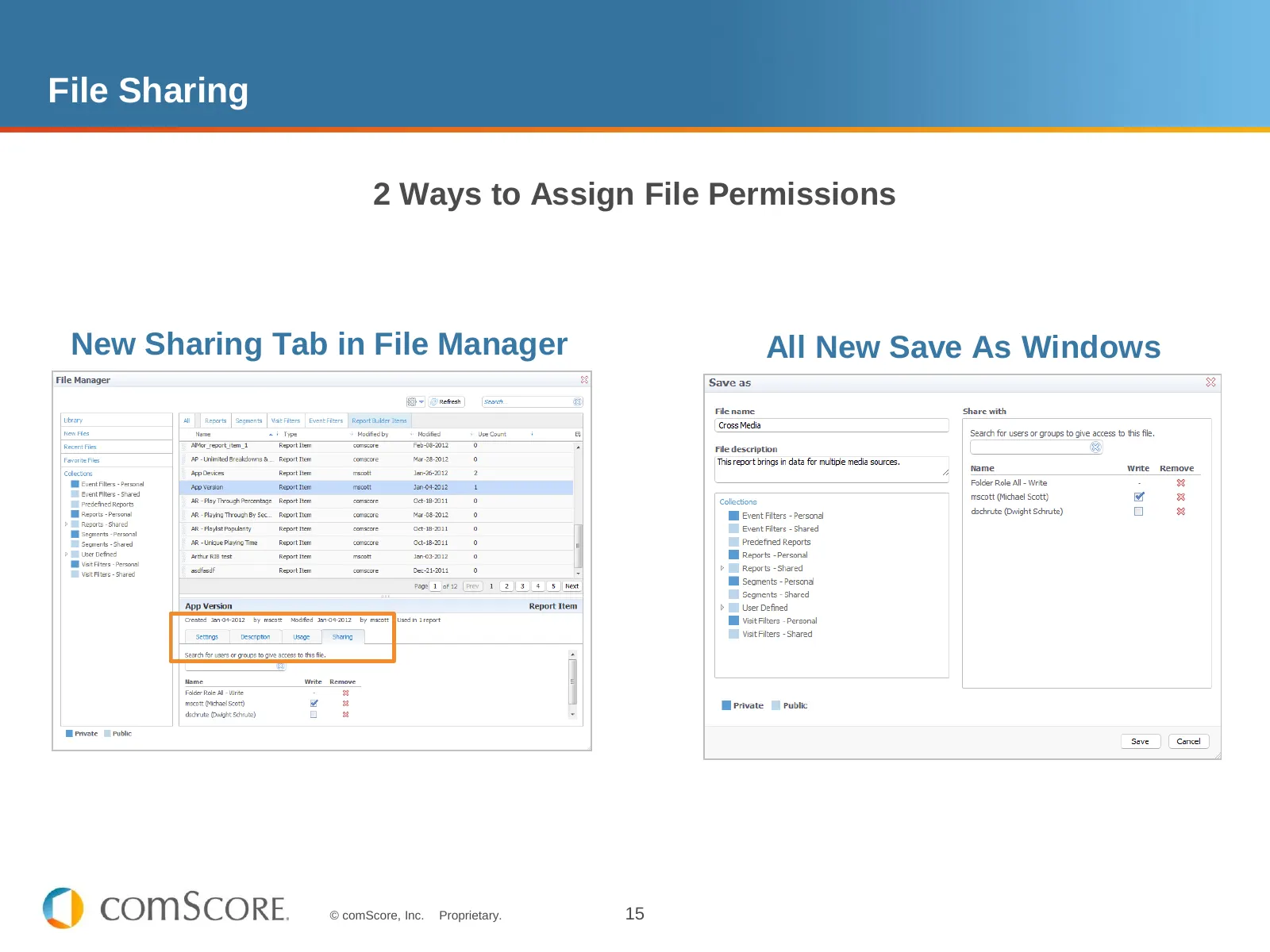
File Sharing 2 Ways to Assign File Permissions New Sharing Tab in File Manager All New Save As Windows © comScore, Inc. Proprietary. 15
Slide 16: Sharing in File Manager
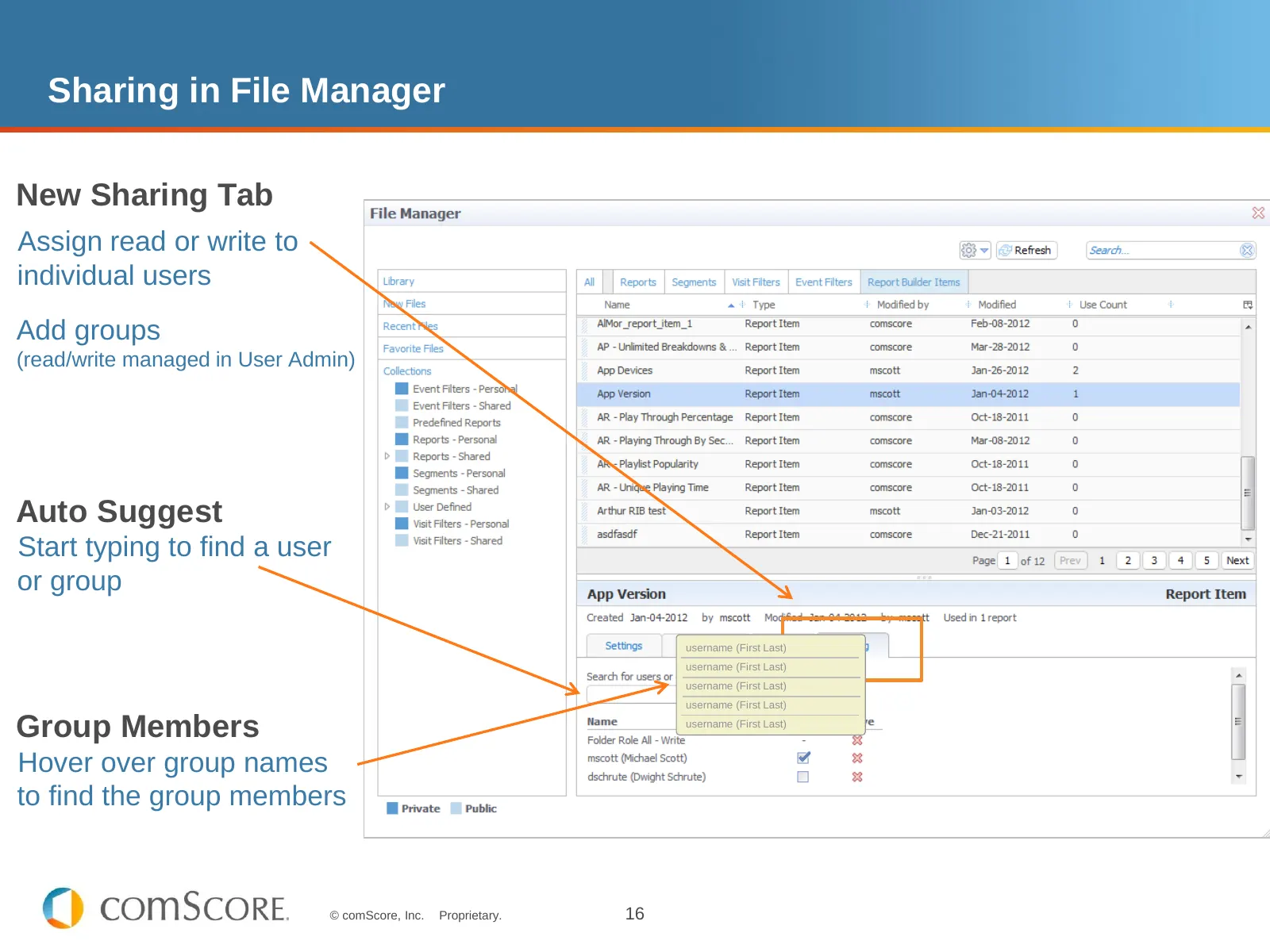
Sharing in File Manager New Sharing Tab Assign read or write to individual users Add groups (read/write managed in User Admin) Auto Suggest Start typing to find a user or group username (First Last) username (First Last) username (First Last) username (First Last) Group Members username (First Last)
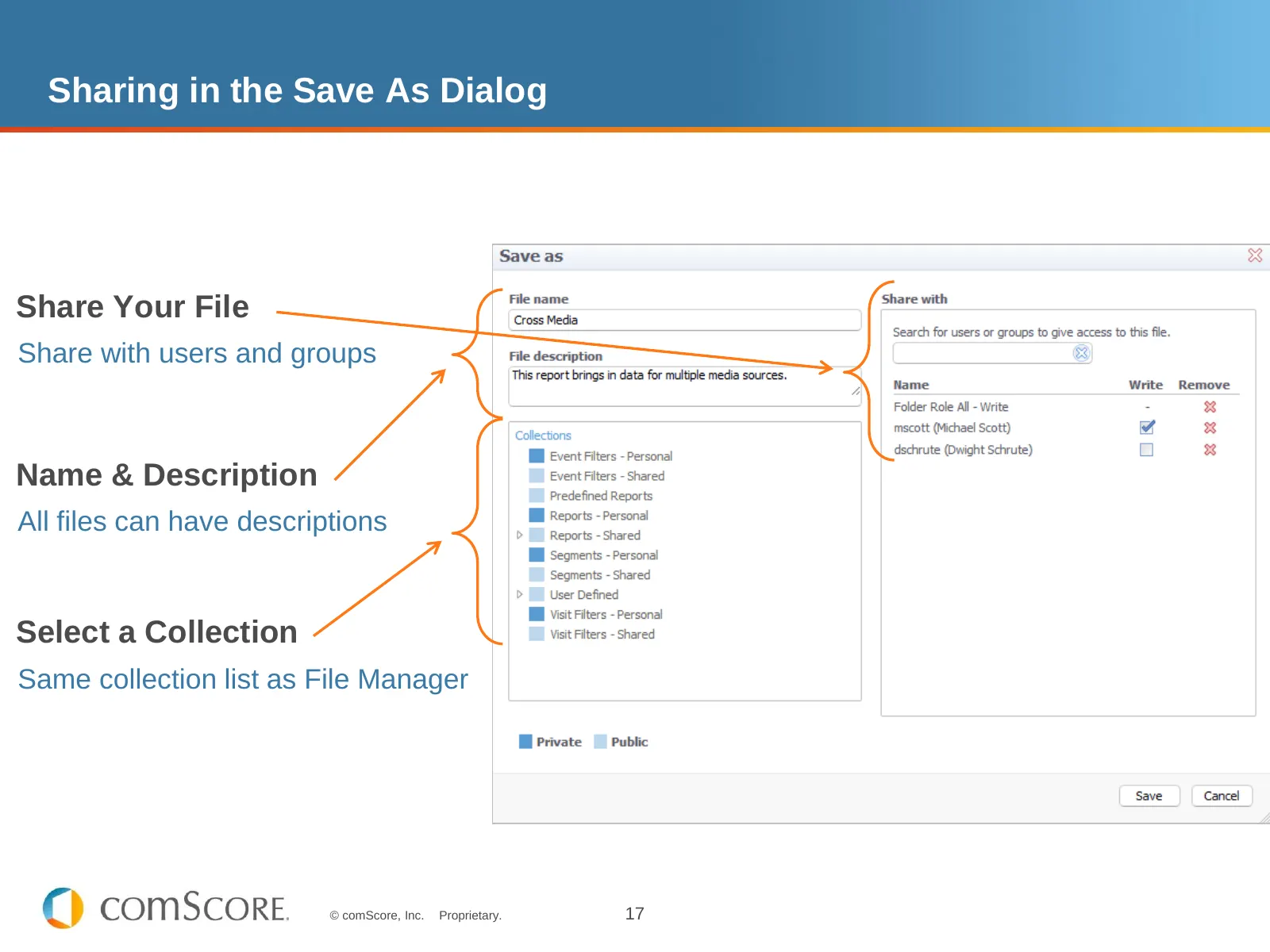
Slide 17: Sharing in the Save As Dialog
Sharing in the Save As Dialog Share Your File Share with users and groups Name & Description All files can have descriptions Select a Collection Same collection list as File Manager © comScore, Inc. Proprietary. 17
Slide 18: User Groups & User Admin Updates
User Groups & User Admin Updates © comScore, Inc. Proprietary. 18
Slide 19: User Groups
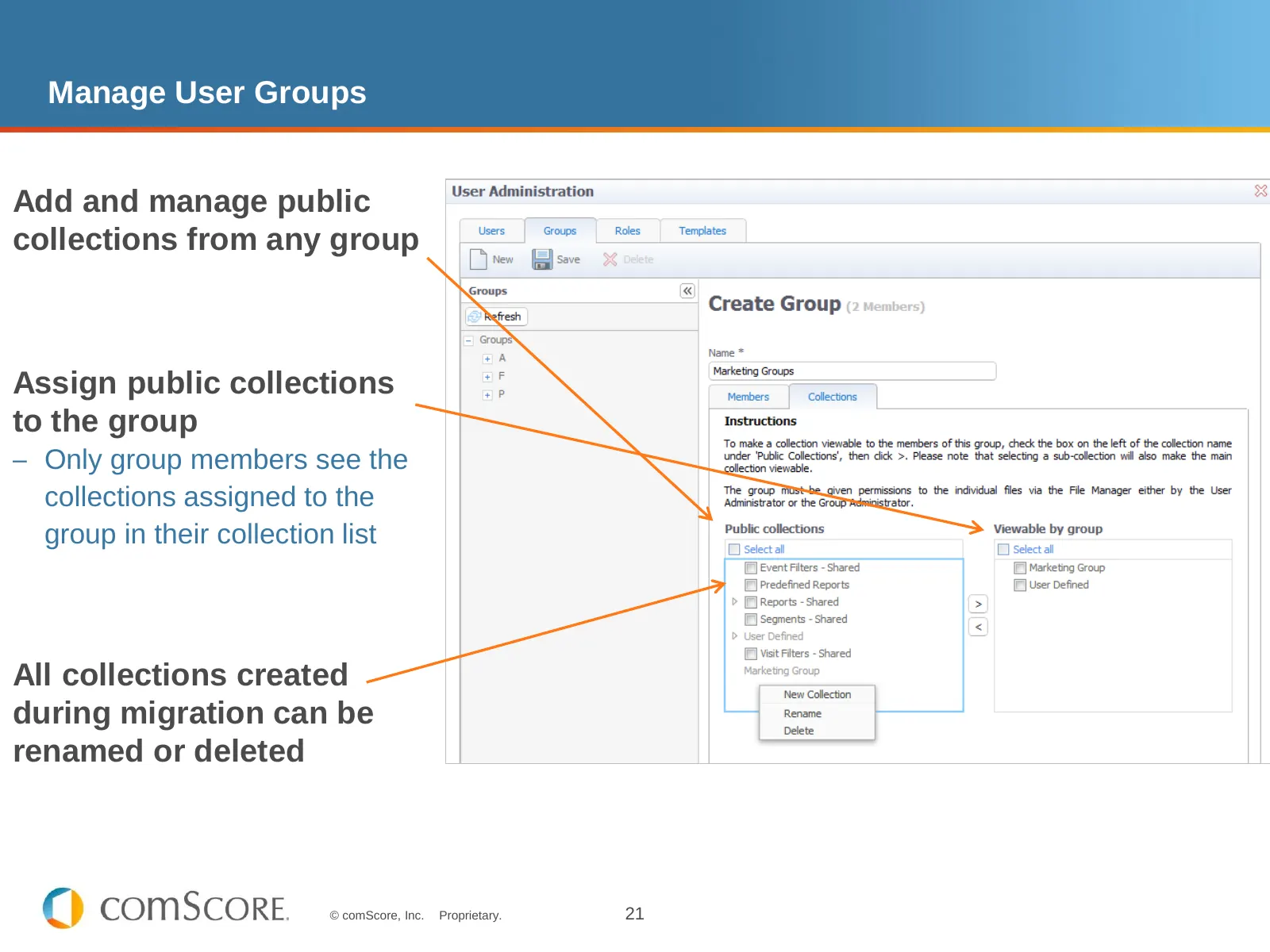
User Groups Groups give your users a new way to collaborate and share files Groups allows your users to only see the files that are important to them Groups can be as large or as small as you want All corporates have two default groups: – All Users – Read – All Users – Write For migration pu
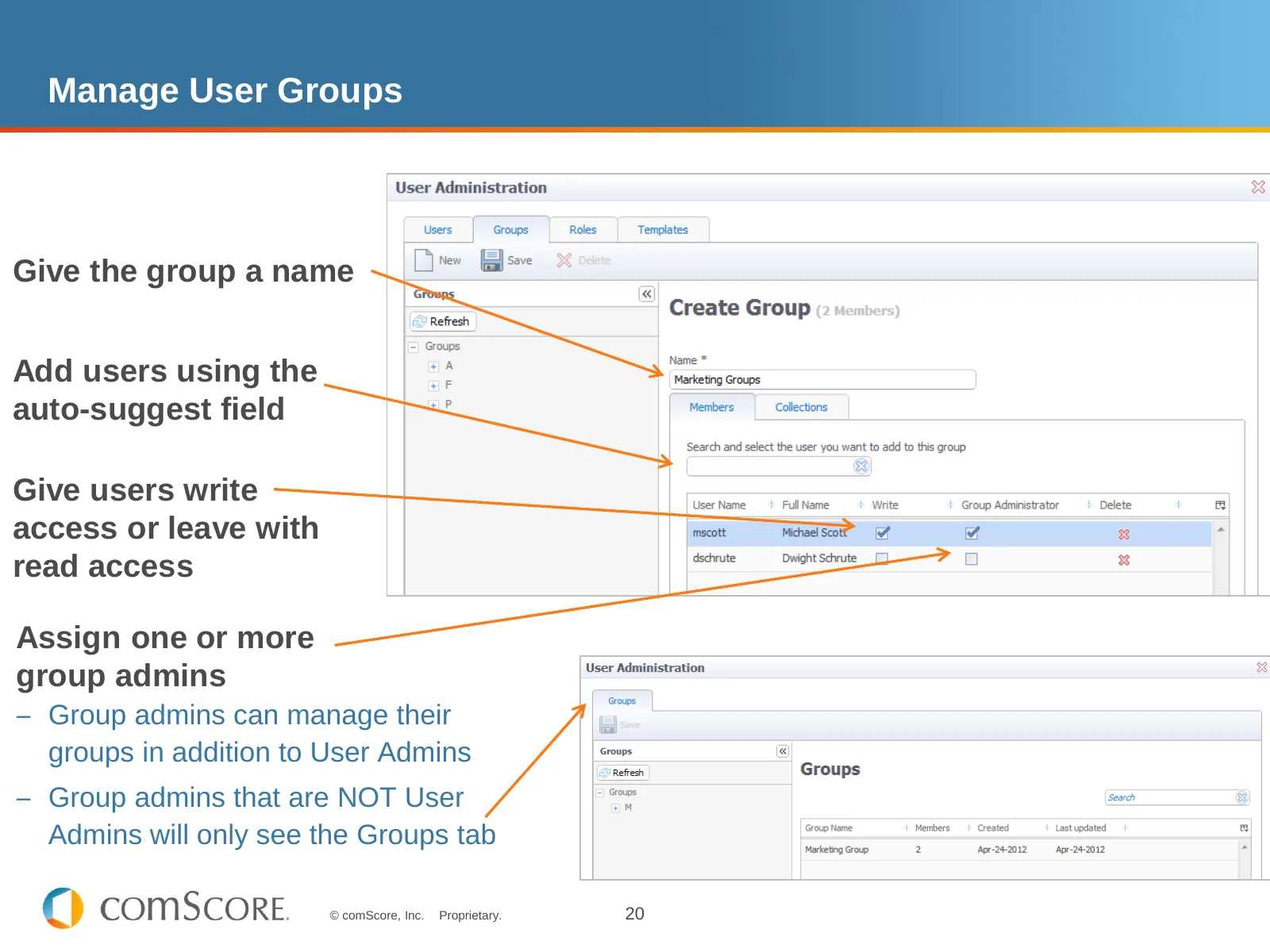
Slide 20: Manage User Groups
Manage User Groups Give the group a name Add users using the auto-suggest field Give users write access or leave with read access Assign one or more group admins – Group admins can manage their groups in addition to User Admins – Group admins that are NOT User Admins will only see the Groups tab © c
Slide 21: Manage User Groups
Manage User Groups Add and manage public collections from any group Assign public collections to the group – Only group members see the collections assigned to the group in their collection list All collections created during migration can be renamed or deleted © comScore, Inc. Proprietary. 21
Slide 22: Manage User Groups
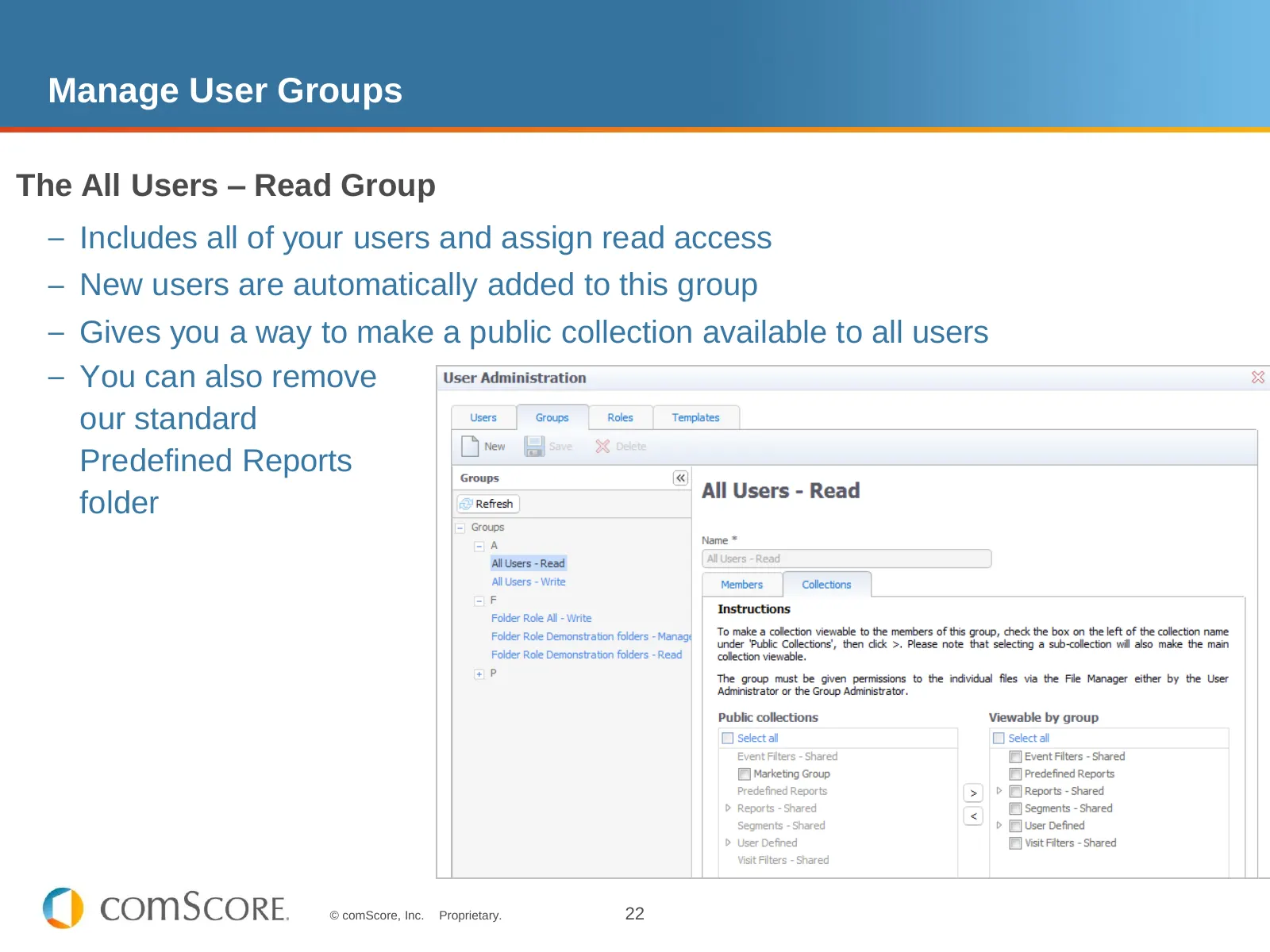
Manage User Groups The All Users – Read Group – Includes all of your users and assign read access – New users are automatically added to this group – Gives you a way to make a public collection available to all users – You can also remove our standard Predefined Reports folder © comScore, Inc. Propr
Slide 23: Other Admin Updates
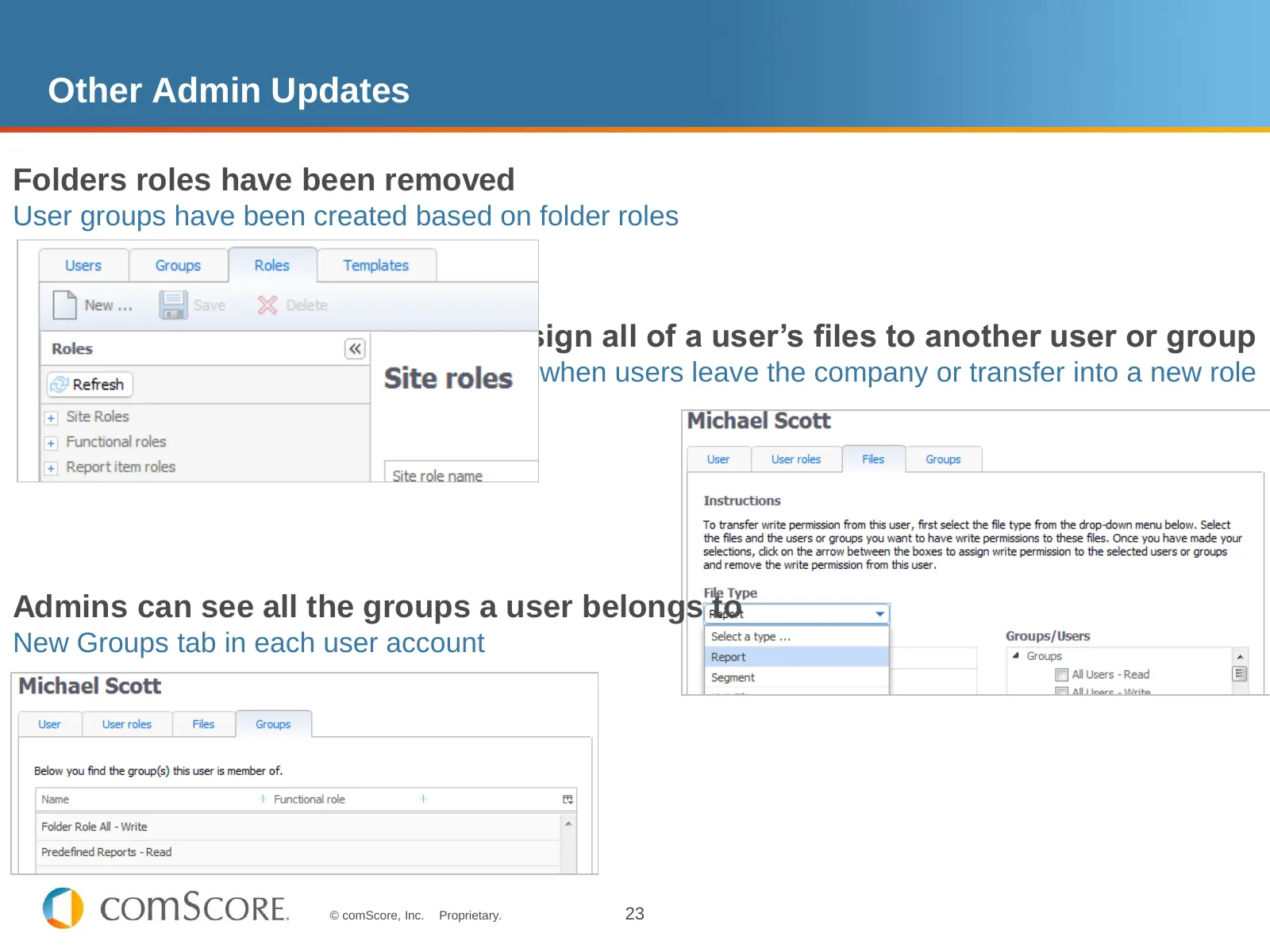
Other Admin Updates Folders roles have been removed User groups have been created based on folder roles Admins can still assign all of a user’s files to another user or group Typically for when users leave the company or transfer into a new role Admins can see all the groups a user belongs to New Gr
Slide 24: Bonus Preview
Bonus Preview © comScore, Inc. Proprietary. 24
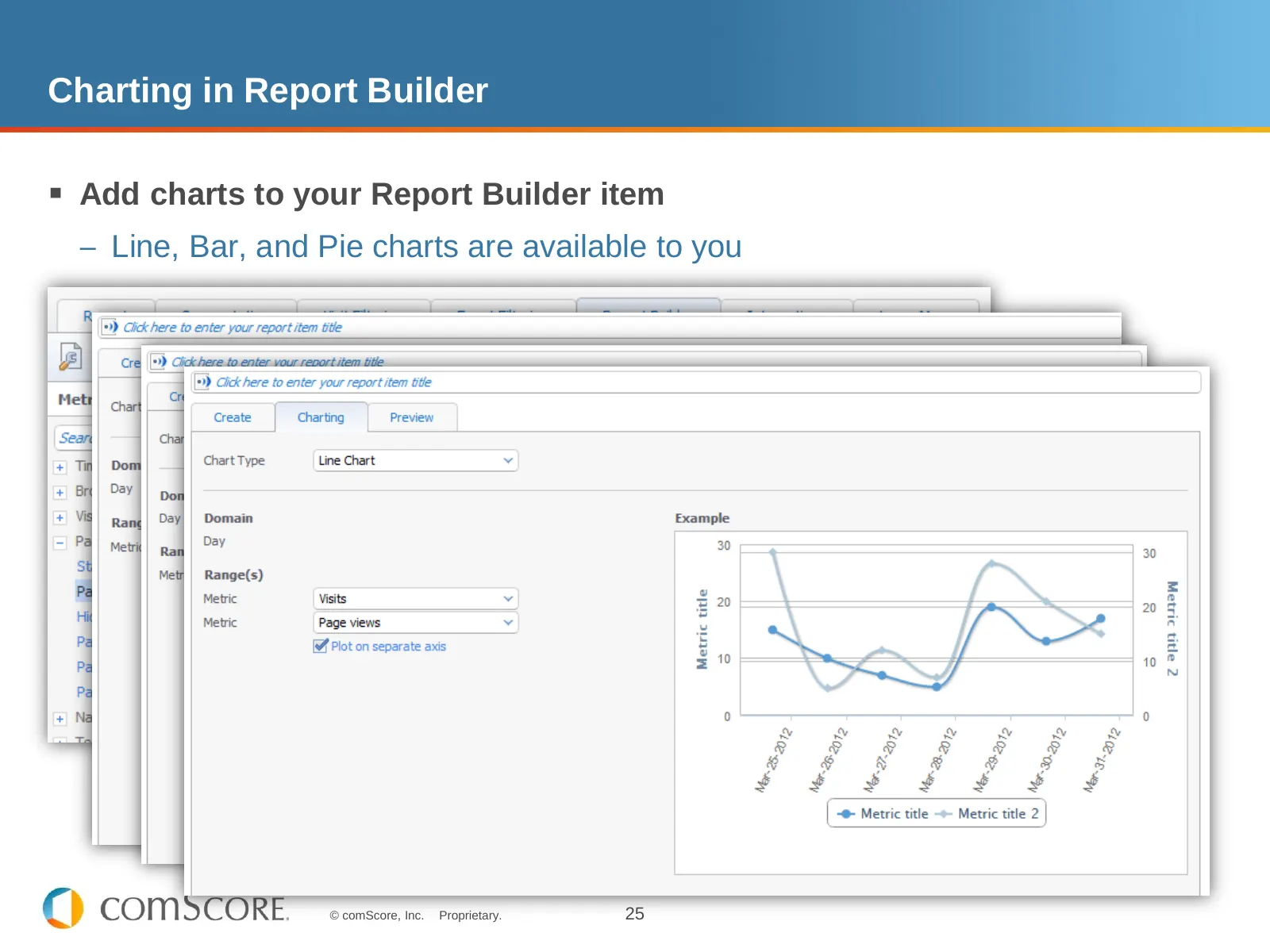
Slide 25: Charting in Report Builder
Charting in Report Builder Add charts to your Report Builder item – Line, Bar, and Pie charts are available to you © comScore, Inc. Proprietary. 25
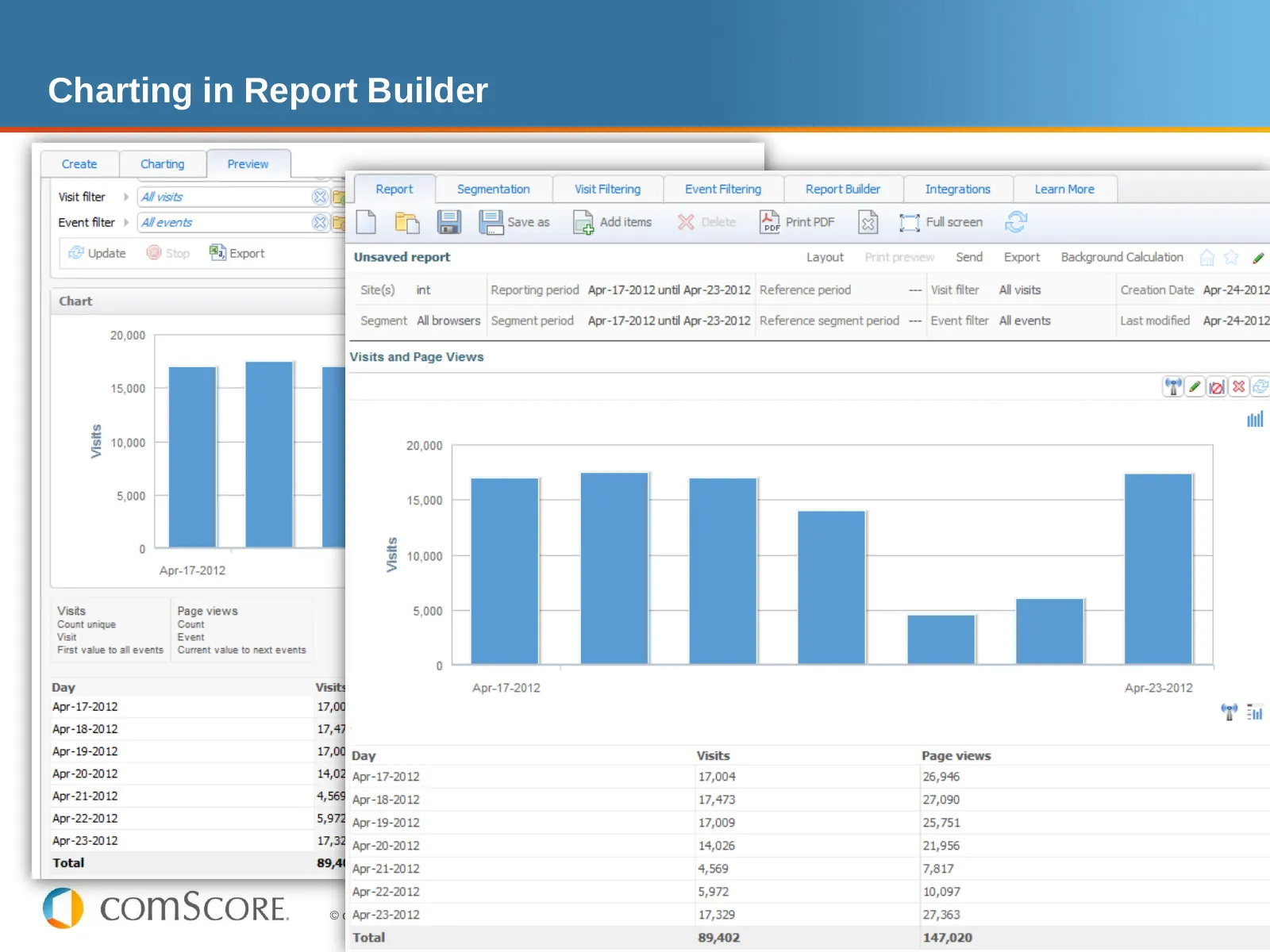
Slide 26: Charting in Report Builder
Charting in Report Builder © comScore, Inc. Proprietary. 26
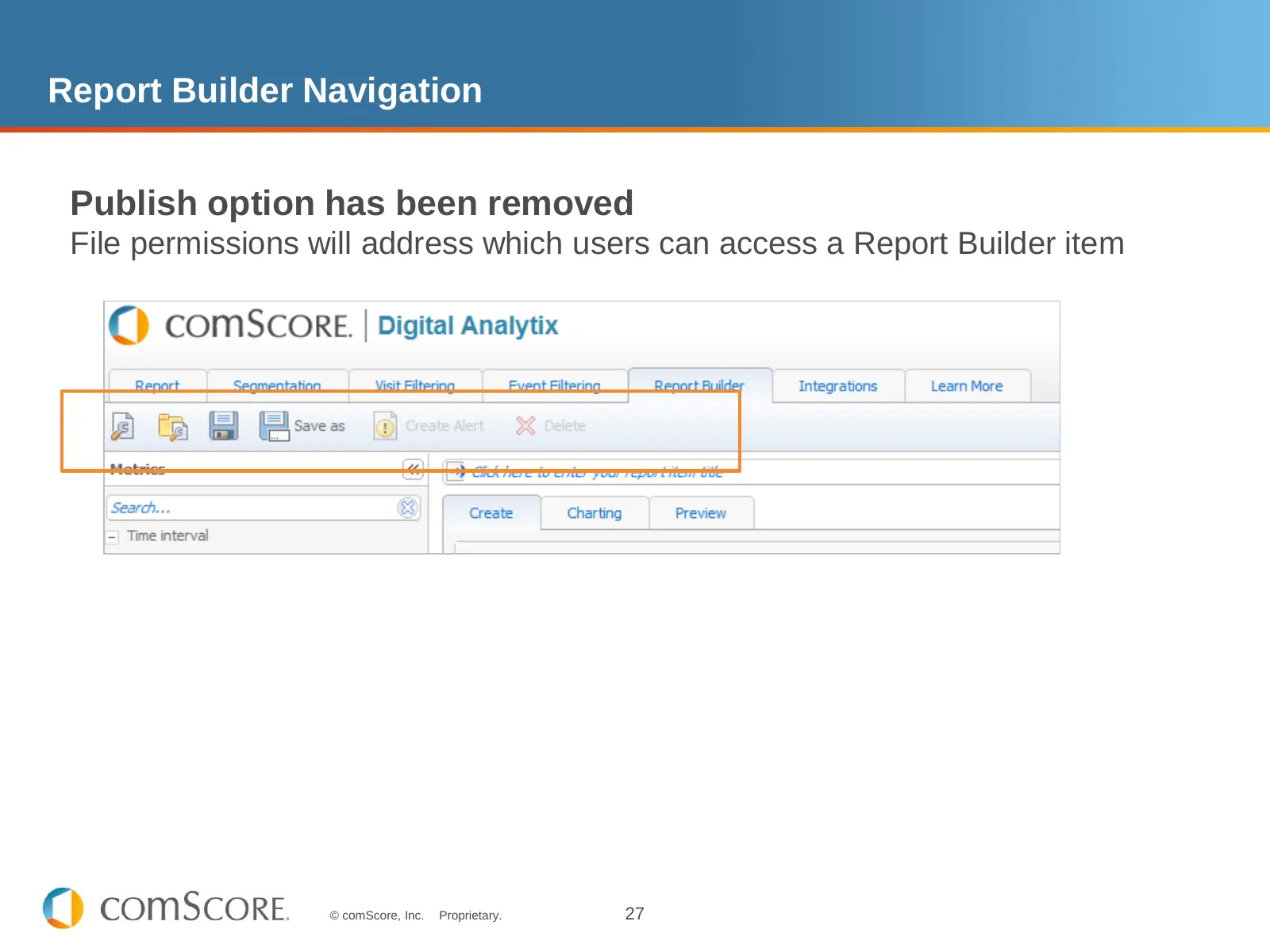
Slide 27: Report Builder Navigation
Report Builder Navigation Publish option has been removed File permissions will address which users can access a Report Builder item © comScore, Inc. Proprietary. 27
Slide 28: Thank You
Thank You For questions on these new features, please remember to open the user guide in the Support menu of Digital Analytix or contact your account manager. © comScore, Inc. Proprietary. 28
Source: Internet Archive copy of dax-files.comscore.com
More decks from comScore, Inc.
 Q3 2026 Earnings Presentation17 slides · Nov 3, 2026
 Q2 2026 Earnings Presentation20 slides · Aug 12, 2026
 Investor Presentation (June 2026)27 slides · Jun 10, 2026
 Q4 2025 Earnings Presentation13 slides · Mar 17, 2026
 Q3 2025 Earnings Presentation15 slides · Nov 4, 2025
 Q2 2025 Earnings Presentation11 slides · Aug 5, 2025