Embraer S.A. · BMFBOVESPA:EMBJ3
Embraer — Investor Presentation (August 2020)
27 slides from Embraer's investor presentation, August 2020
Slide 1: Invoices & Payments Web Tool User Guide
Invoices & Payments Web Tool User Guide AUG, 2020

Slide 2: Commercial Aviation
Commercial Aviation AUG, 2020
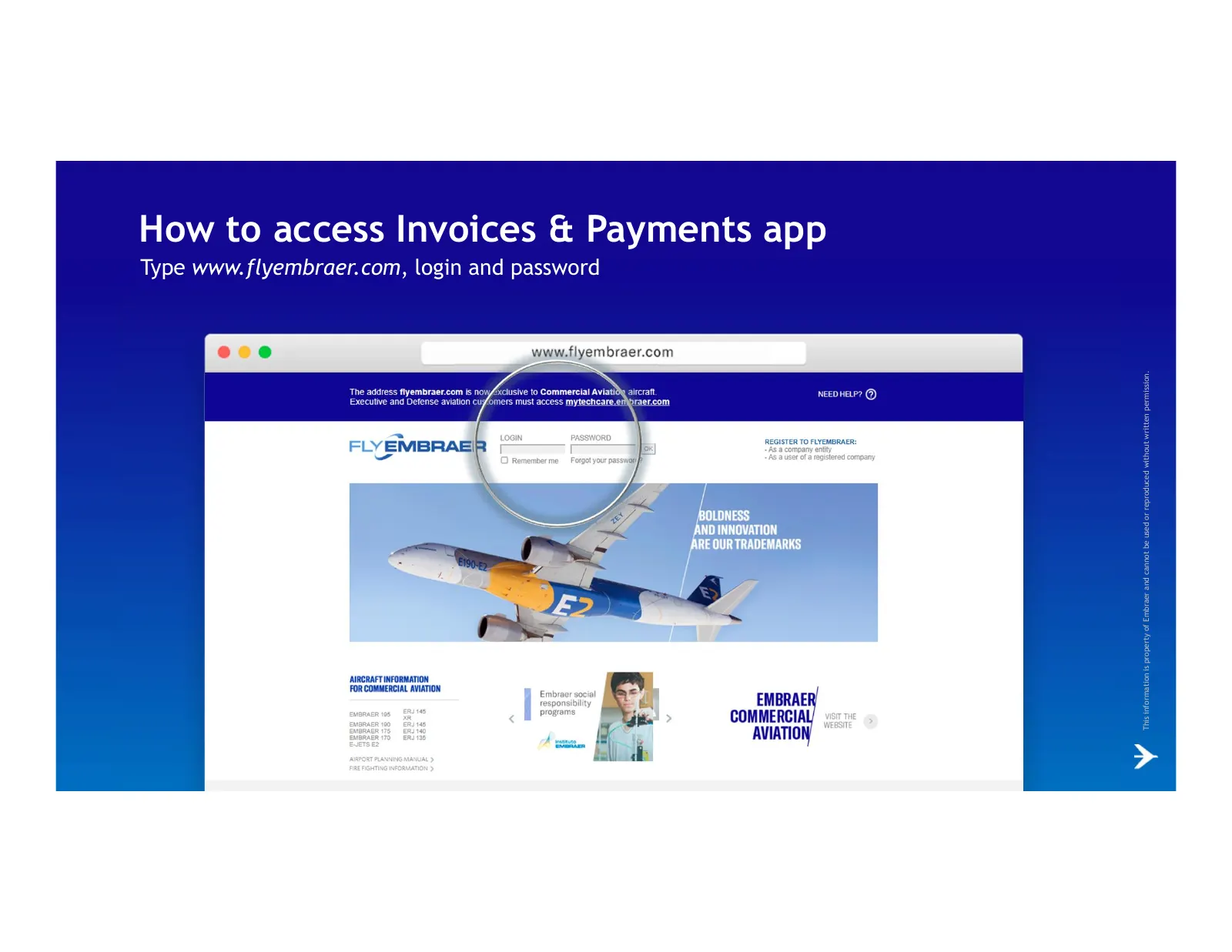
Slide 3: How to access Invoices & Payments app
Type www.flyembraer.com, login and password How to access Invoices & Payments app This information is property of Embraer and cannot be used or reproduced without written permission.
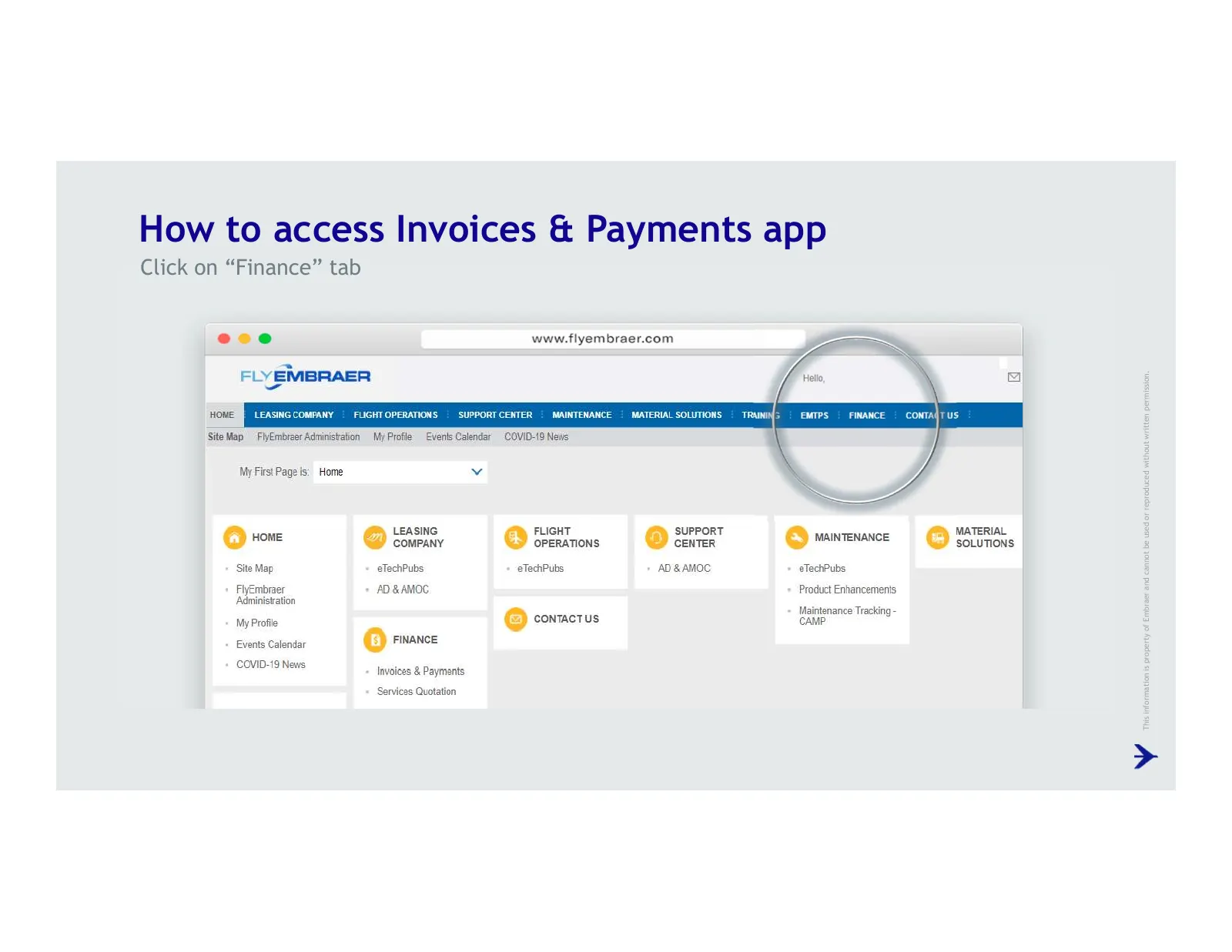
Slide 4: How to access app: Finance tab
Click on “Finance” tab How to access Invoices & Payments app This information is property of Embraer and cannot be used or reproduced without written permission.
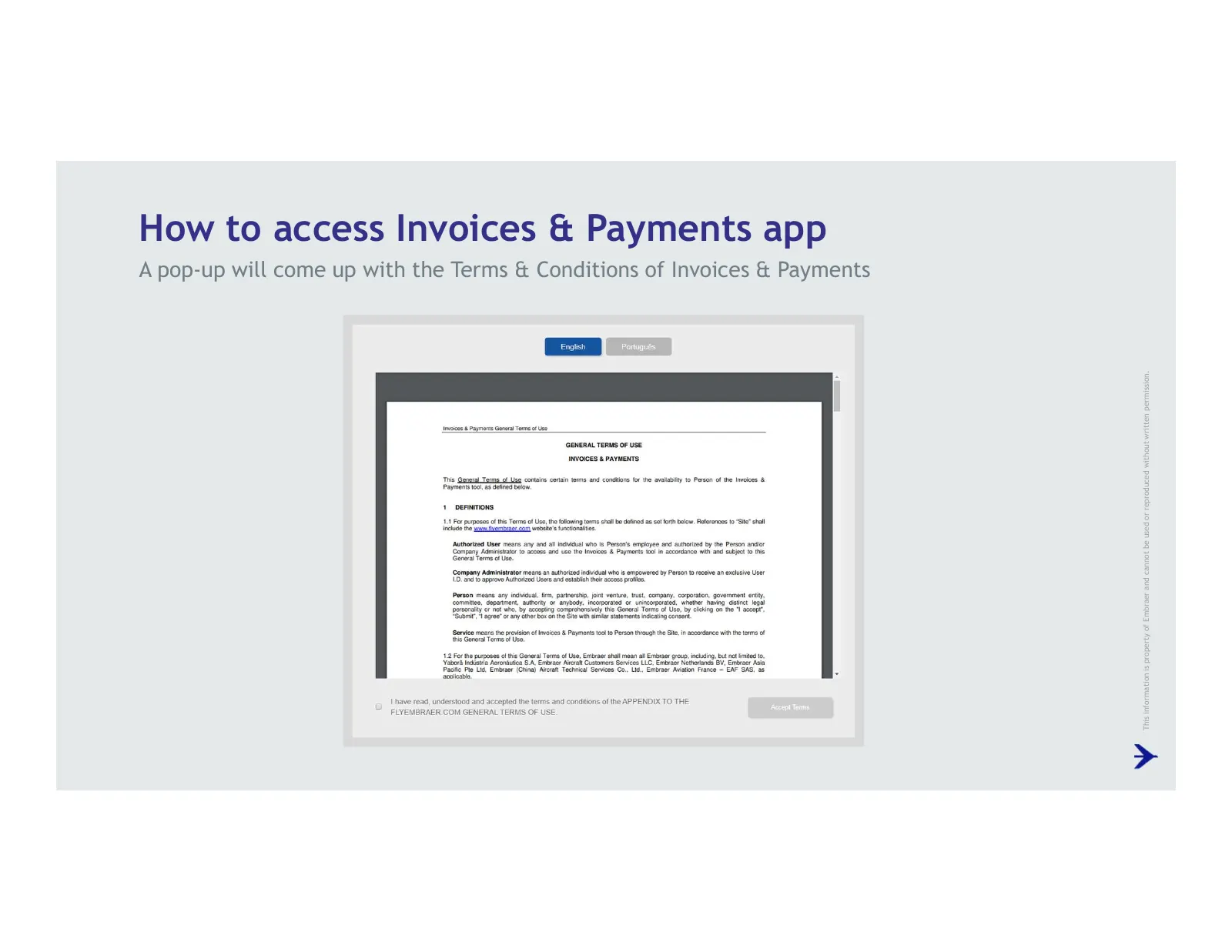
Slide 5: How to access Invoices & Payments app
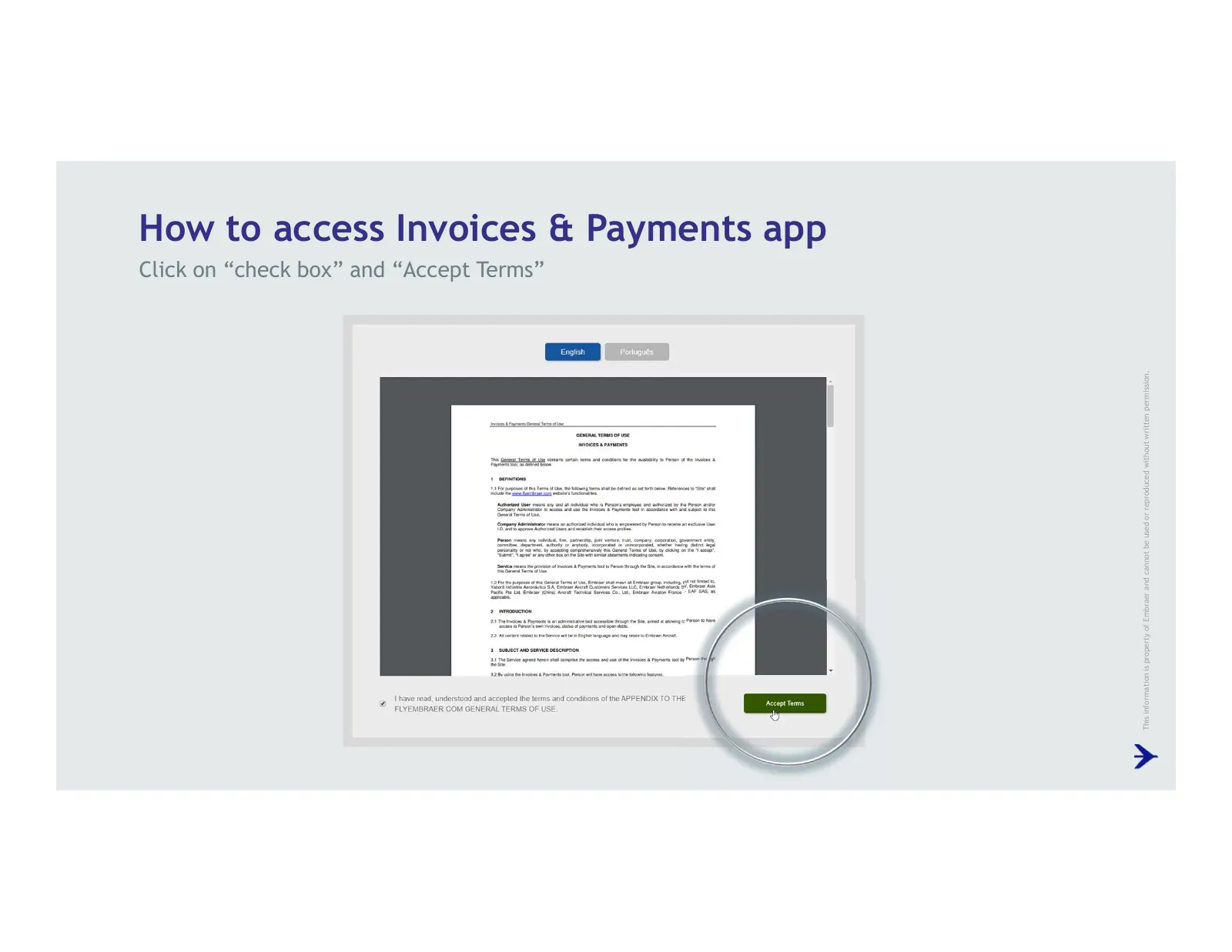
How to access Invoices & Payments app A pop-up will come up with the Terms & Conditions of Invoices & Payments This information is property of Embraer and cannot be used or reproduced without written permission.
Slide 6: How to access app: Accept Terms
Click on “check box” and “Accept Terms” How to access Invoices & Payments app This information is property of Embraer and cannot be used or reproduced without written permission.
Slide 7: How to access app: Invoices screen
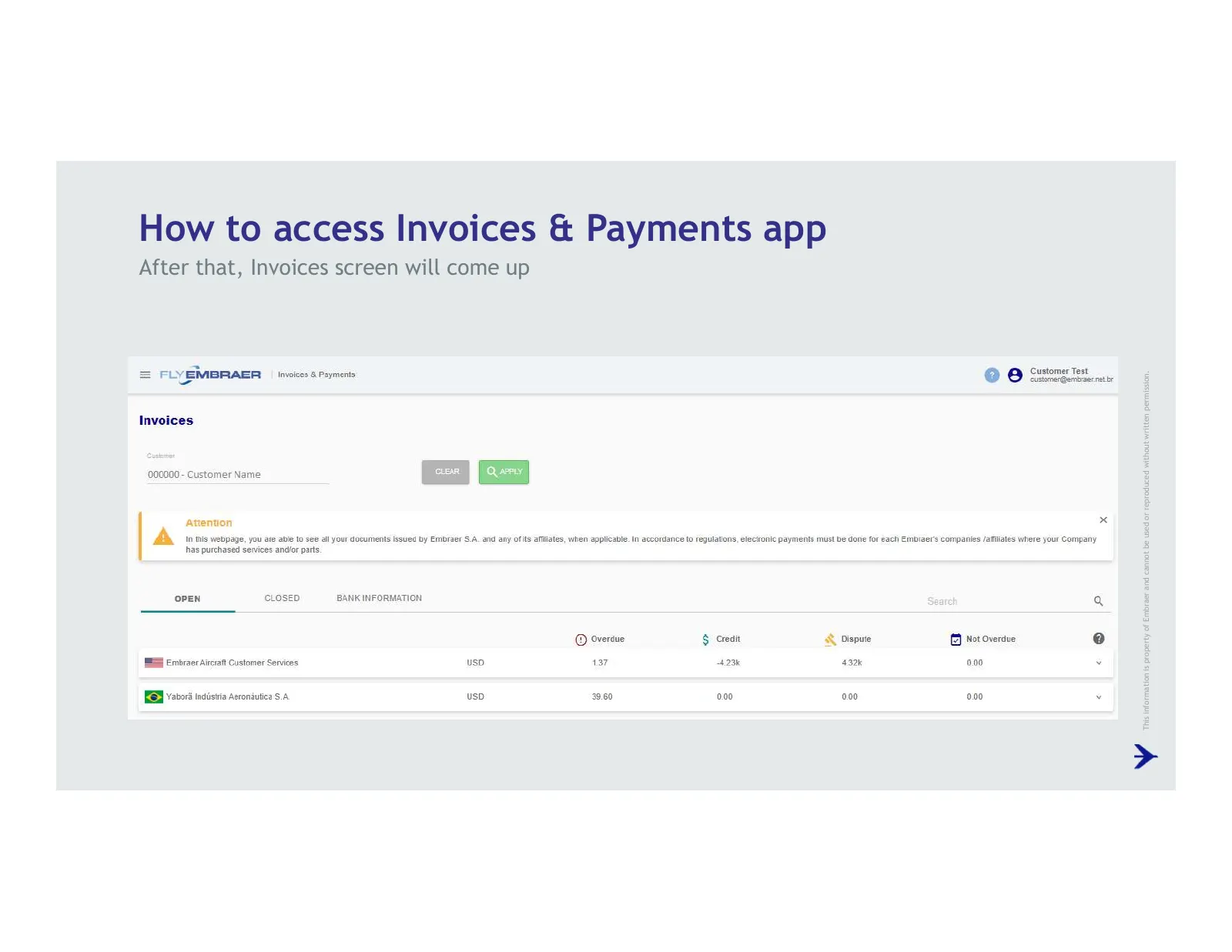
After that, Invoices screen will come up How to access Invoices & Payments app This information is property of Embraer and cannot be used or reproduced without written permission.
Slide 8: Invoices & Payments functionalities
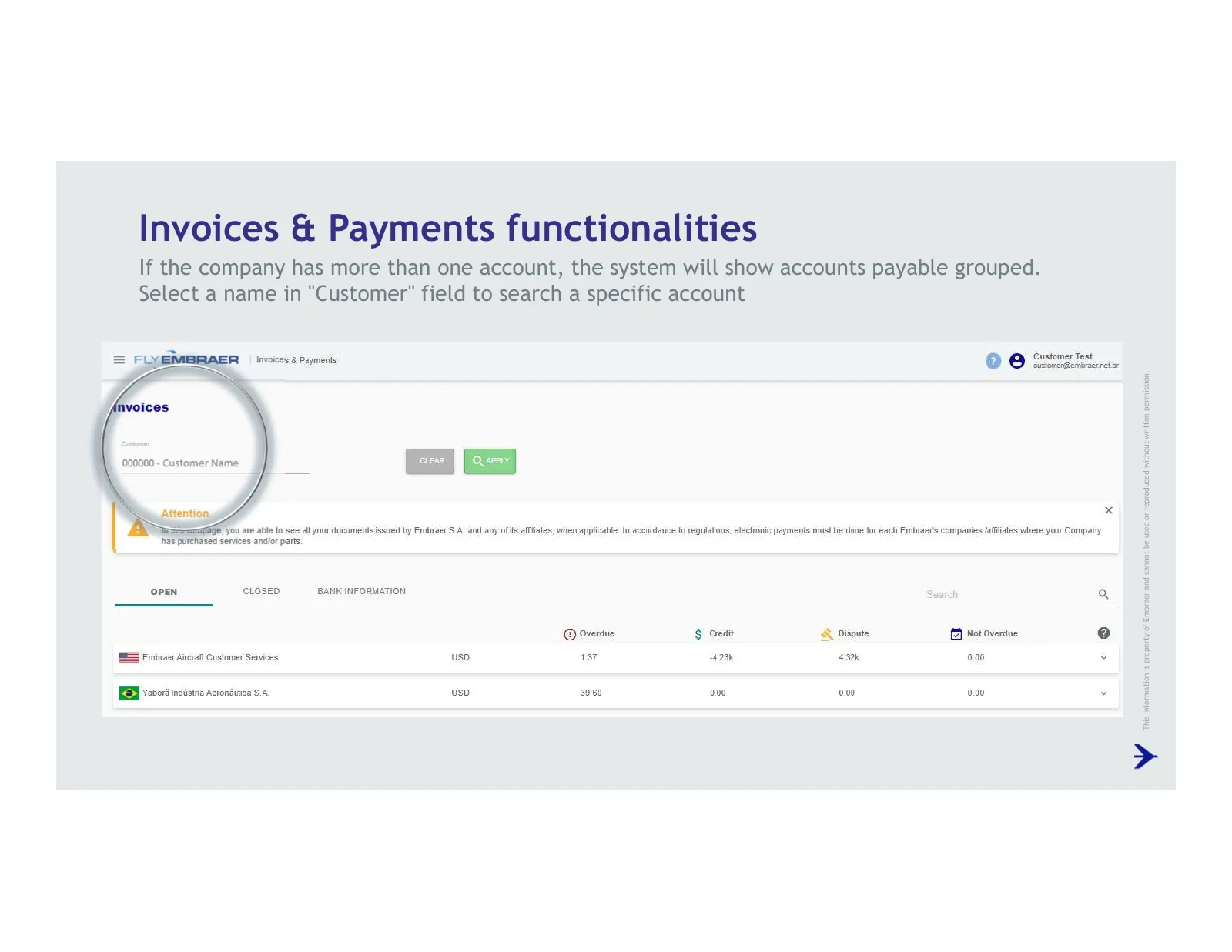
Invoices & Payments functionalities If the company has more than one account, the system will show accounts payable grouped. Select a name in "Customer" field to search a specific account This information is property of Embraer and cannot be used or reproduced without written permission.
Slide 9: Invoices & Payments functionalities: search
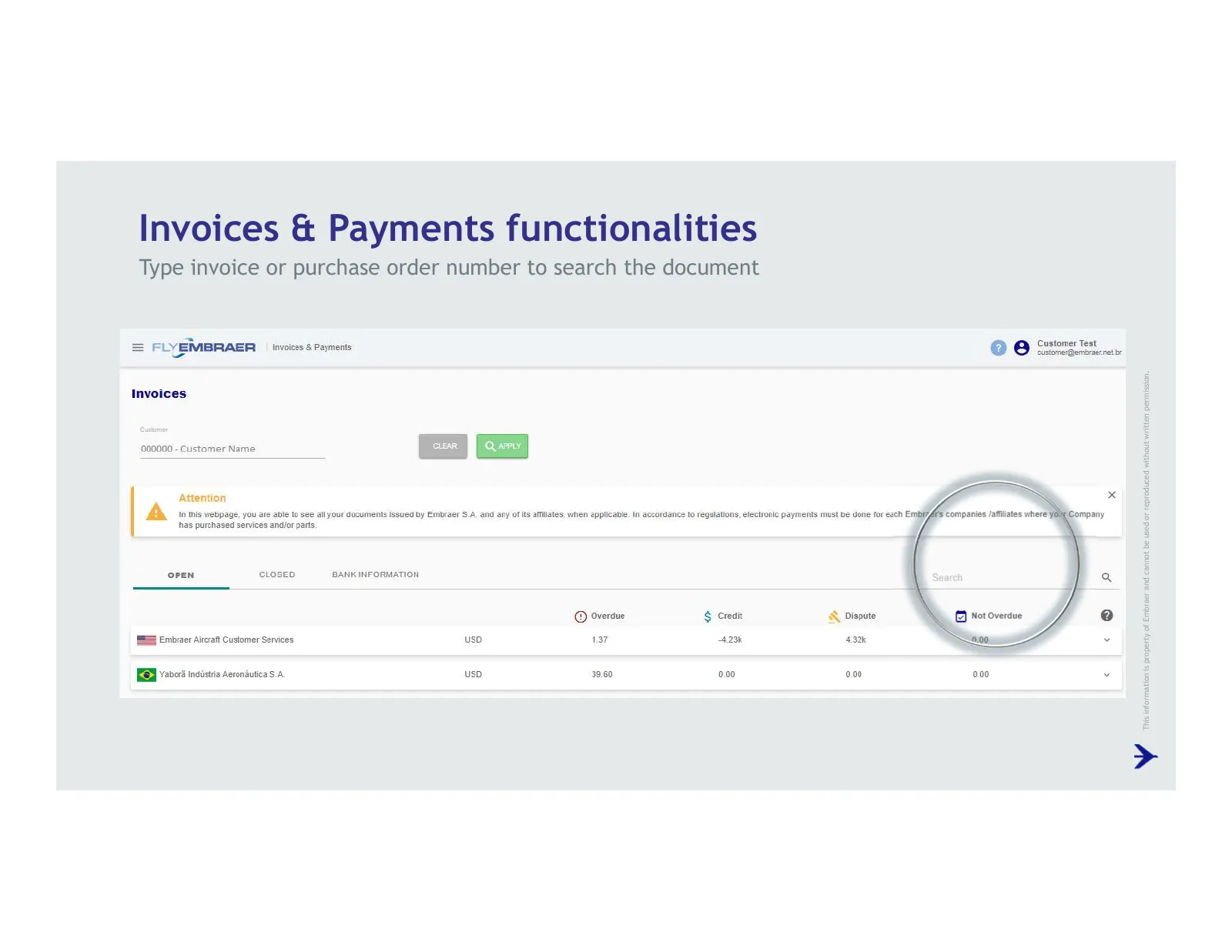
Invoices & Payments functionalities Type invoice or purchase order number to search the document This information is property of Embraer and cannot be used or reproduced without written permission.
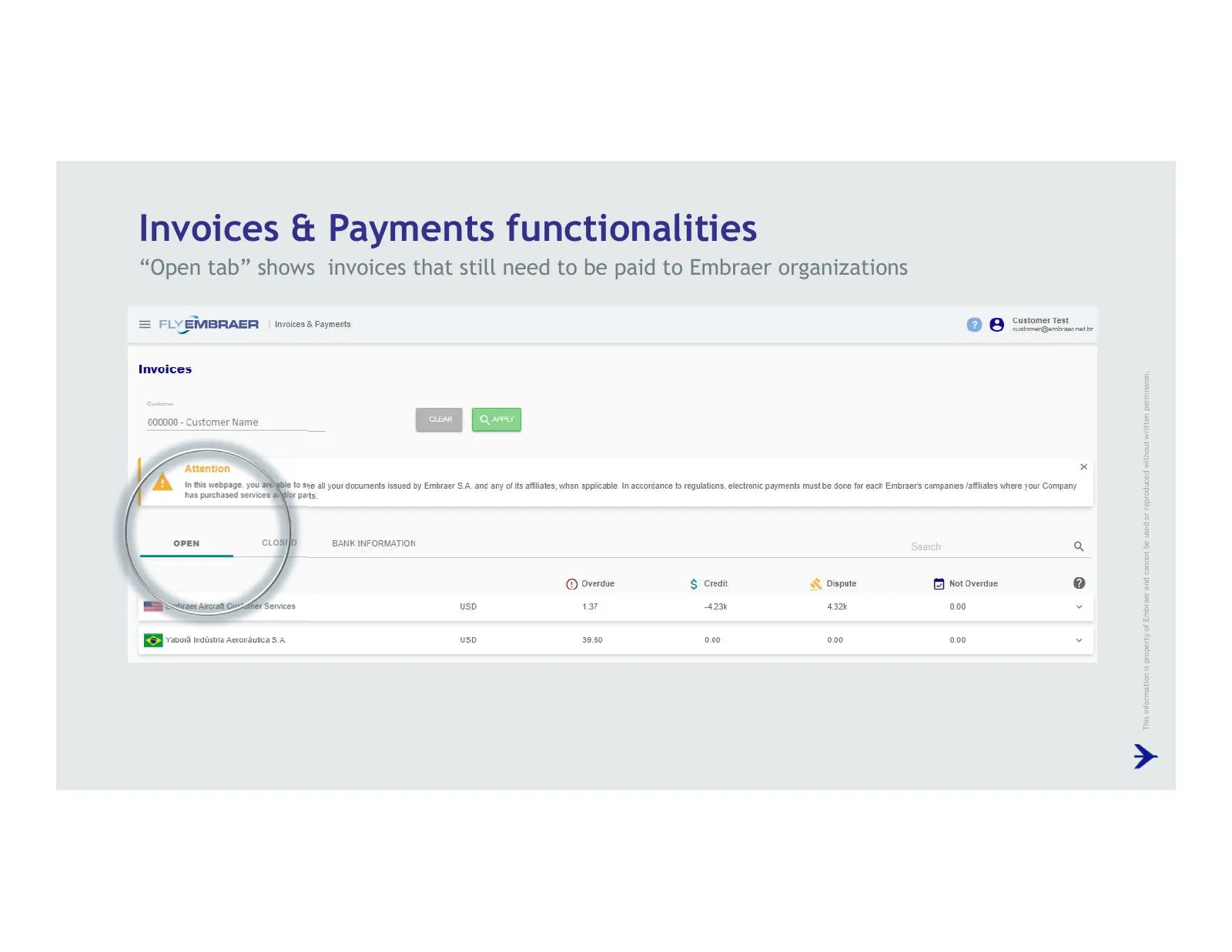
Slide 10: Invoices & Payments functionalities: Open tab
Invoices & Payments functionalities “Open tab” shows invoices that still need to be paid to Embraer organizations This information is property of Embraer and cannot be used or reproduced without written permission.
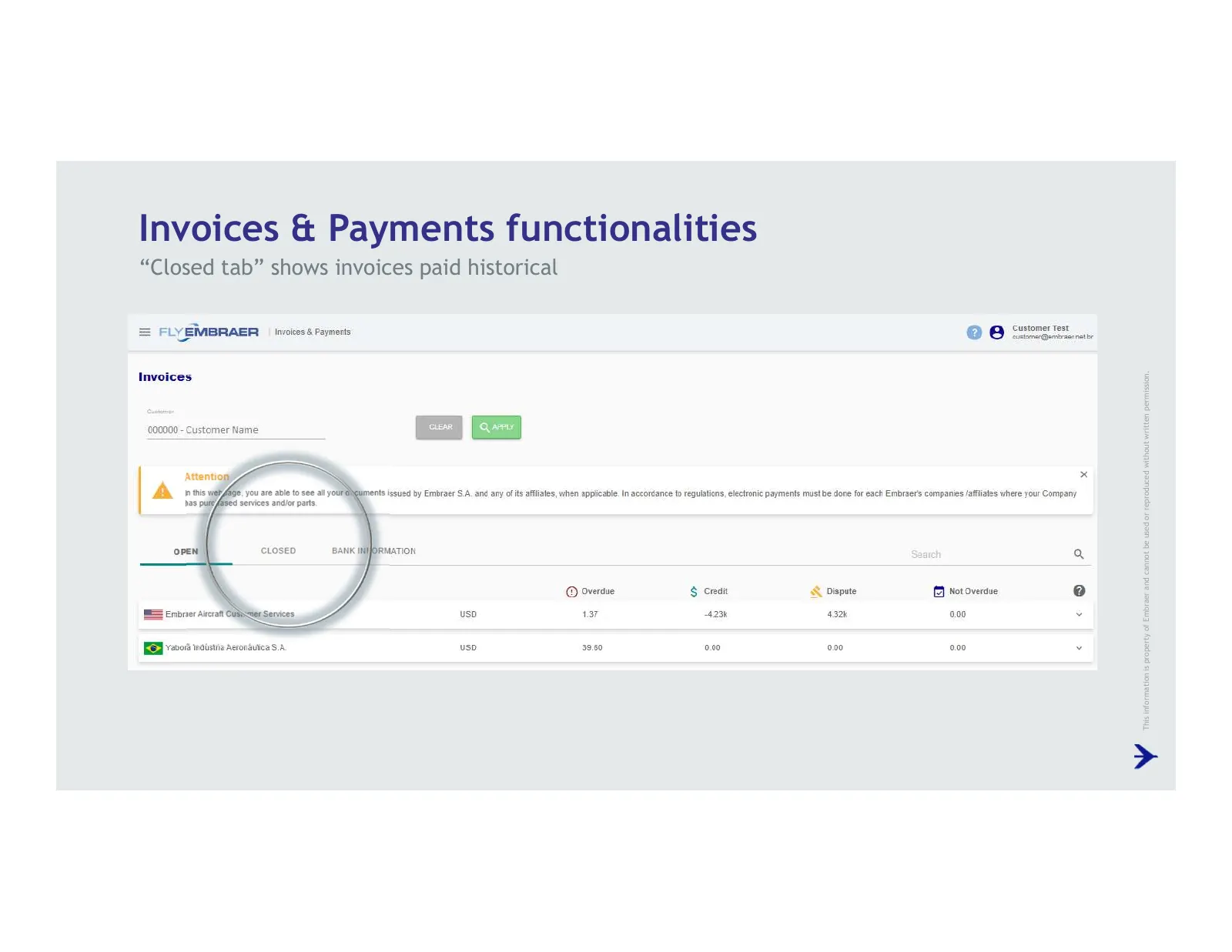
Slide 11: Invoices & Payments functionalities: Closed tab
“Closed tab” shows invoices paid historical Invoices & Payments functionalities This information is property of Embraer and cannot be used or reproduced without written permission.
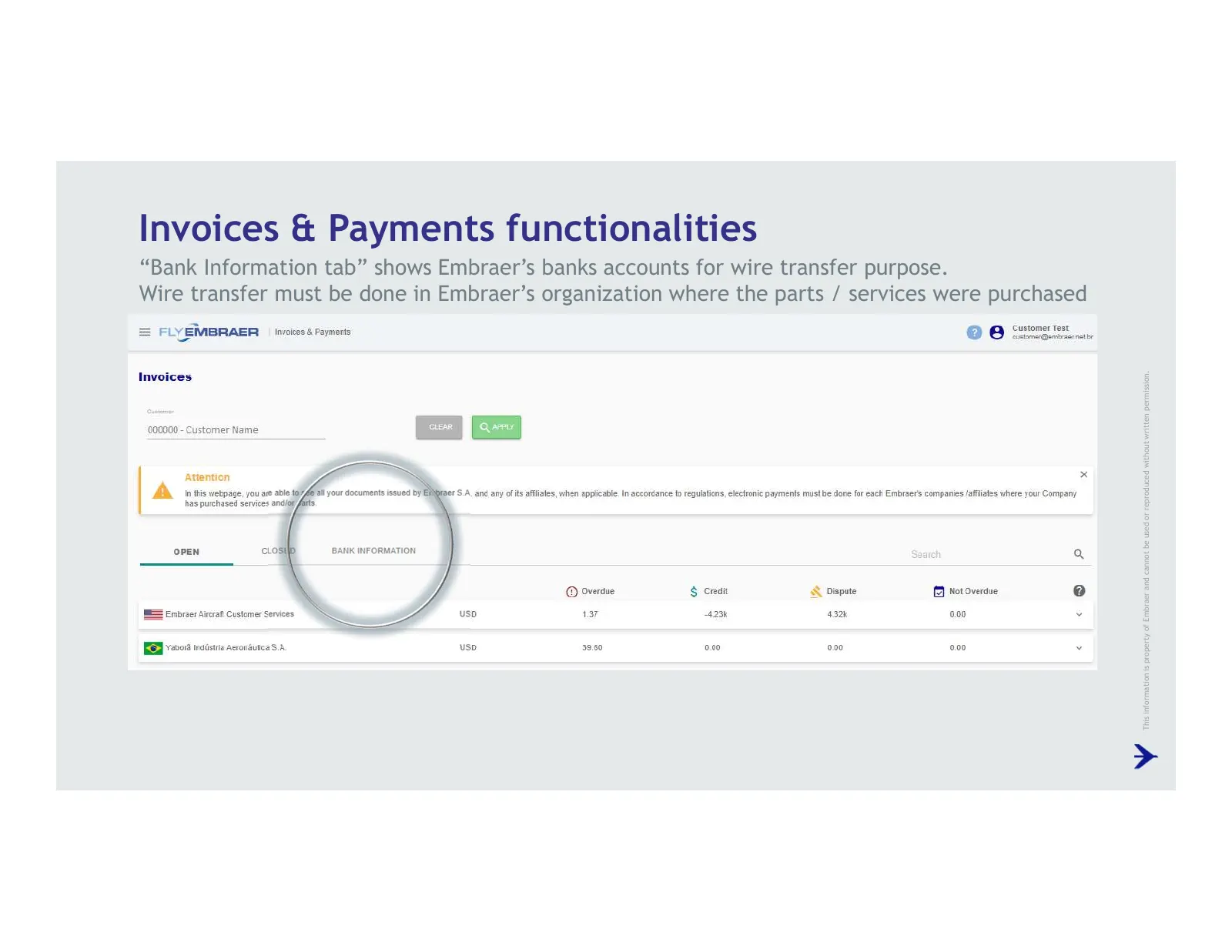
Slide 12: Invoices & Payments functionalities: Bank Information tab
Invoices & Payments functionalities “Bank Information tab” shows Embraer’s banks accounts for wire transfer purpose. Wire transfer must be done in Embraer’s organization where the parts / services were purchased This information is property of Embraer and cannot be used or reproduced without written
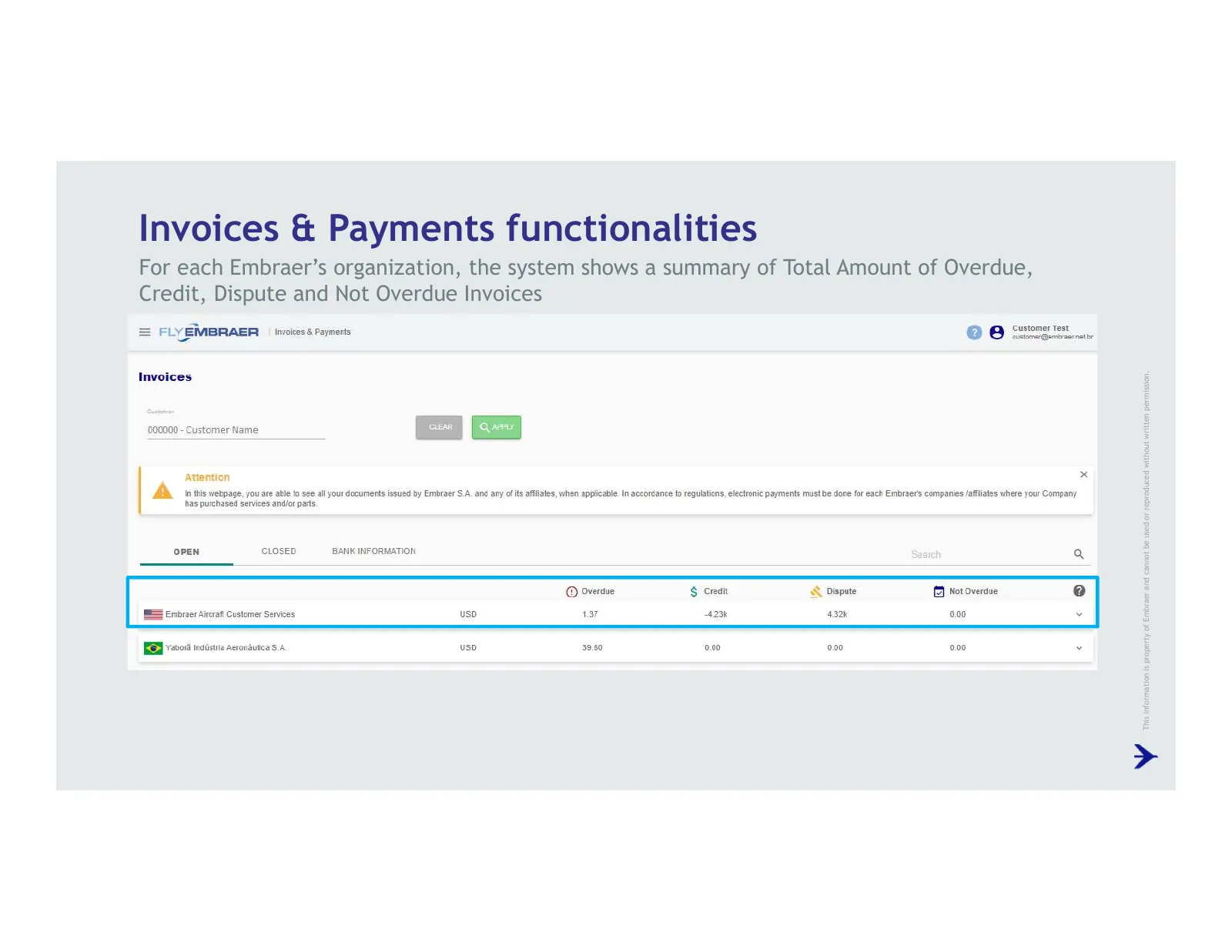
Slide 13: Invoices & Payments functionalities: summary
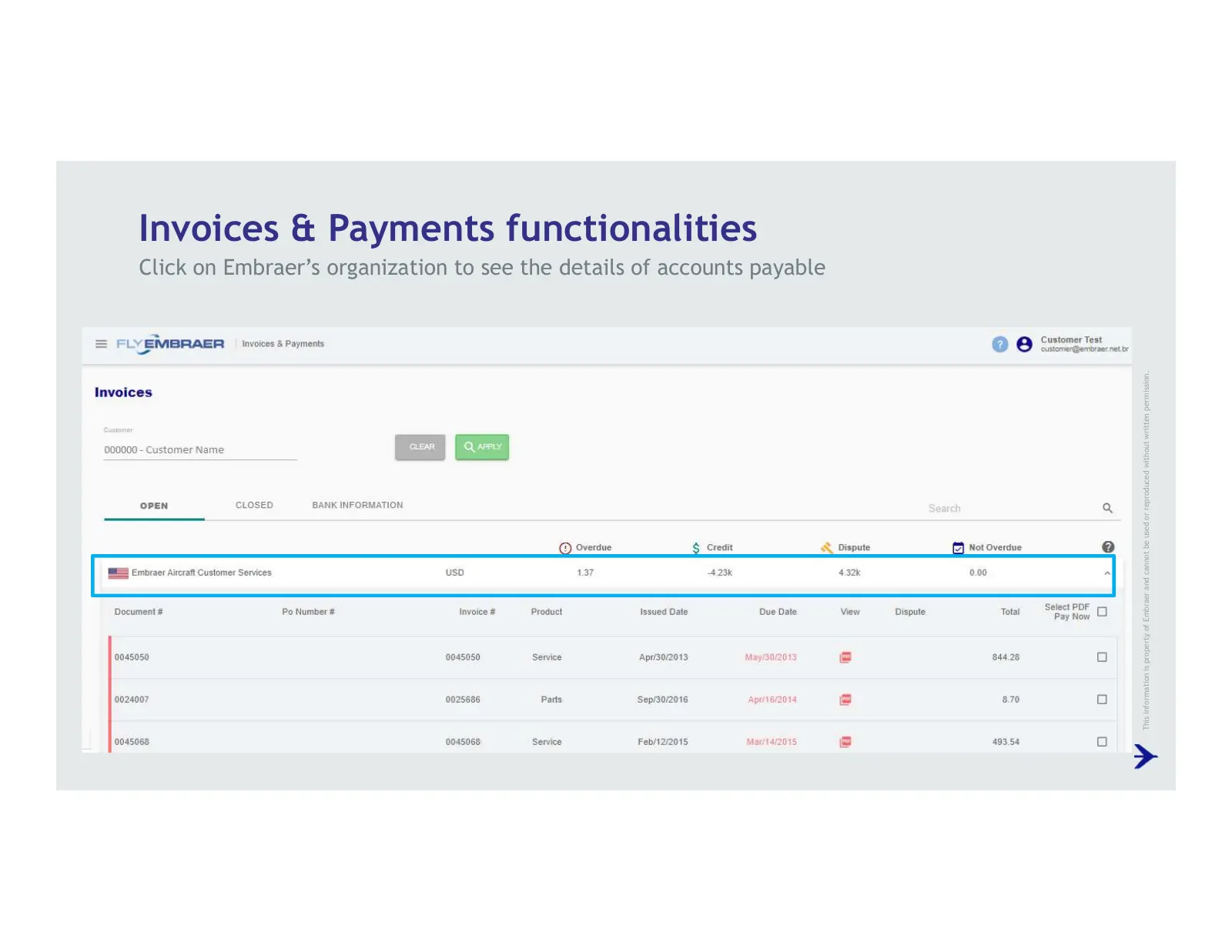
Invoices & Payments functionalities For each Embraer’s organization, the system shows a summary of Total Amount of Overdue, Credit, Dispute and Not Overdue Invoices This information is property of Embraer and cannot be used or reproduced without written permission.
Slide 14: Invoices & Payments functionalities: account details
Invoices & Payments functionalities Click on Embraer’s organization to see the details of accounts payable This information is property of Embraer and cannot be used or reproduced without written permission.
Slide 15: Invoices & Payments functionalities: open invoice PDF
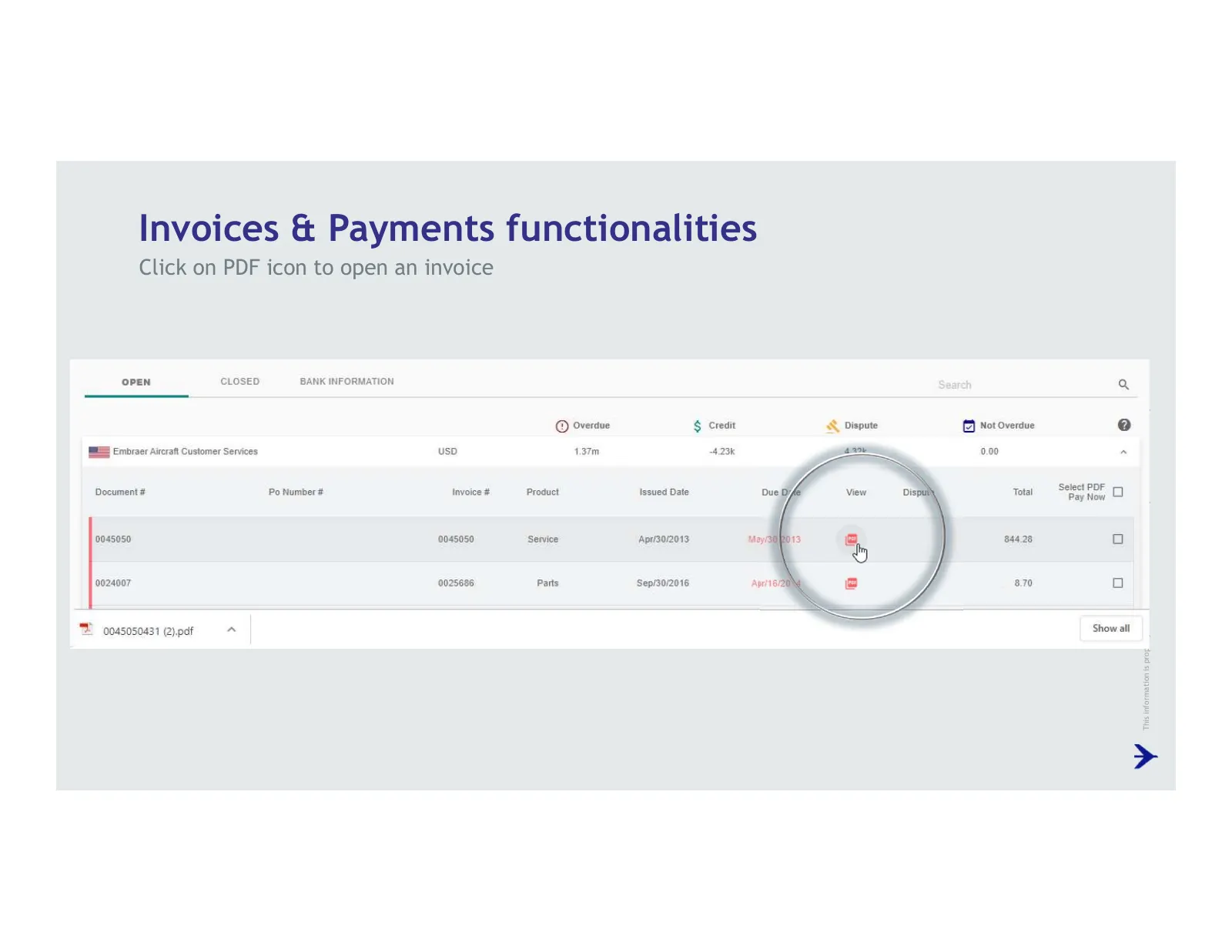
Click on PDF icon to open an invoice Invoices & Payments functionalities This information is property of Embraer and cannot be used or reproduced without written permission.
Slide 16: How to pay electronically
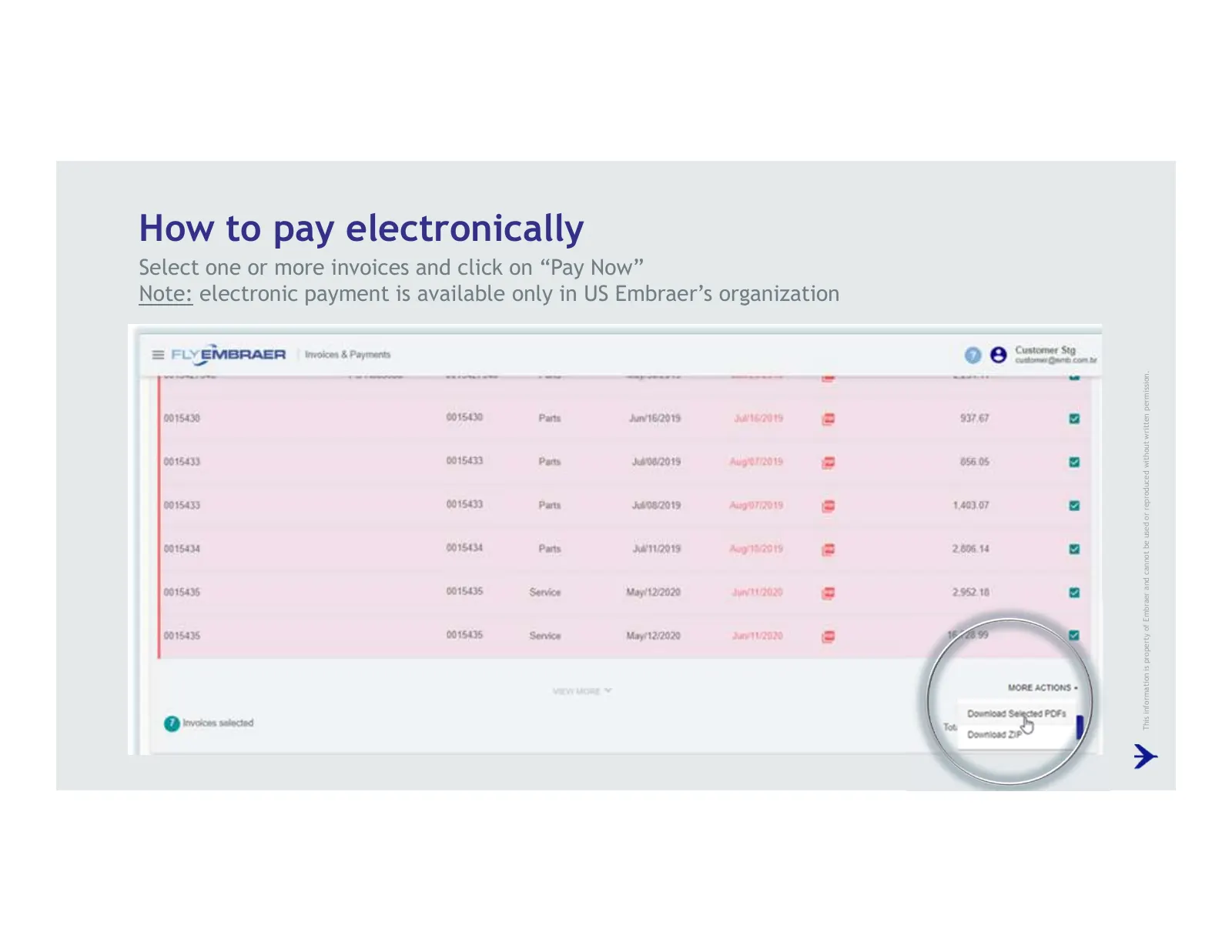
How to pay electronically Select one or more invoices and click on “Pay Now” Note: electronic payment is available only in US Embraer’s organization This information is property of Embraer and cannot be used or reproduced without written permission.
Slide 17: How to pay electronically
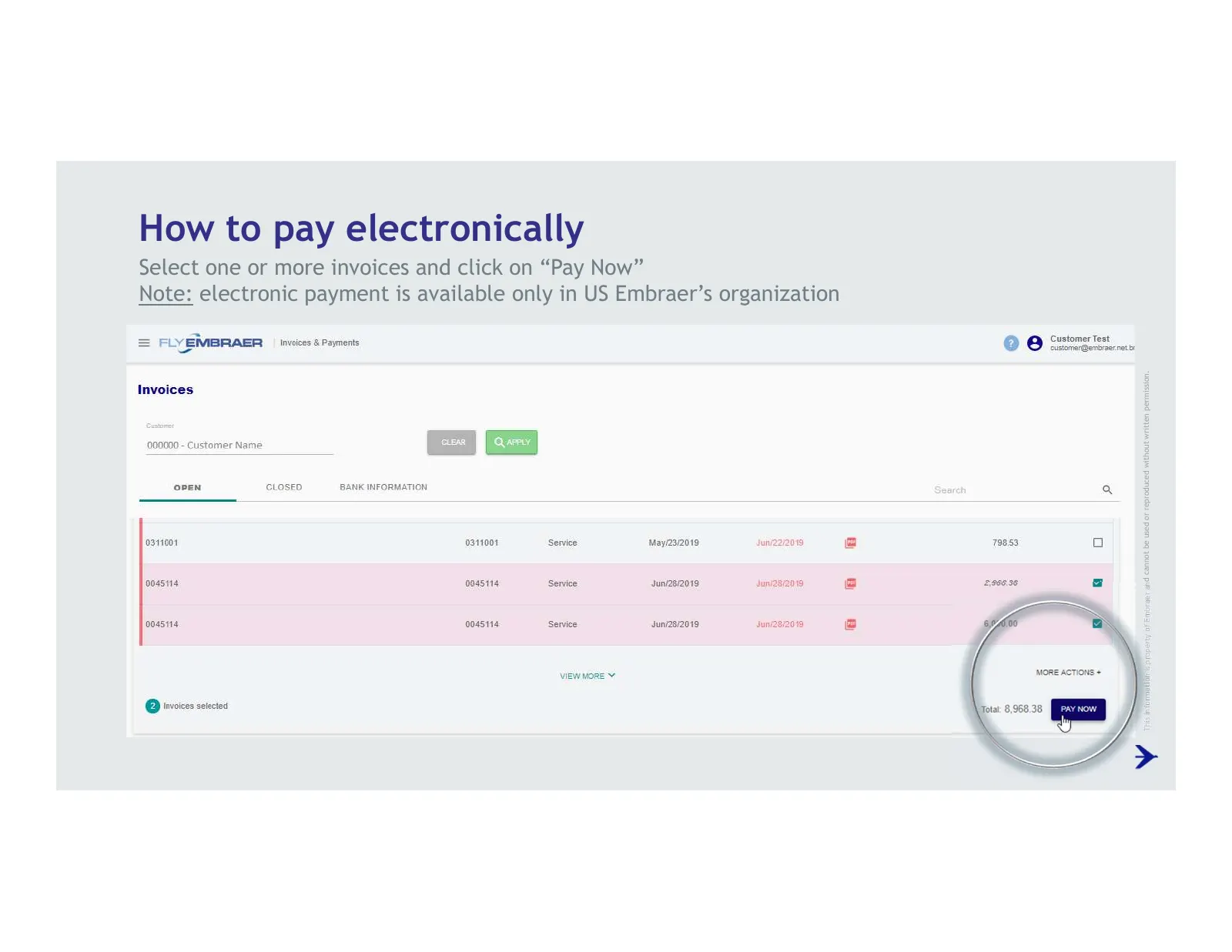
How to pay electronically Select one or more invoices and click on “Pay Now” Note: electronic payment is available only in US Embraer’s organization This information is property of Embraer and cannot be used or reproduced without written permission.
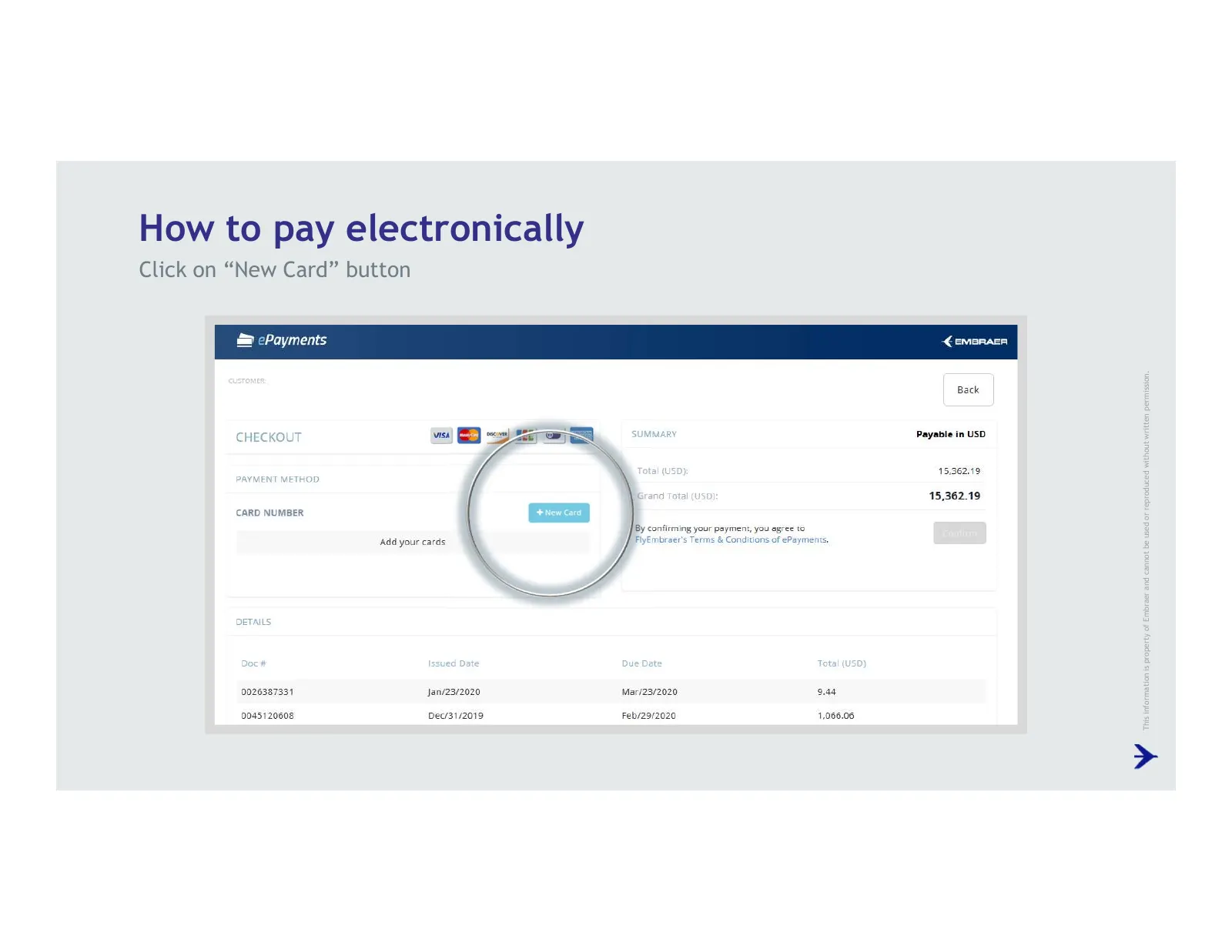
Slide 18: How to pay electronically: New Card
Click on “New Card” button How to pay electronically This information is property of Embraer and cannot be used or reproduced without written permission.
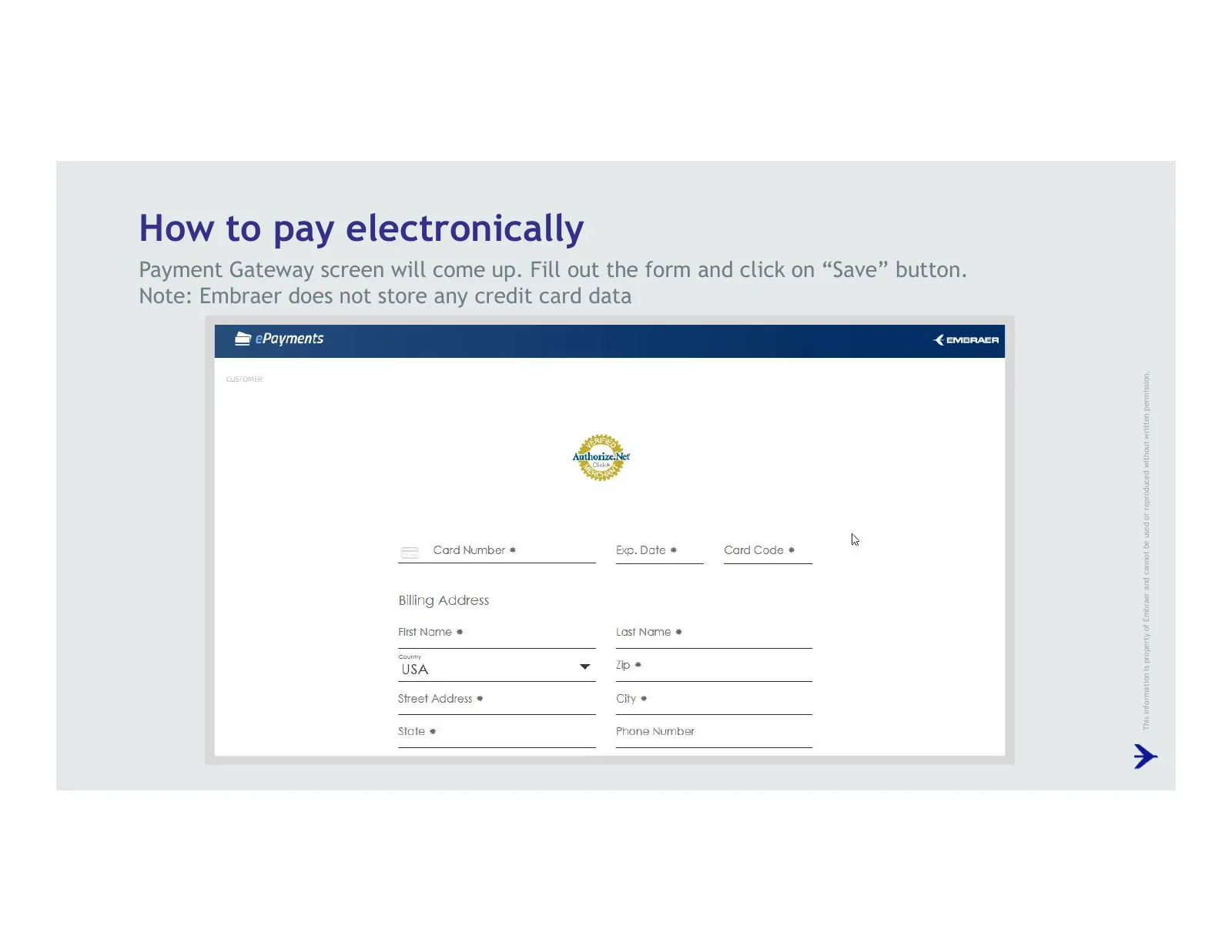
Slide 19: How to pay electronically: Payment Gateway
How to pay electronically Payment Gateway screen will come up. Fill out the form and click on “Save” button. Note: Embraer does not store any credit card data This information is property of Embraer and cannot be used or reproduced without written permission.
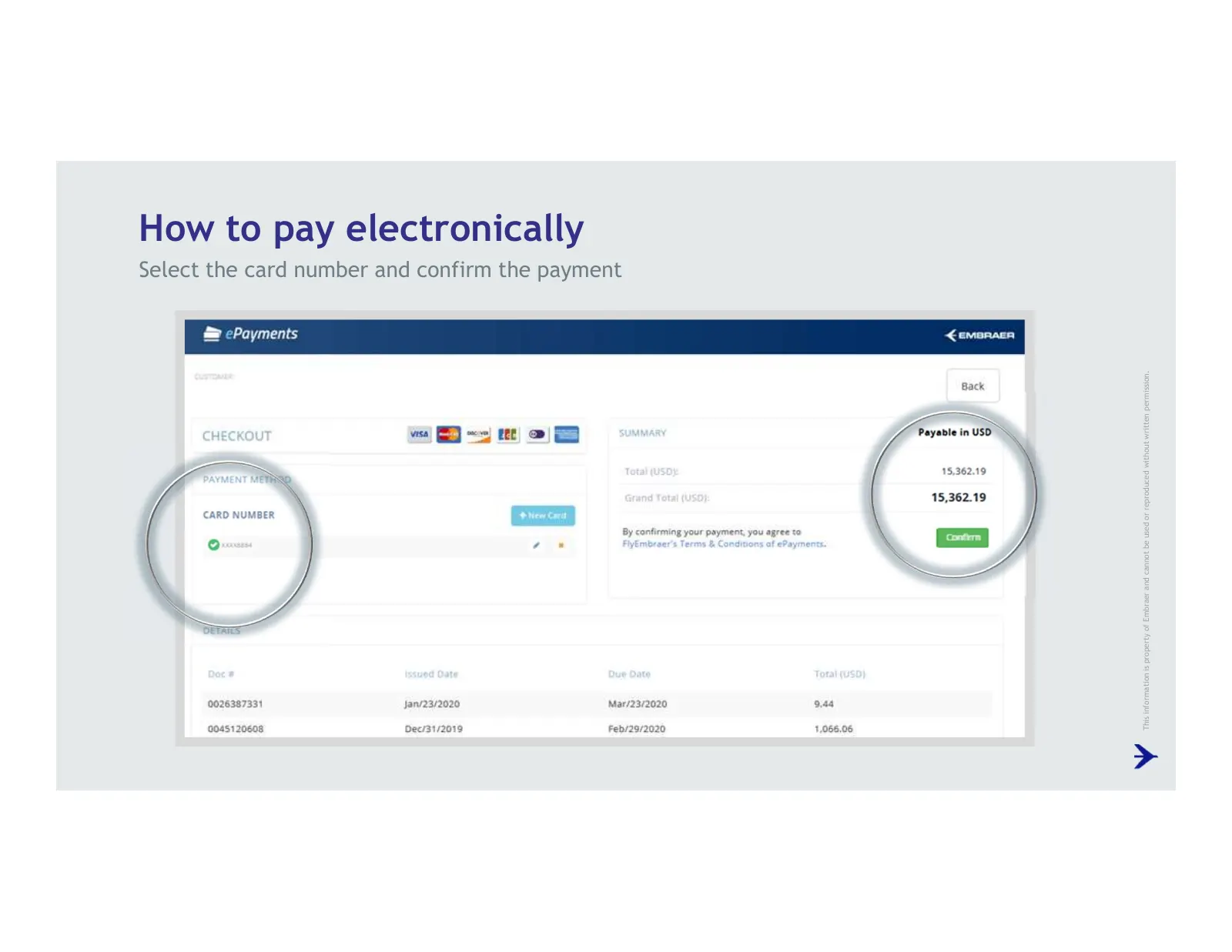
Slide 20: How to pay electronically: confirm payment
How to pay electronically Select the card number and confirm the payment This information is property of Embraer and cannot be used or reproduced without written permission.
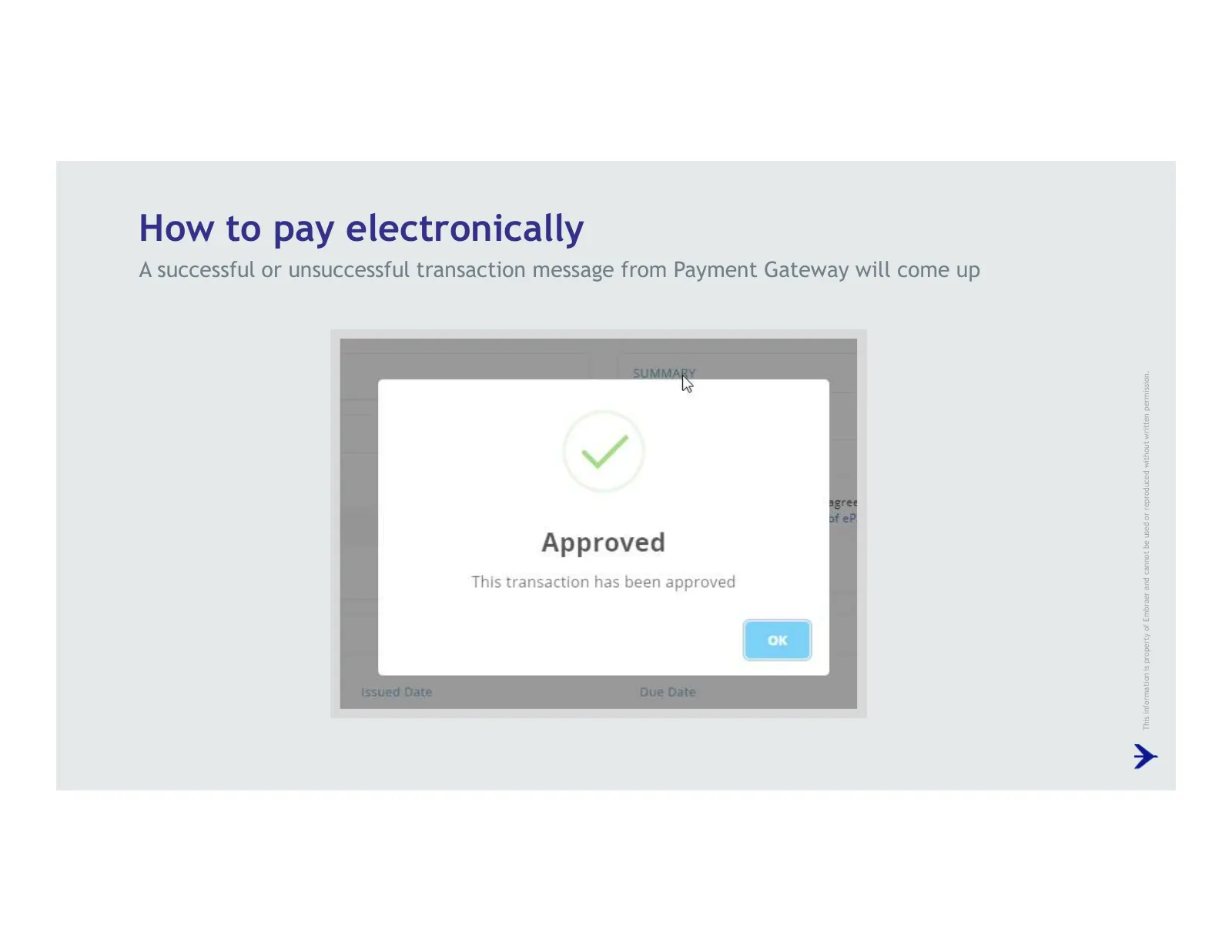
Slide 21: How to pay electronically: transaction message
How to pay electronically A successful or unsuccessful transaction message from Payment Gateway will come up This information is property of Embraer and cannot be used or reproduced without written permission.
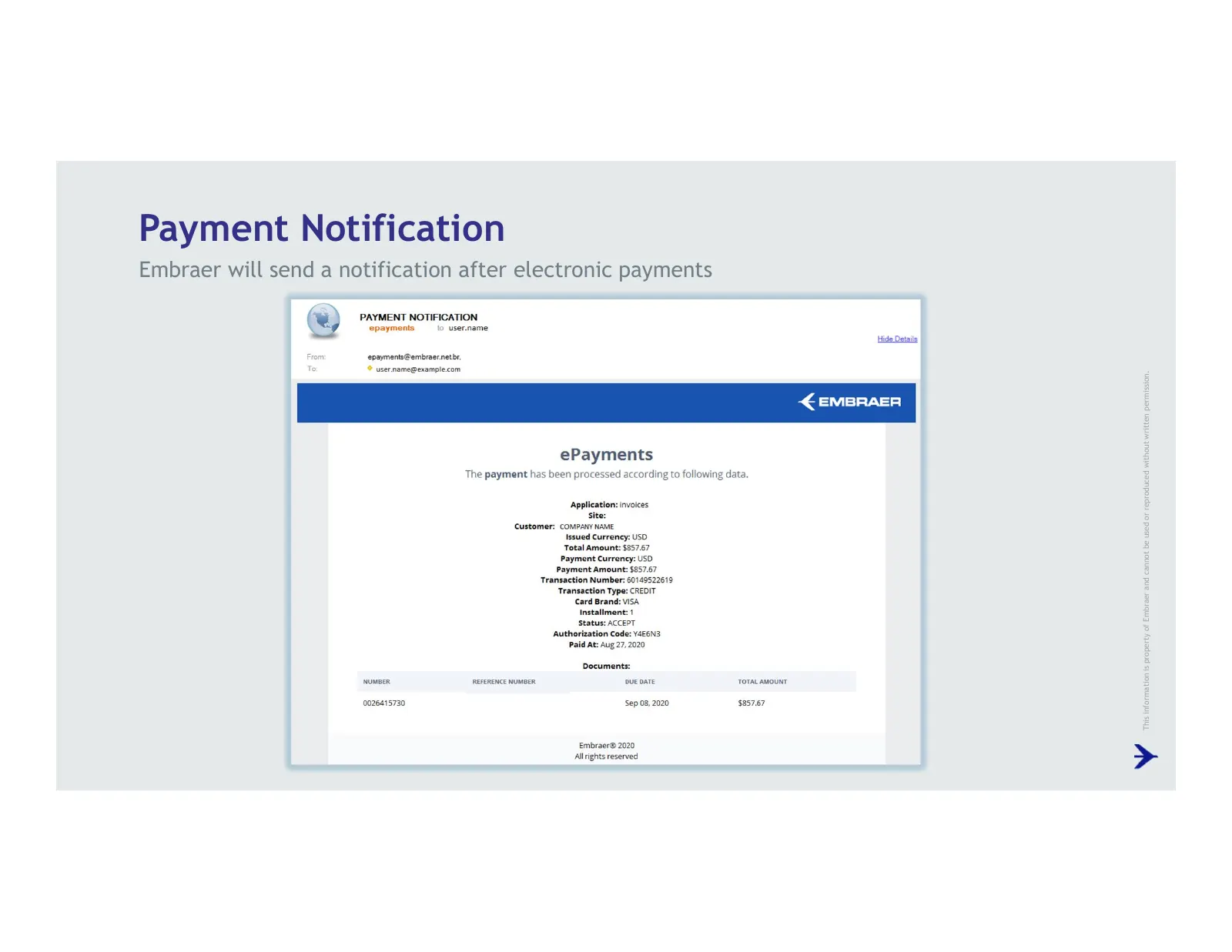
Slide 22: Payment Notification
Payment Notification Embraer will send a notification after electronic payments This information is property of Embraer and cannot be used or reproduced without written permission.
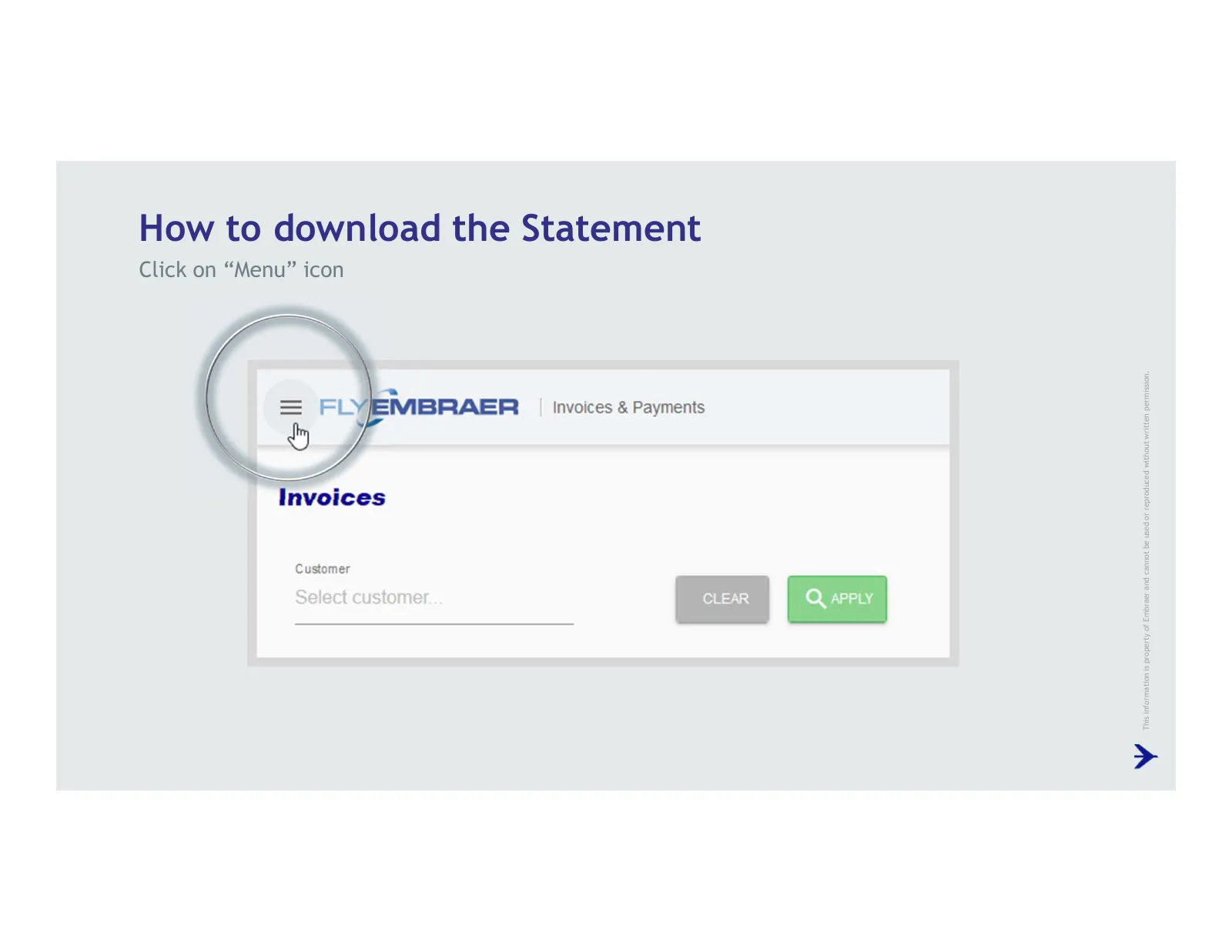
Slide 23: How to download the Statement: Menu
Click on “Menu” icon How to download the Statement This information is property of Embraer and cannot be used or reproduced without written permission.
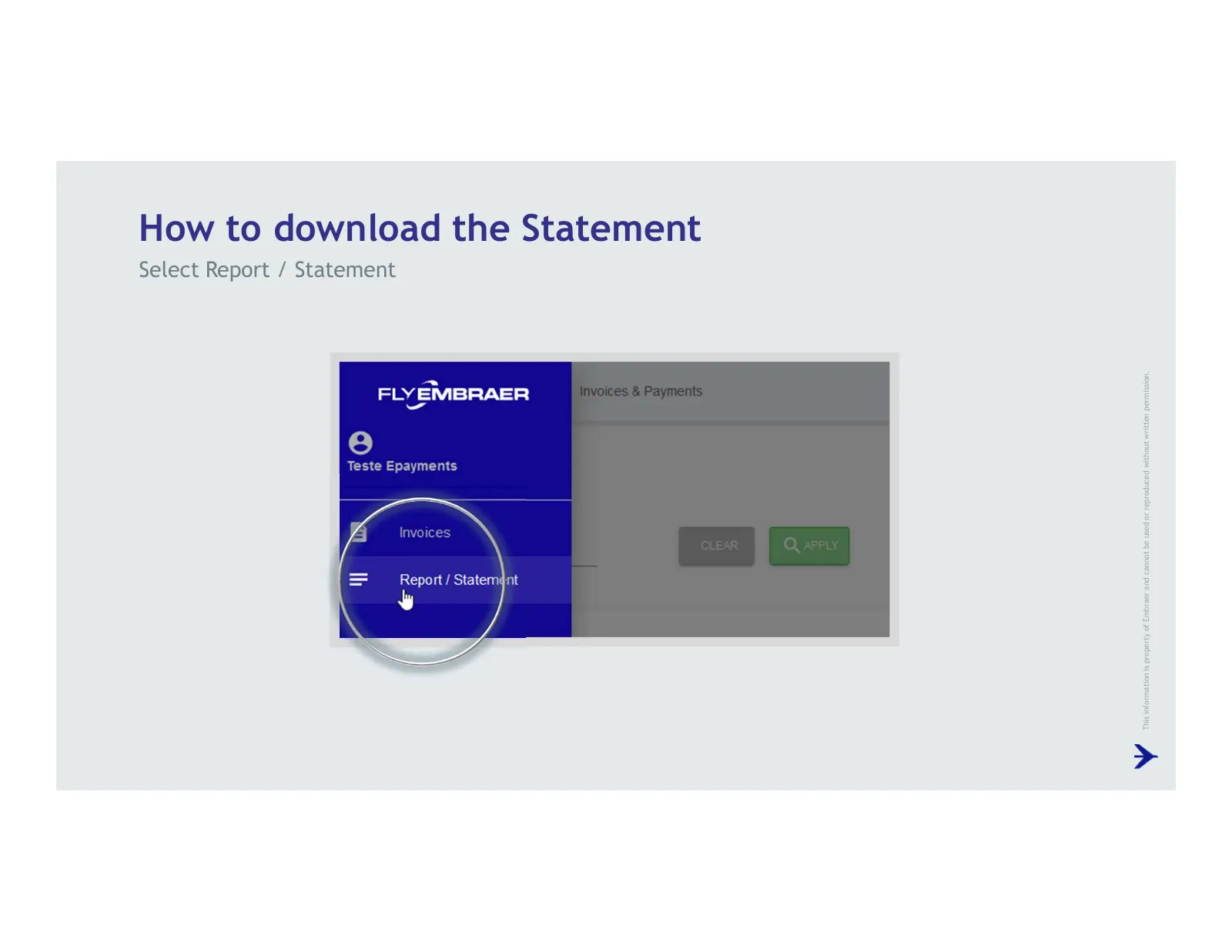
Slide 24: How to download the Statement: Report / Statement
Select Report / Statement How to download the Statement This information is property of Embraer and cannot be used or reproduced without written permission.
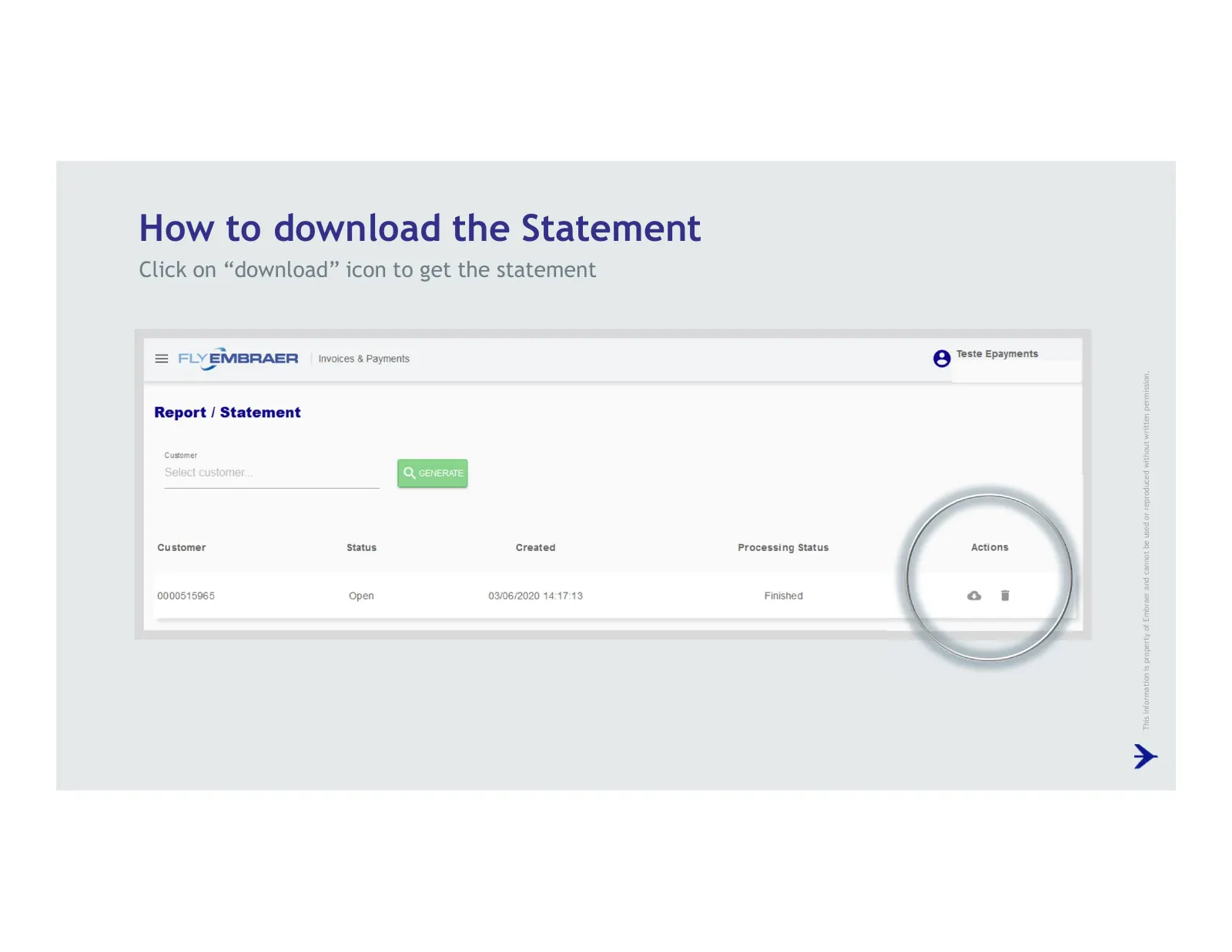
Slide 25: How to download the Statement: download
Click on “download” icon to get the statement How to download the Statement This information is property of Embraer and cannot be used or reproduced without written permission.
Slide 26: Contact us
Contact us For detailed system capability demonstrations, please contact our CRM team This information is property of Embraer and cannot be used or reproduced without written permission. FlyEmbraer support@flyembraer.com FINANCIAL DEPARTMENT ASSISTANCE ar.commercial@embraer.net.br
Slide 27: Thank you
Thank you services.embraer.com
Source: Internet Archive copy of invoices.techcare.embraer.com
More decks from Embraer S.A.
 Q3 2026 Earnings Presentation26 slides · Nov 10, 2026
 Q3 2026 Earnings Presentation21 slides · Nov 10, 2026
 Q2 2026 Earnings Presentation26 slides · Aug 10, 2026
 Q2 2026 Earnings Presentation81 slides · Aug 10, 2026
 Q1 2026 Earnings Presentation26 slides · May 8, 2026
 Q1 2026 Earnings Presentation20 slides · May 8, 2026