D2L, Inc. · TSX:DTOL
D2L — Investor Presentation
23 slides from D2L's investor presentation
Slide 1: Getting Started with Brightspace
Getting Started with Brightspace
Slide 2: Hello from D2L!
Hello from D2L! Valerie Howe Customer Success Specialist D2L @valeriemhowe89 Questions: K12Ont@D2L.com
Slide 3: Agenda
Agenda • What is Brightspace? • District Homepage Navigation • Course Homepage Navigation • Tips for Getting Started and Engaging Learners • Resources
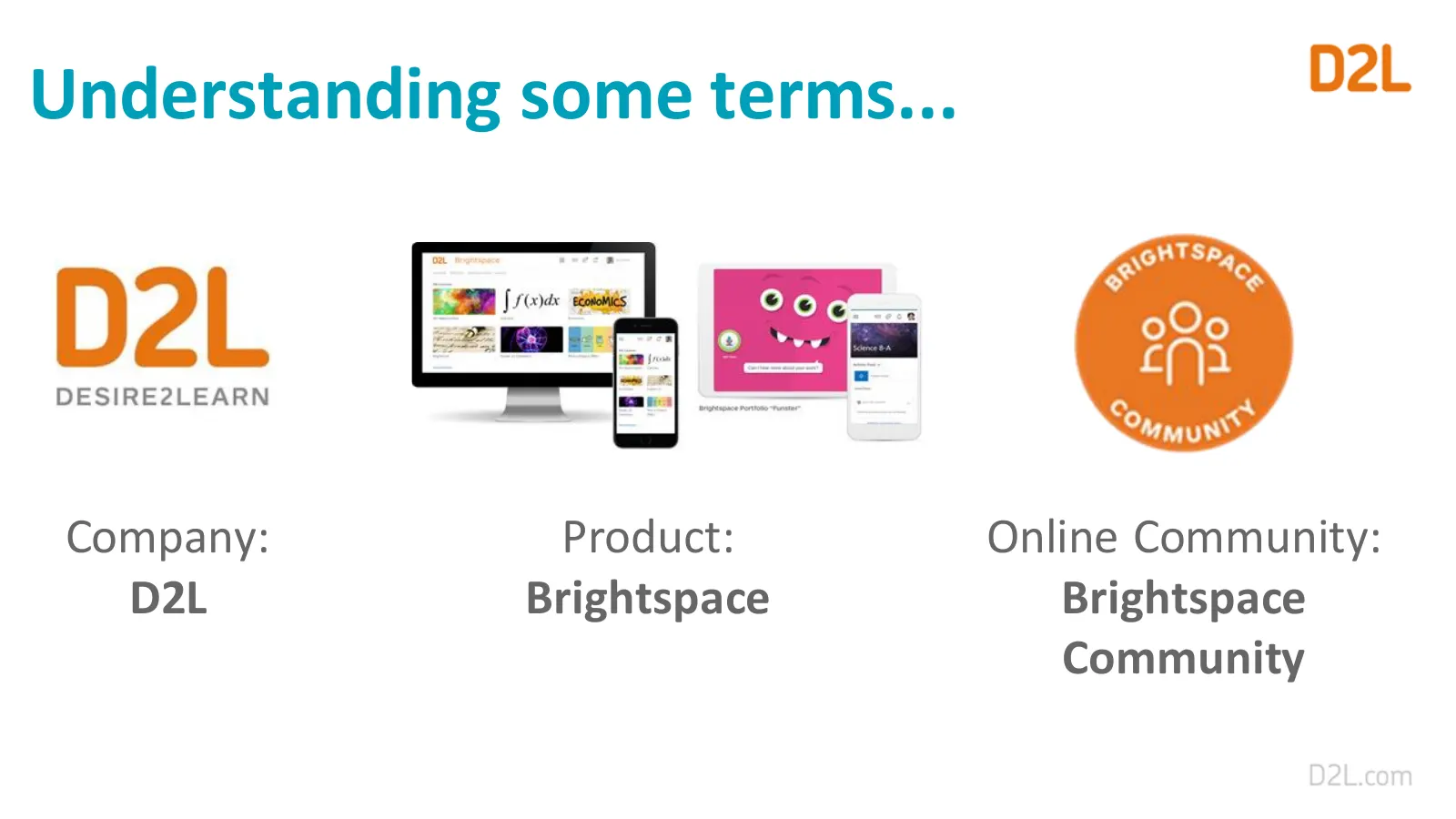
Slide 4: Understanding some terms...
Understanding some terms... Company: Product: Online Community: D2L Brightspace Brightspace Community
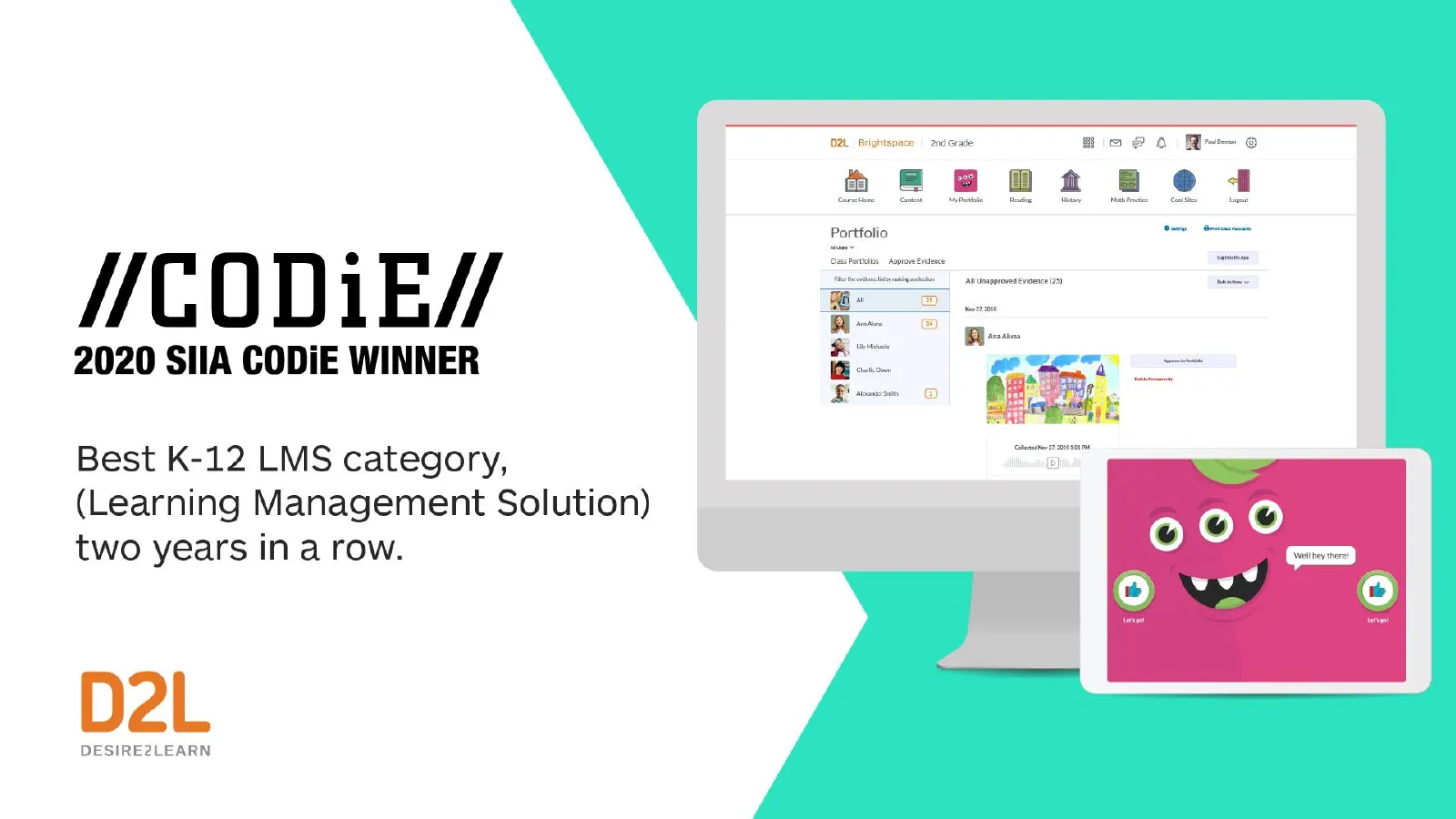
Slide 5: Best K-12 Learning Management Solution
Best K-12 Learning Management Solution Brightspace was recently named the best K-12 Learning Management Solution (LMS) of 2019 as part of the annual SIIA CODiE Awards. The prestigious CODiE Awards recognize the companies producing the most innovative Business and Education technology products across
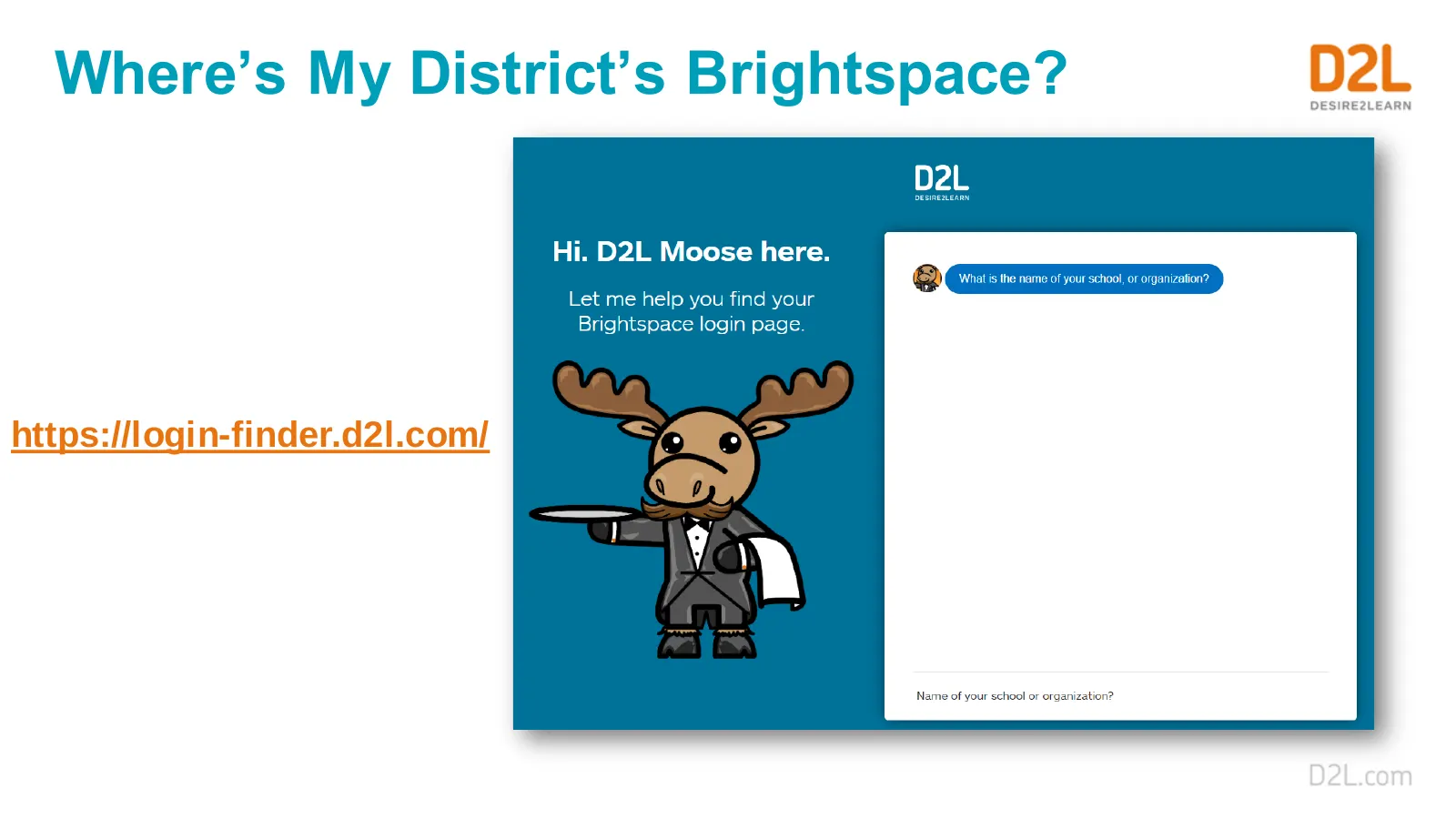
Slide 6: Where's My District's Brightspace?
Where’s My District’s Brightspace? https://login-finder.d2l.com/
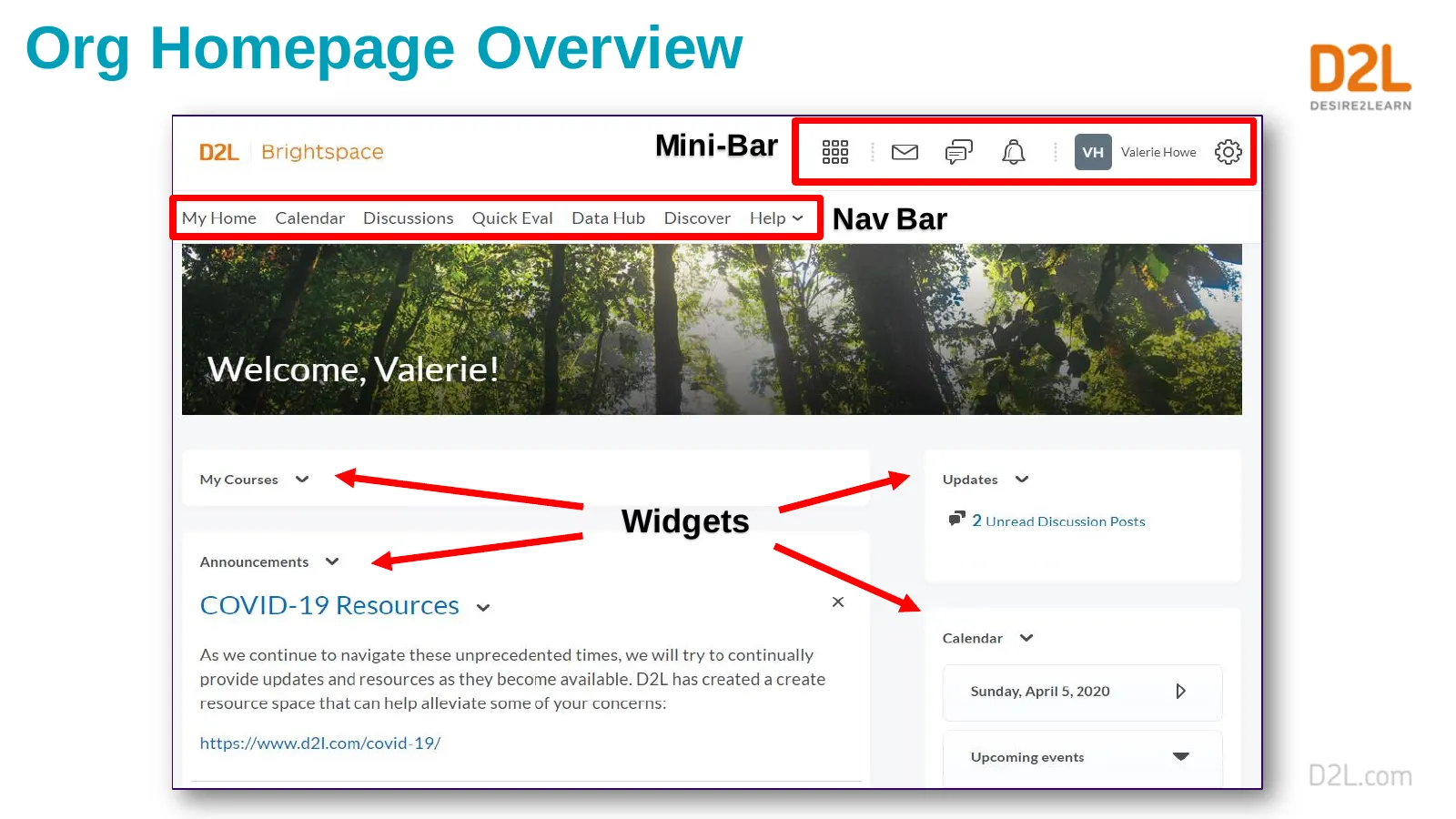
Slide 7: Org Homepage Overview
Org Homepage Overview Mini-Bar Nav Bar Widgets
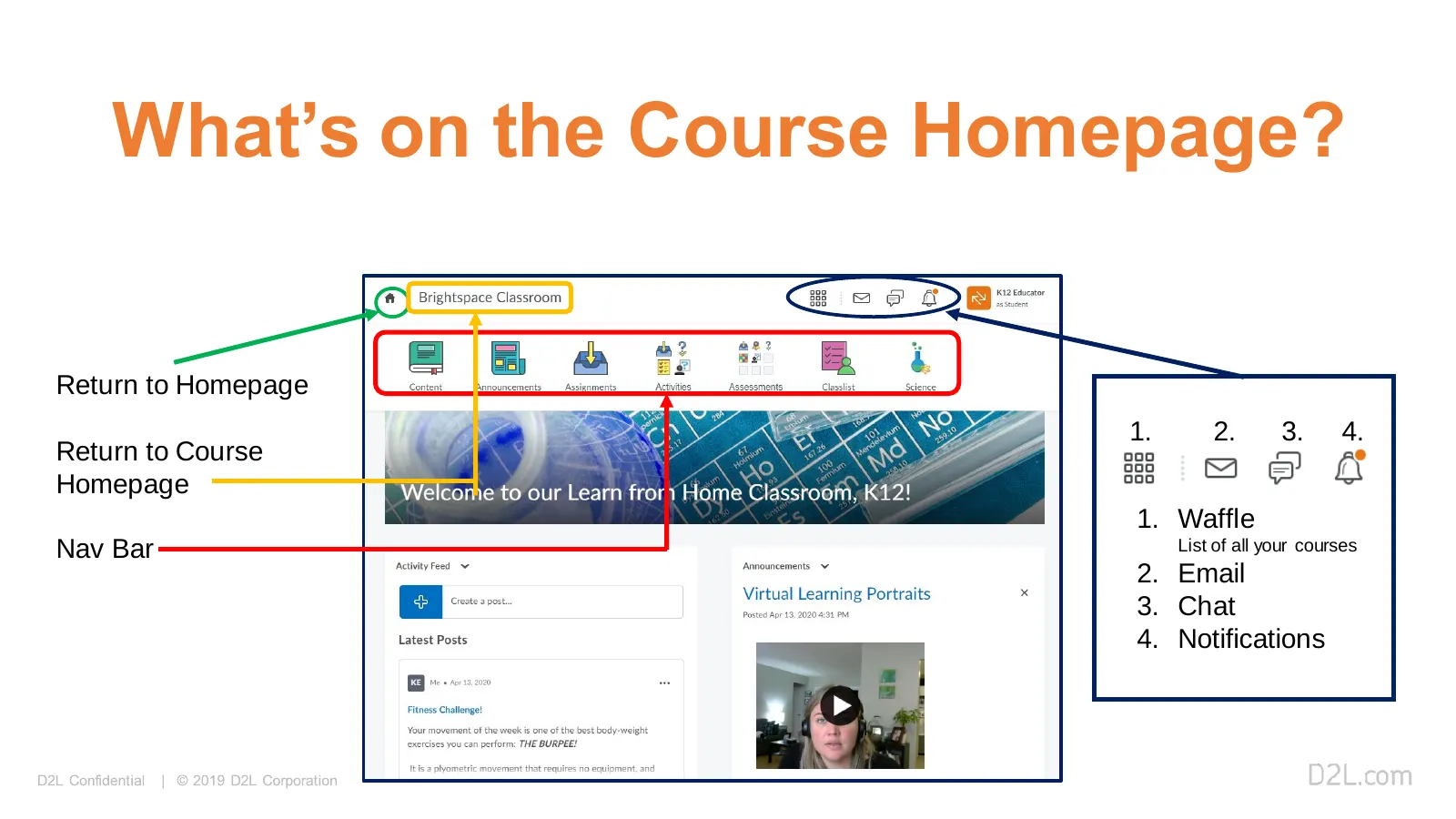
Slide 8: What's on the Course Homepage?
What’s ononthe What's the Course ? Homepage? Course Homepage Return to Homepage 1. 2. 3. 4. Return to Course Homepage 1. Waffle Nav Bar List of all your courses 2. Email 3. Chat 4. Notifications
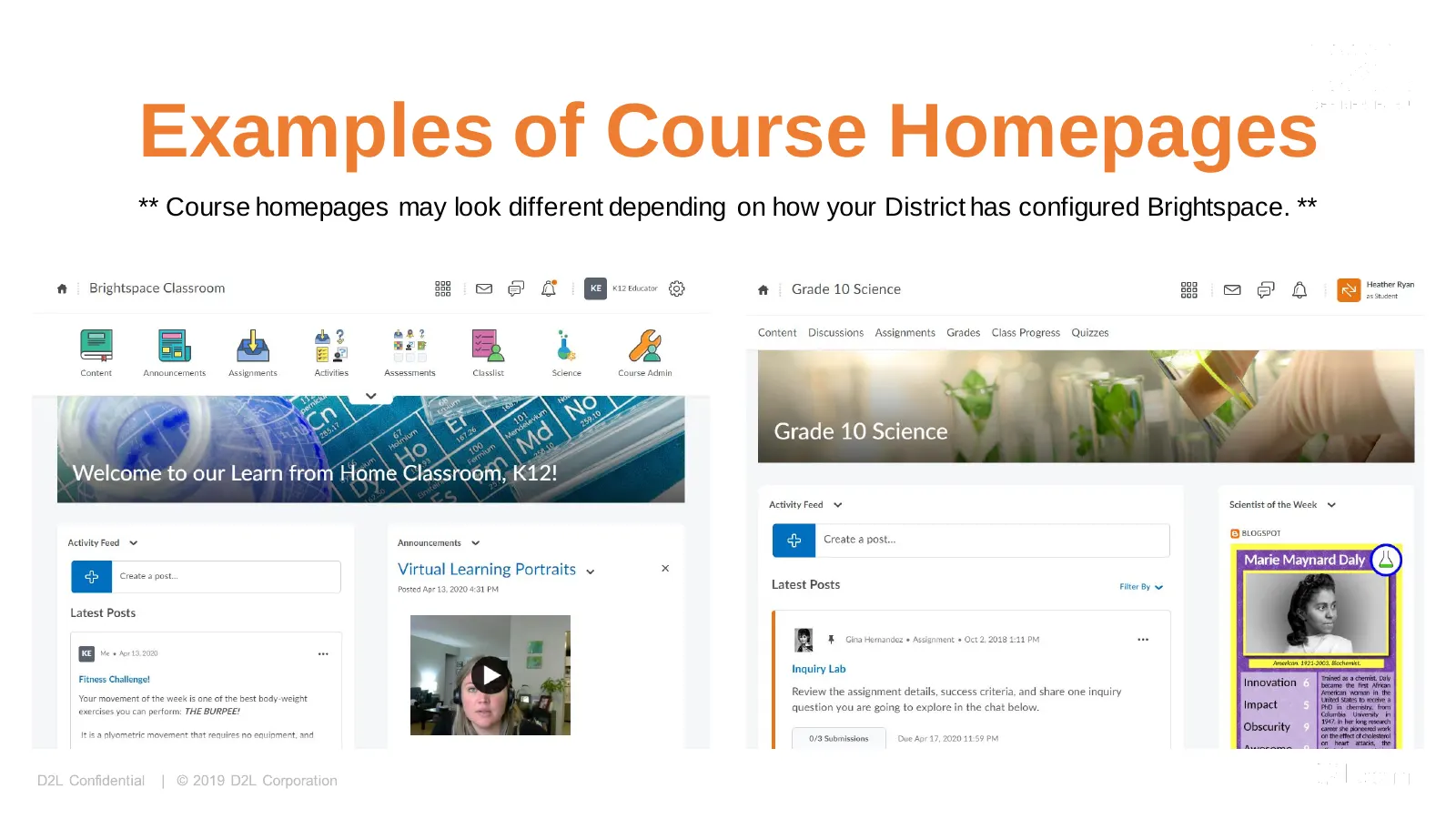
Slide 9: Examples of Course Homepages
Examples of Course Homepages ** Course homepages may look different depending on how your District has configured Brightspace. **
Slide 10: Getting Started Demo
Getting Started Demo Learning Objectives: You will be able to: ❑ Find your courses ❑ Activate courses ❑ Navigate District and Course Homepage ❑ Customize Course Banner ❑ Use Activity Feed ❑ Use Announcements
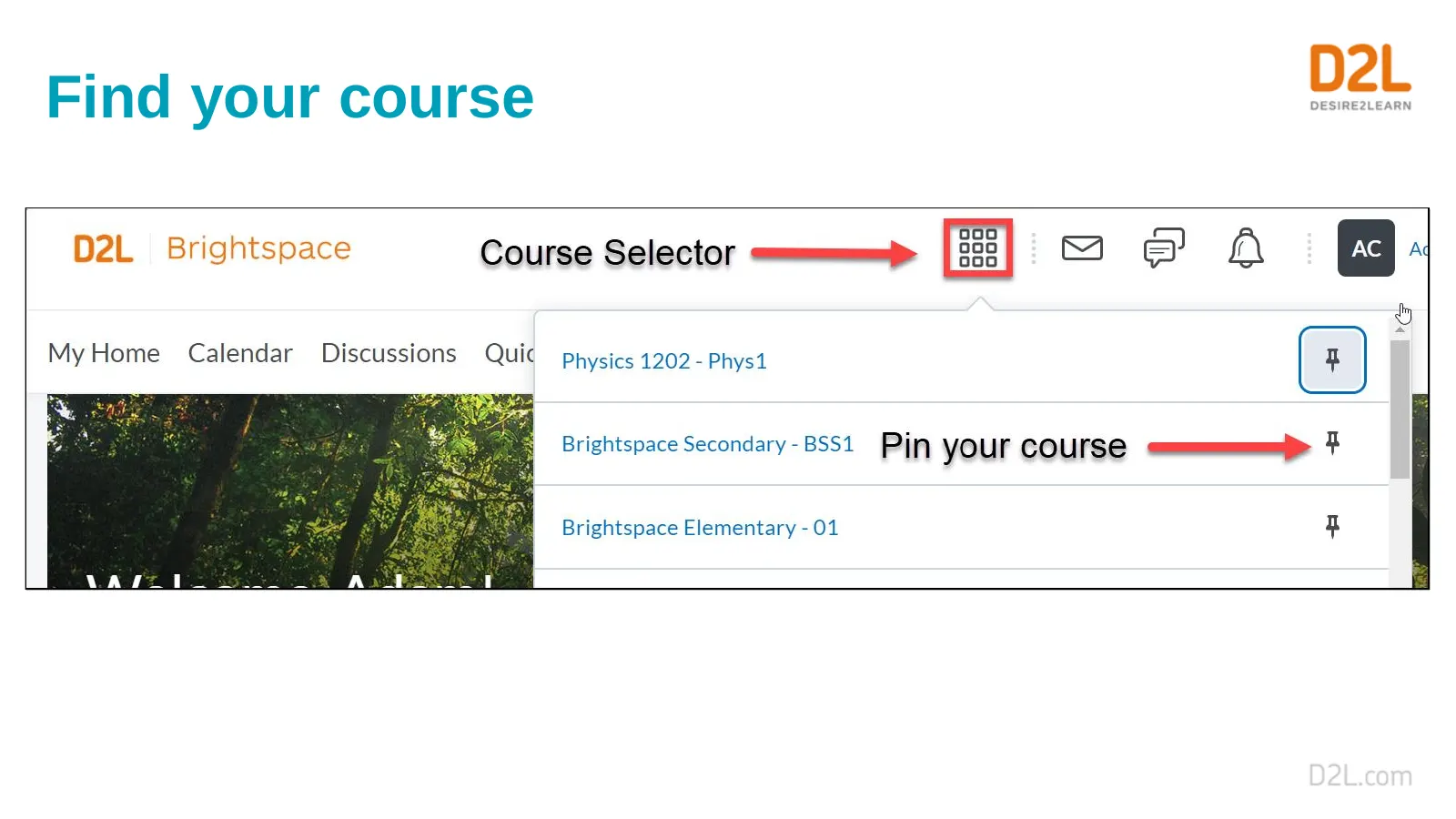
Slide 11: Find your course
Find your course DeL D2L_ Brightspace Course Selector ===> Se A ac cu) MyHome Calendar Discussions Qui¢ physics 1202 - Phys1 [+] Brightspace Secondary-BSS1 Pjp YOU! COUISC => q Brightspace Elementary - 01 q
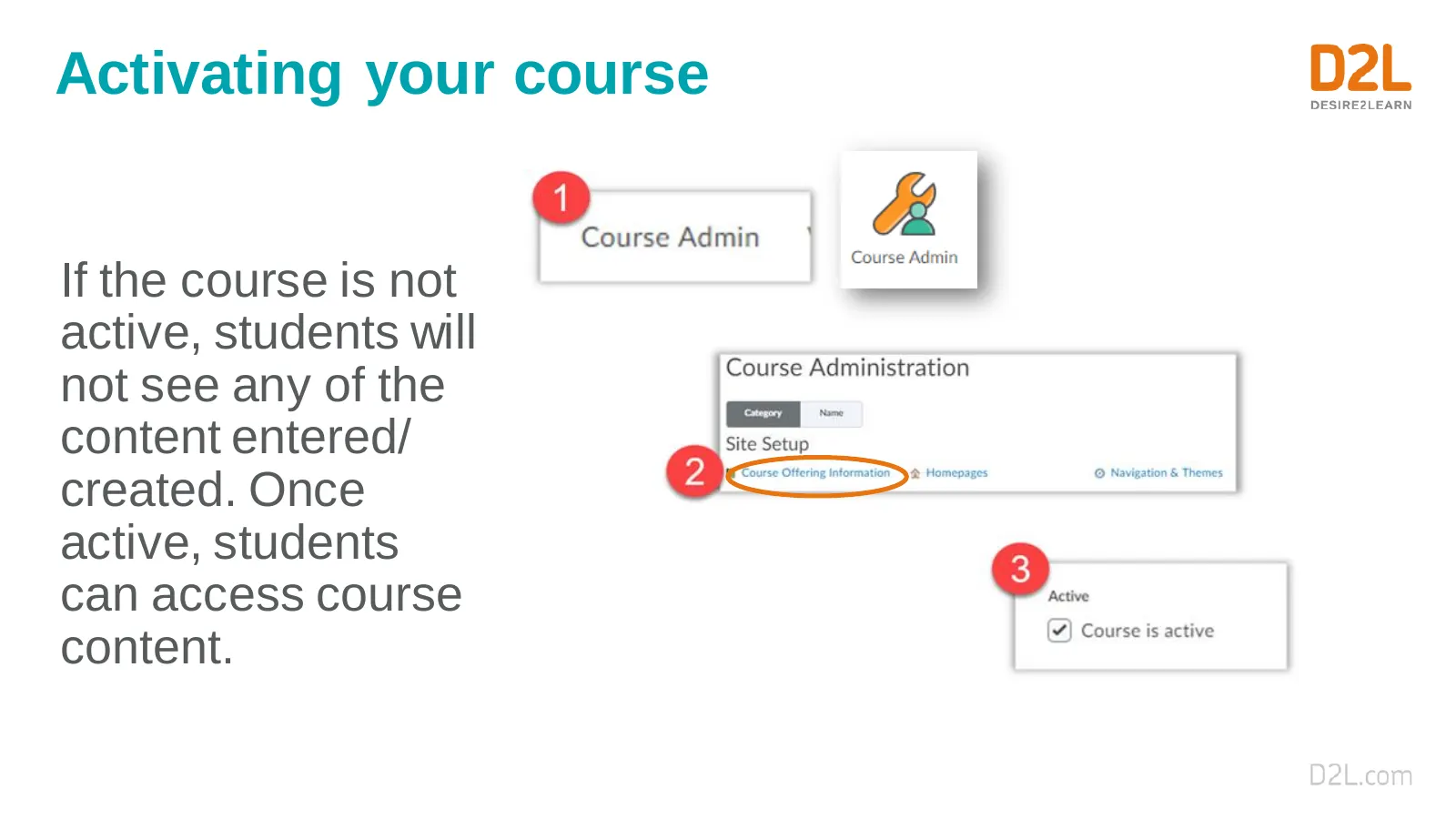
Slide 12: Activating your course
Activating your course If the course is not active, students will not see any of the content entered/ created. Once active, students can access course content.
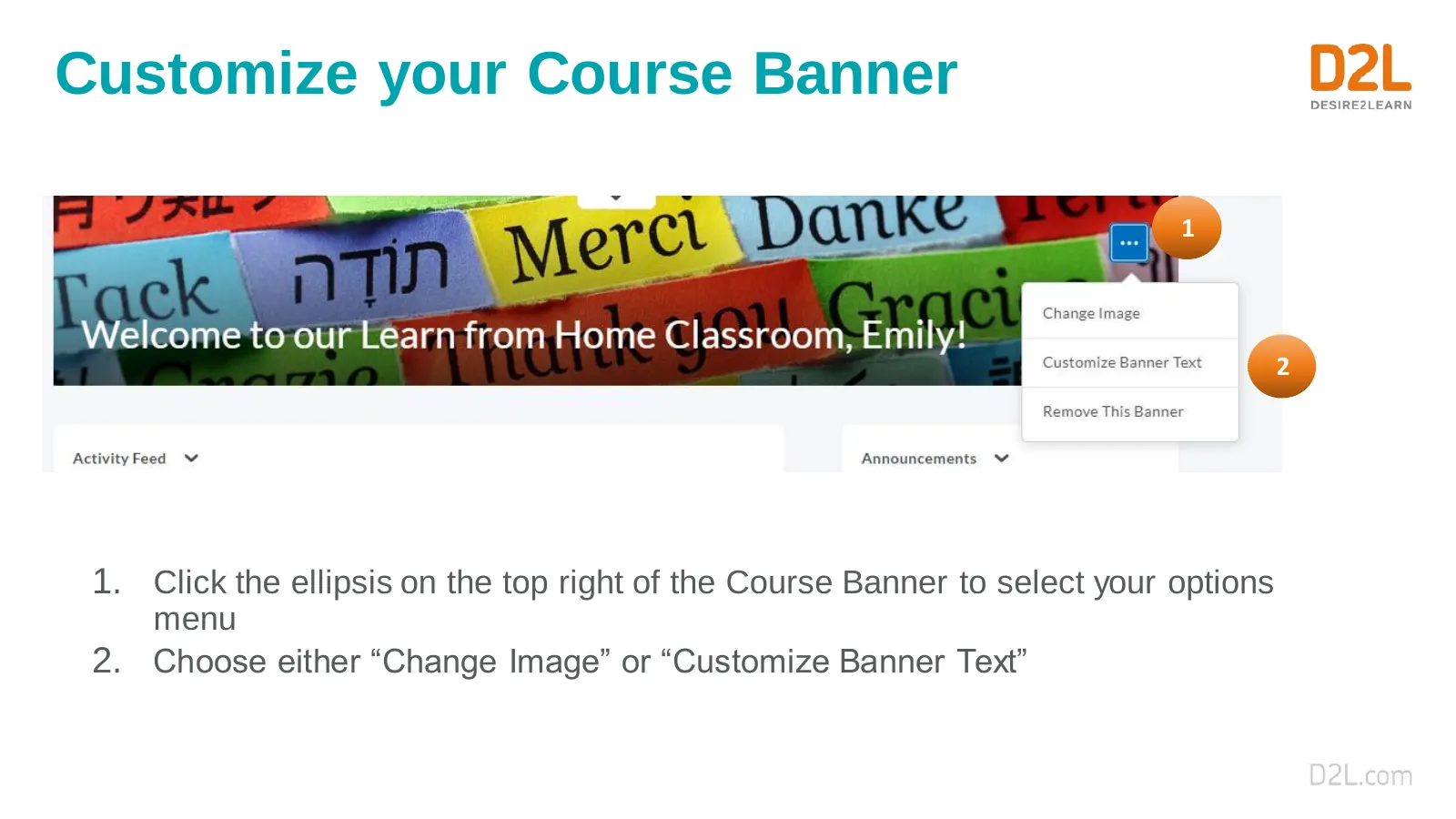
Slide 13: Customize your Course Banner
Customize your Course Banner 1 2 1. Click the ellipsis on the top right of the Course Banner to select your options menu 2. Choose either “Change Image” or “Customize Banner Text”
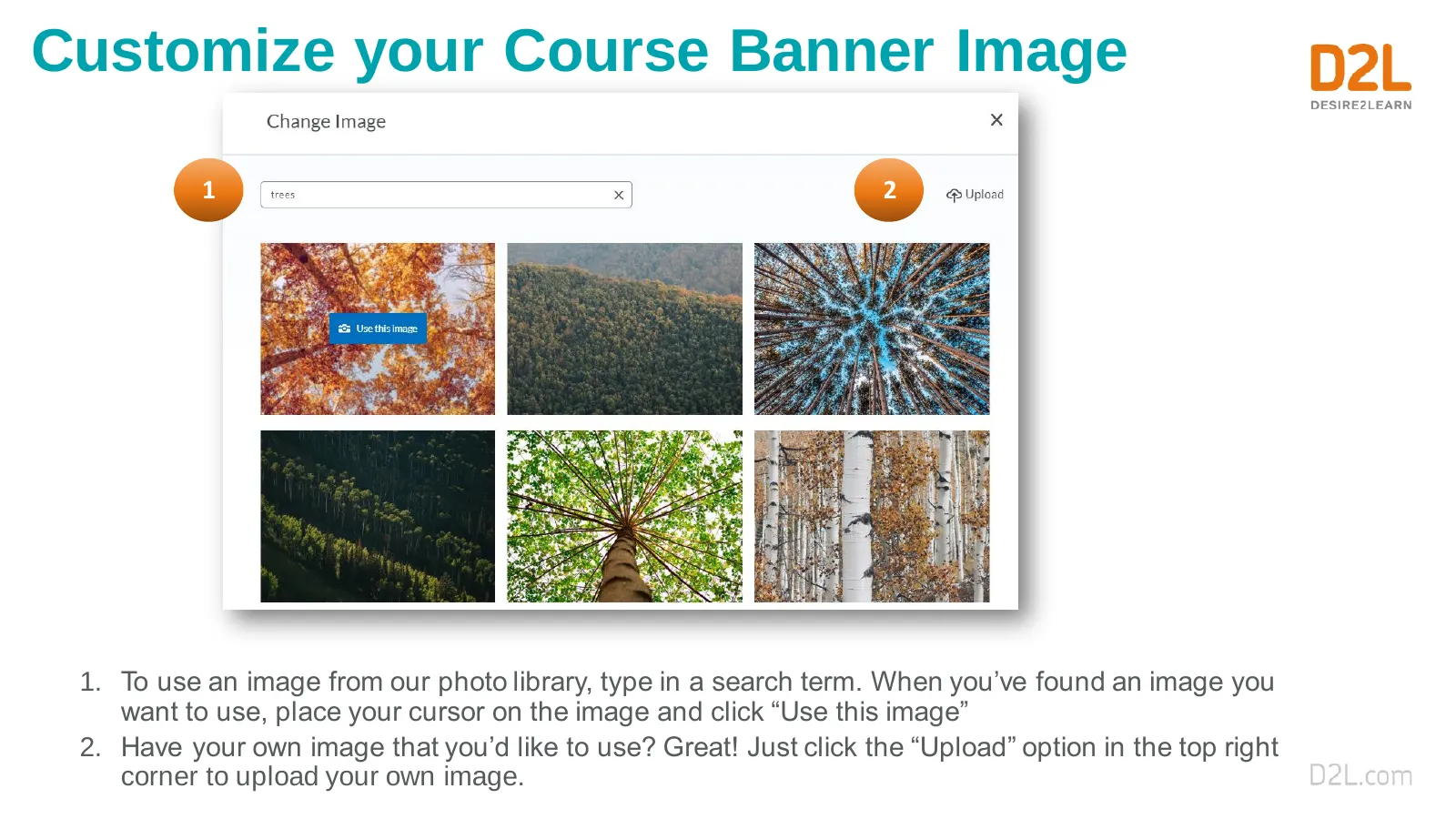
Slide 14: Customize your Course Banner Image
Customize your Course Banner Image 1 2 1. To use an image from our photo library, type in a search term. When you’ve found an image you want to use, place your cursor on the image and click “Use this image” 2. Have your own image that you’d like to use? Great! Just click the “Upload” option in the t
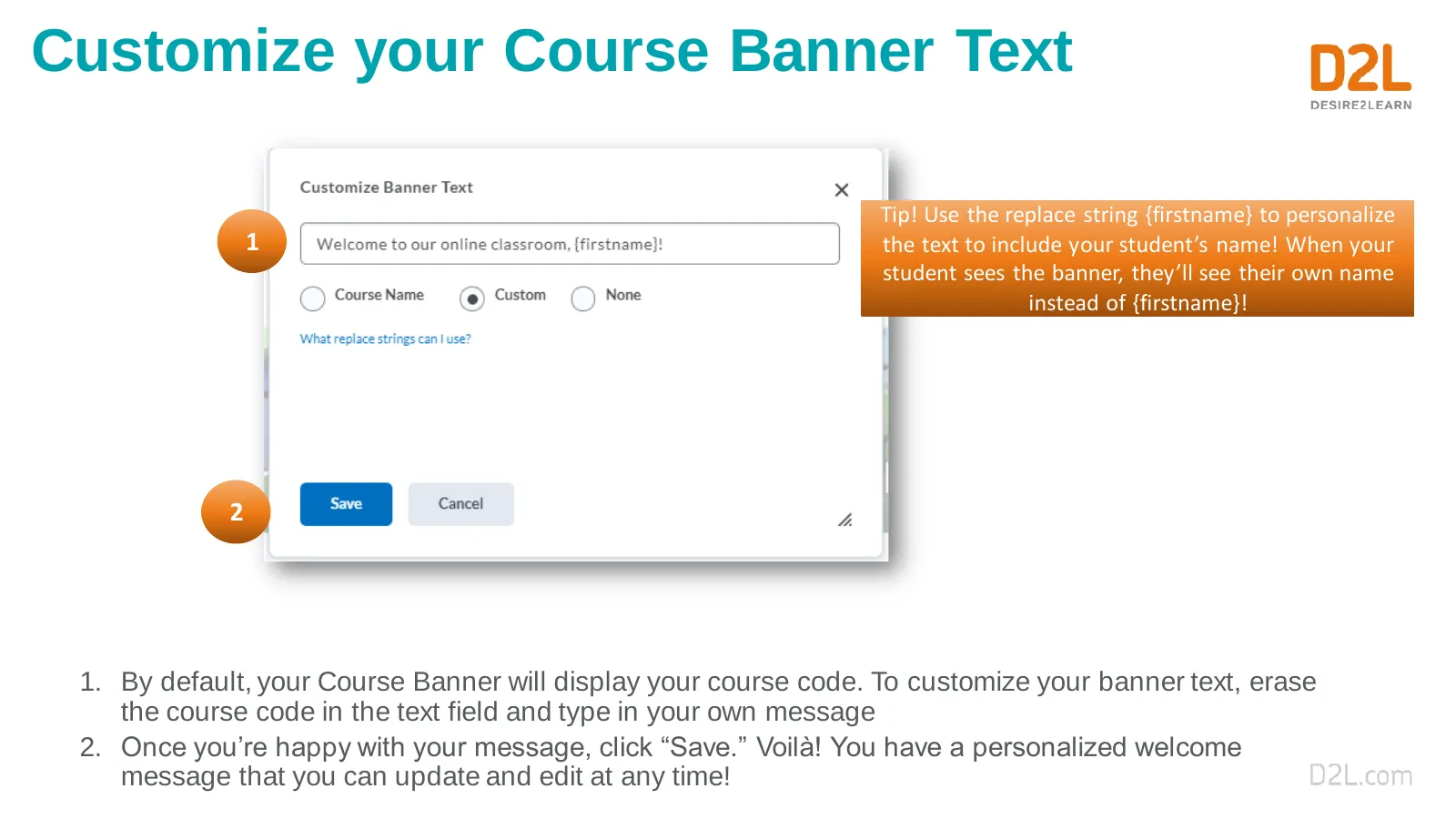
Slide 15: Customize your Course Banner Text
Customize your Course Banner Text Tip! Use the replace string {firstname} to personalize 1 the text to include your student’s name! When your student sees the banner, they’ll see their own name instead of {firstname}! 2 1. By default, your Course Banner will display your course code. To customize yo
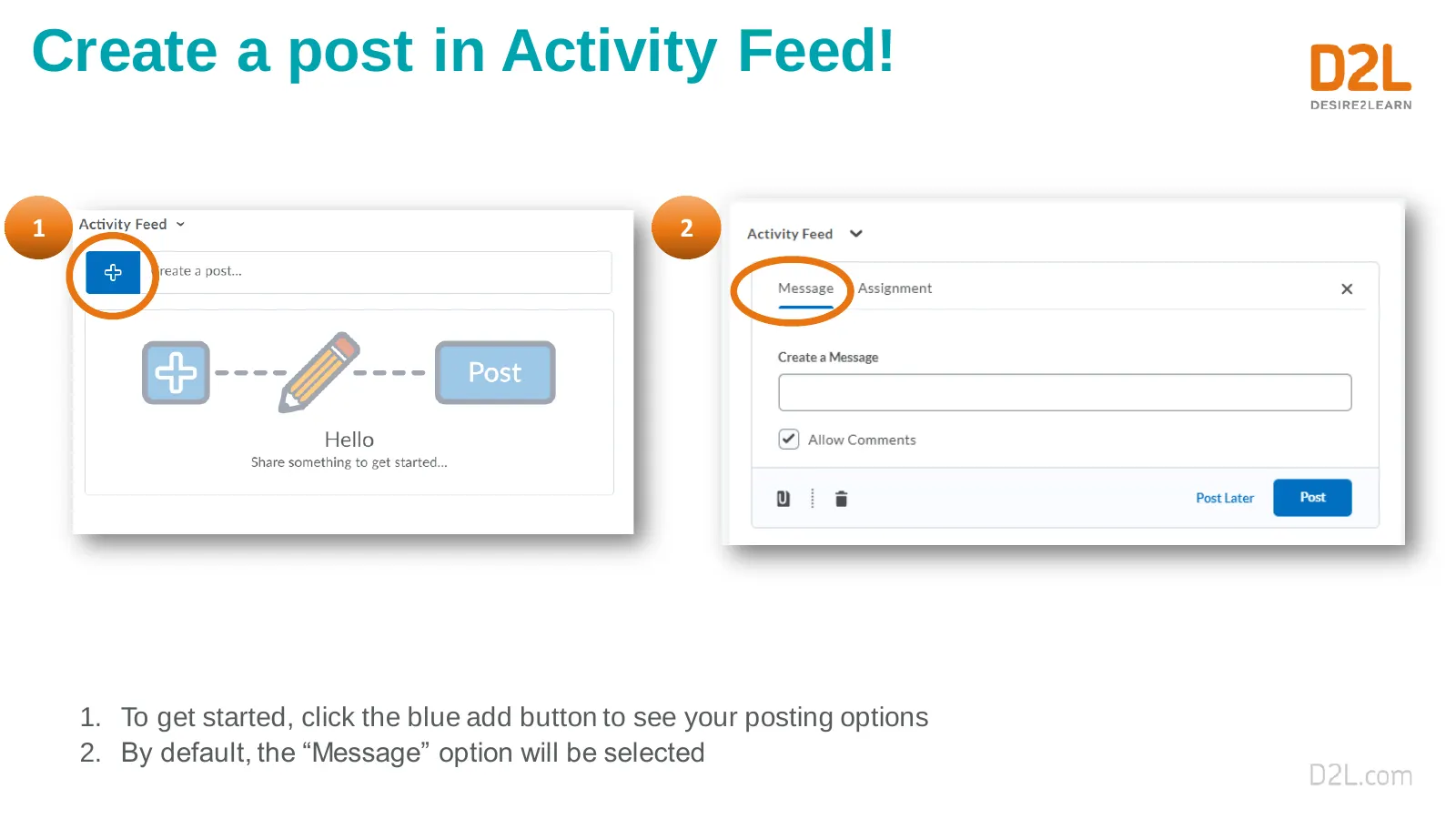
Slide 16: Create a post in Activity Feed!
Create a post in Activity Feed! 1 2 1. To get started, click the blue add button to see your posting options 2. By default, the “Message” option will be selected
Slide 17: Create a post in Activity Feed!
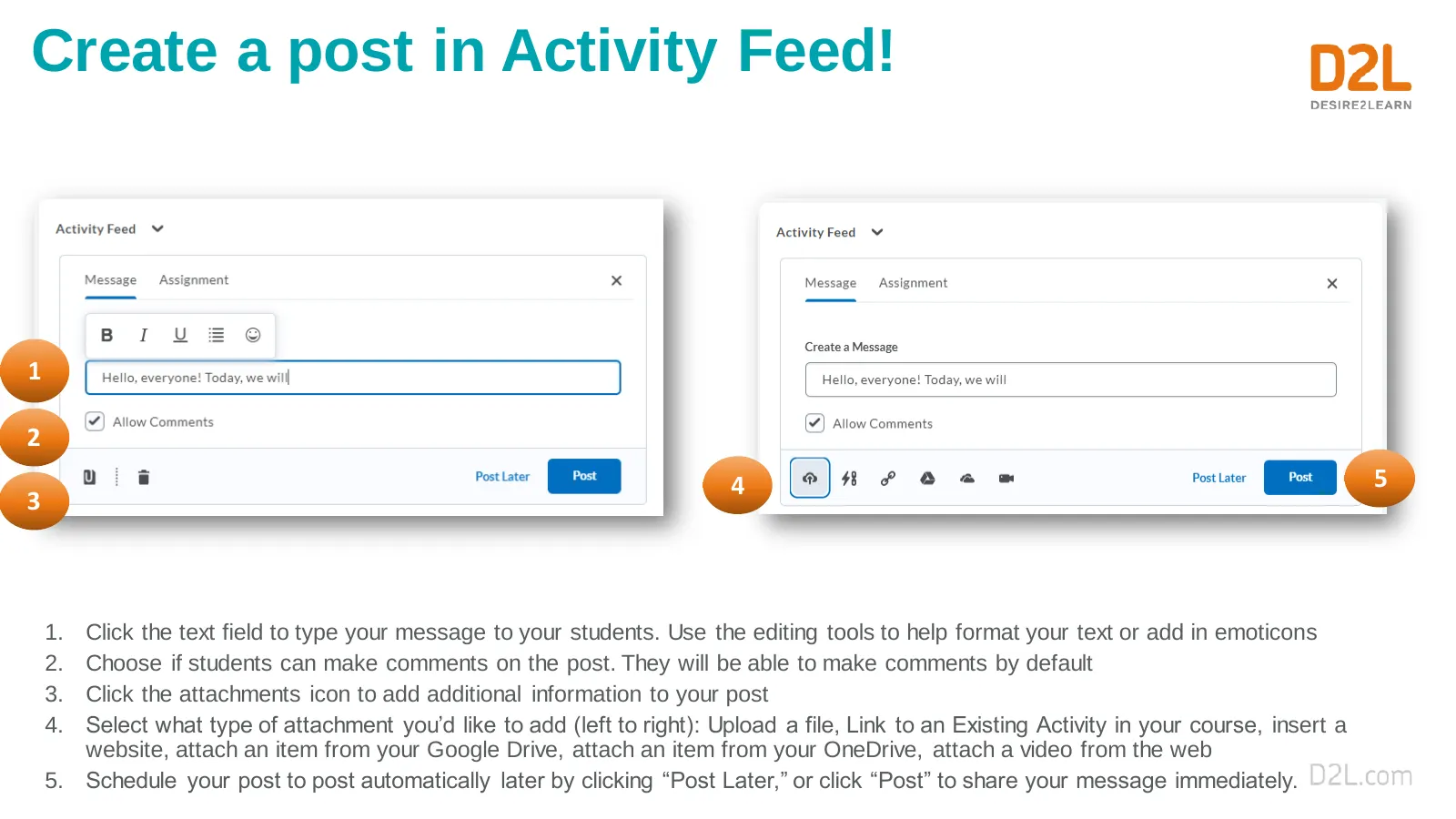
Create a post in Activity Feed! 1 2 4 5 3 1. Click the text field to type your message to your students. Use the editing tools to help format your text or add in emoticons 2. Choose if students can make comments on the post. They will be able to make comments by default 3. Click the attachments icon
Slide 18: Create a post in Announcements!
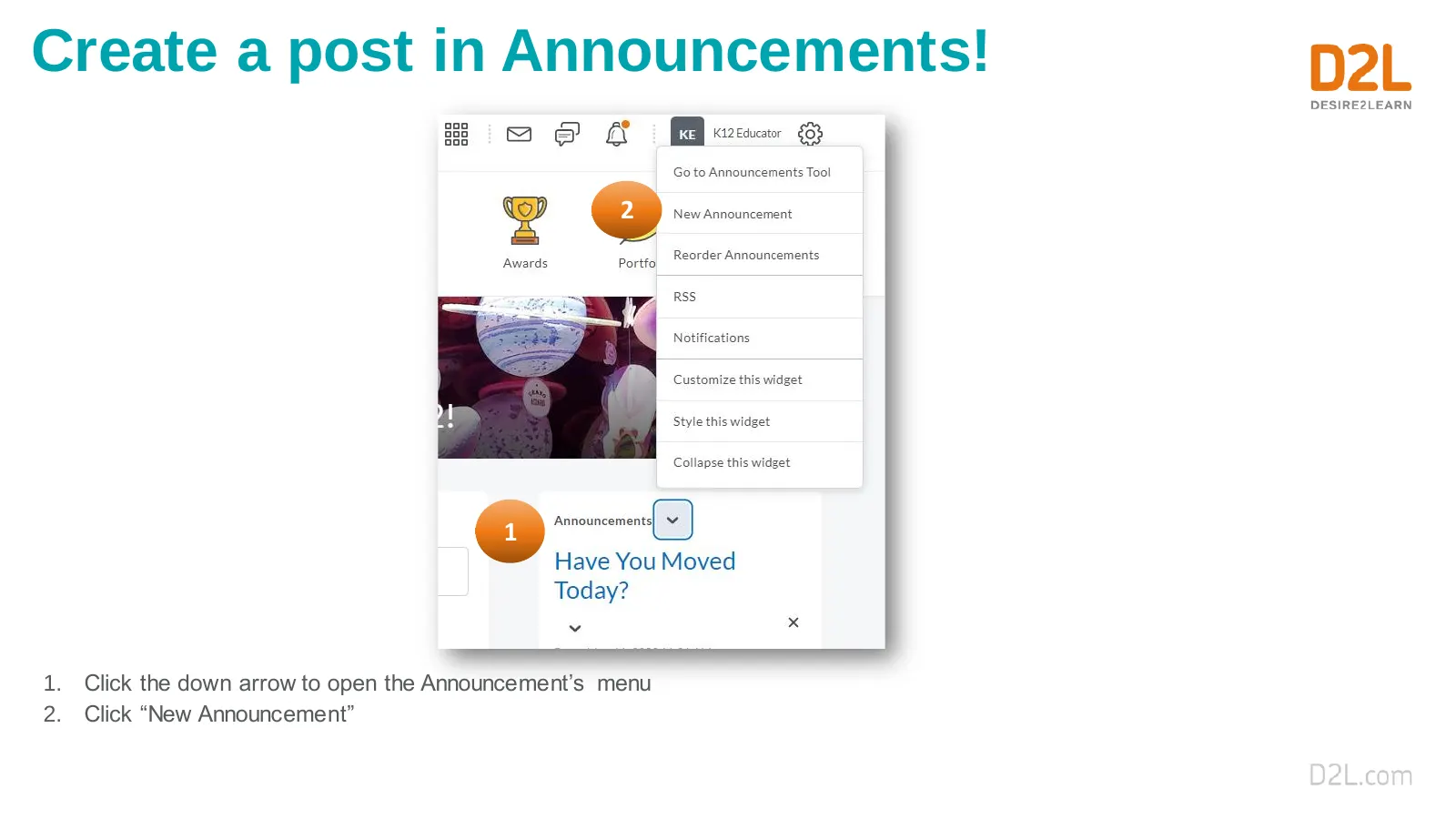
Create a post in Announcements! 2 1 1. Click the down arrow to open the Announcement’s menu 2. Click “New Announcement”
Slide 19: Create a post in Announcements!
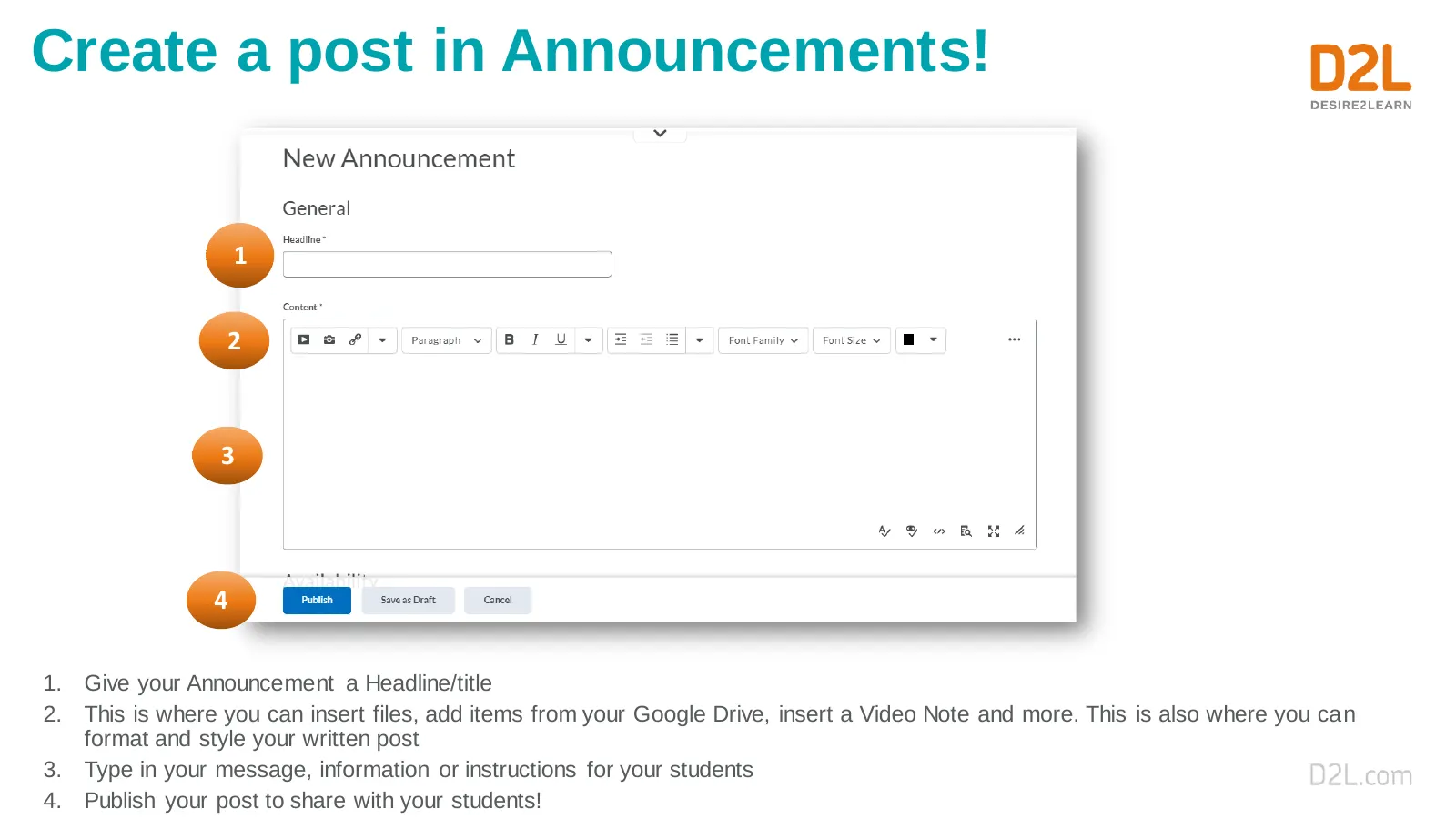
Create a post in Announcements! 1 2 3 4 1. Give your Announcement a Headline/title 2. This is where you can insert files, add items from your Google Drive, insert a Video Note and more. This is also where you can format and style your written post 3. Type in your message, information or instructions
Slide 20: Learning Objectives
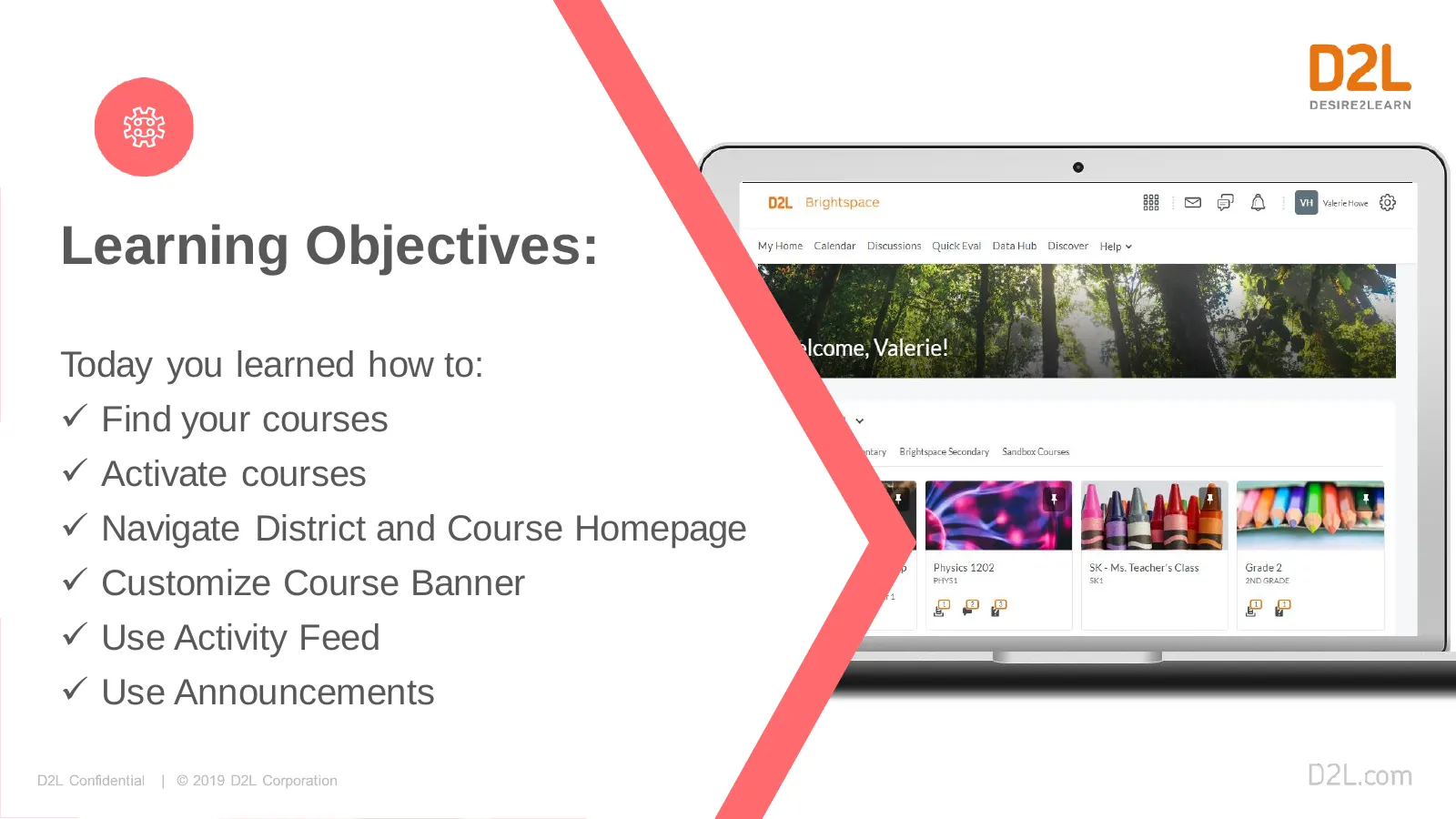
Learning Learning Objectives: Objectives Today you learned how to: ✓ Find your courses ✓ Activate courses ✓ Navigate District and Course Homepage ✓ Customize Course Banner ✓ Use Activity Feed ✓ Use Announcements
Slide 21: Give This a Try!
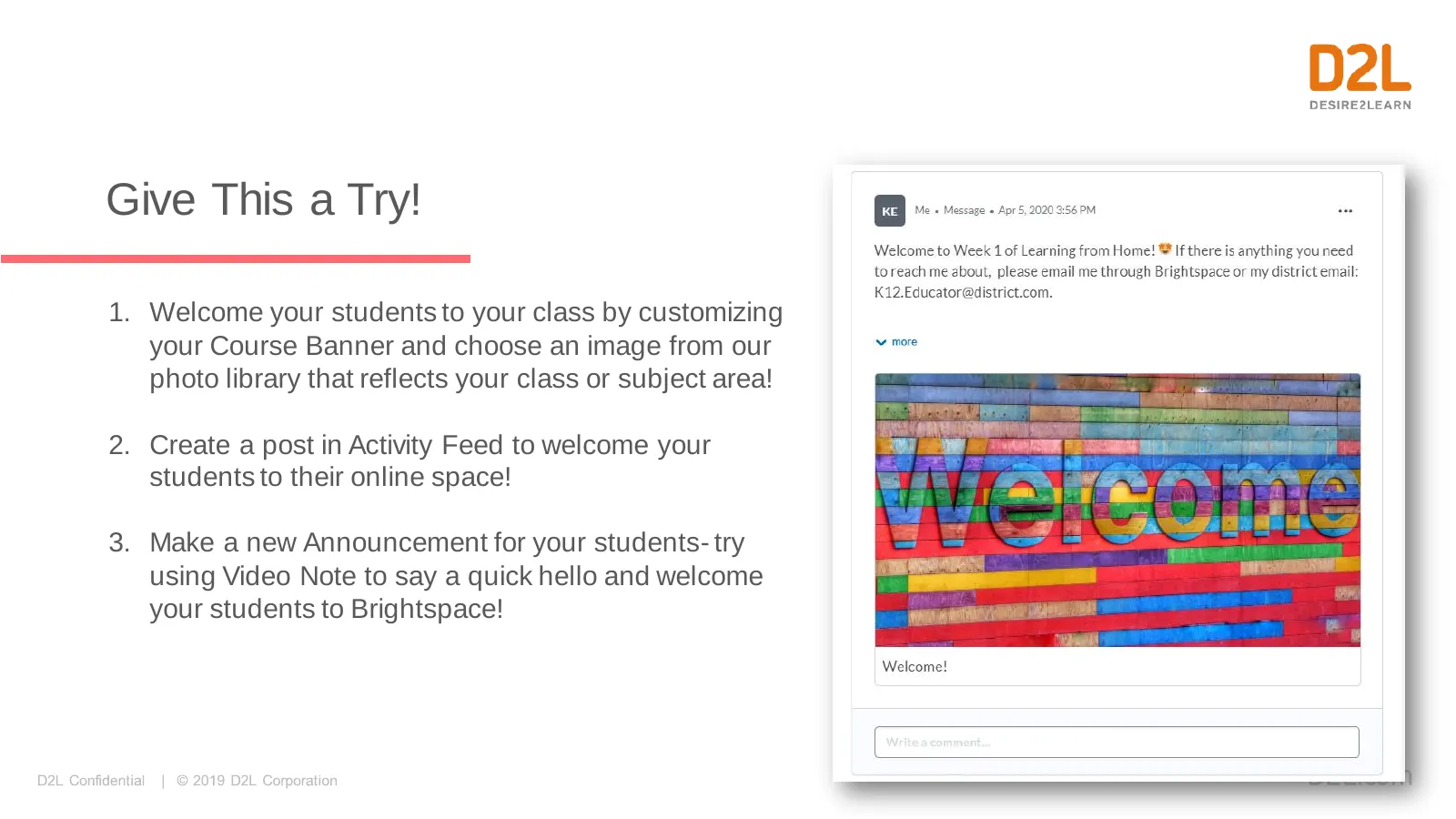
Give This a Try! 1. Welcome your students to your class by customizing your Course Banner and choose an image from our photo library that reflects your class or subject area! 2. Create a post in Activity Feed to welcome your students to their online space! 3. Make a new Announcement for your student
Slide 22: Educator Resources
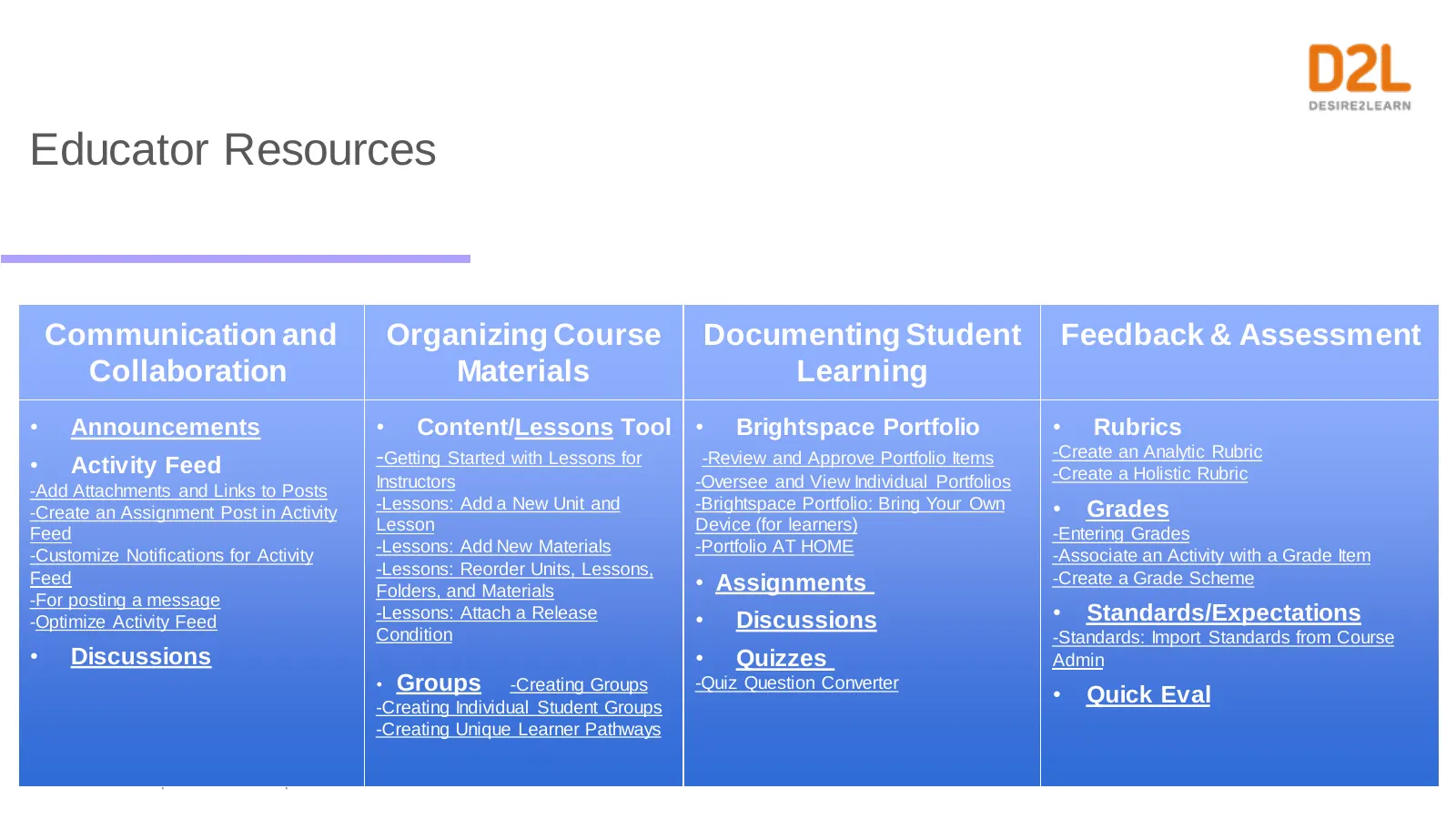
Educator Resources Communication and Organizing Course Documenting Student Feedback & Assessment Collaboration Materials Learning • Announcements • Content/Lessons Tool • Brightspace Portfolio • Rubrics -Getting Started with Lessons for -Review and Approve Portfolio Items -Create an Analytic Rubric
Slide 23: @valeriemhowe89
DESIRE2LEARN y @valeriemhowe89
Source: Internet Archive copy of pages.d2l.com
More decks from D2L, Inc.
 FY2026 Earnings Presentation20 slides · April 2026
 Q3 FY2026 Earnings Presentation19 slides · January 2026
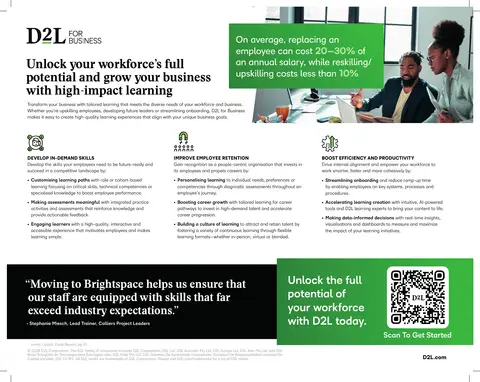 Fact Sheet (May 2025)1 slide · May 2025
 Q3 2025 Earnings Presentation23 slides · January 2025
 Q3 2024 Earnings Presentation20 slides · December 2023
 Investor Presentation (April 2023)15 slides · April 2023